Engati - User Guide
...
Template Message
RCS Template Creation
43 min
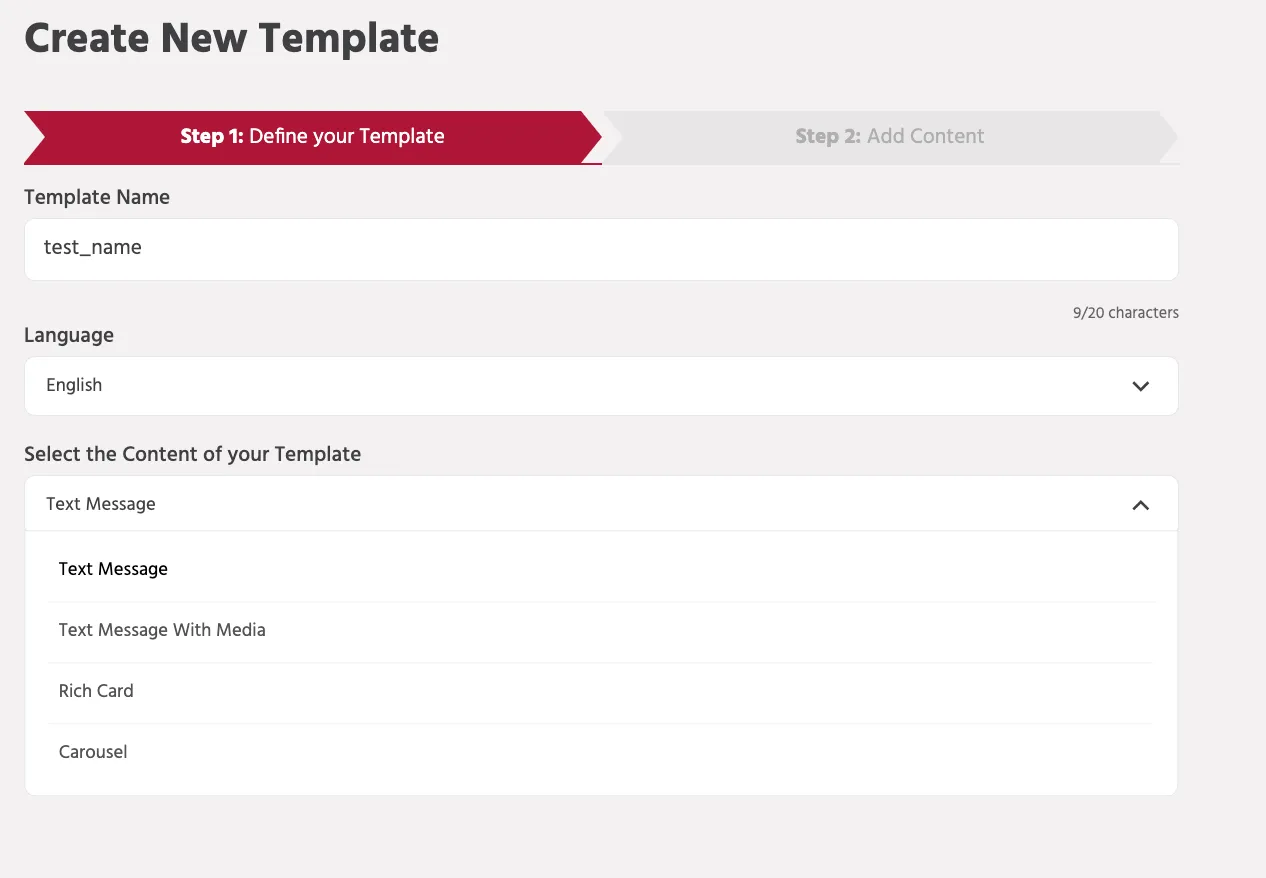
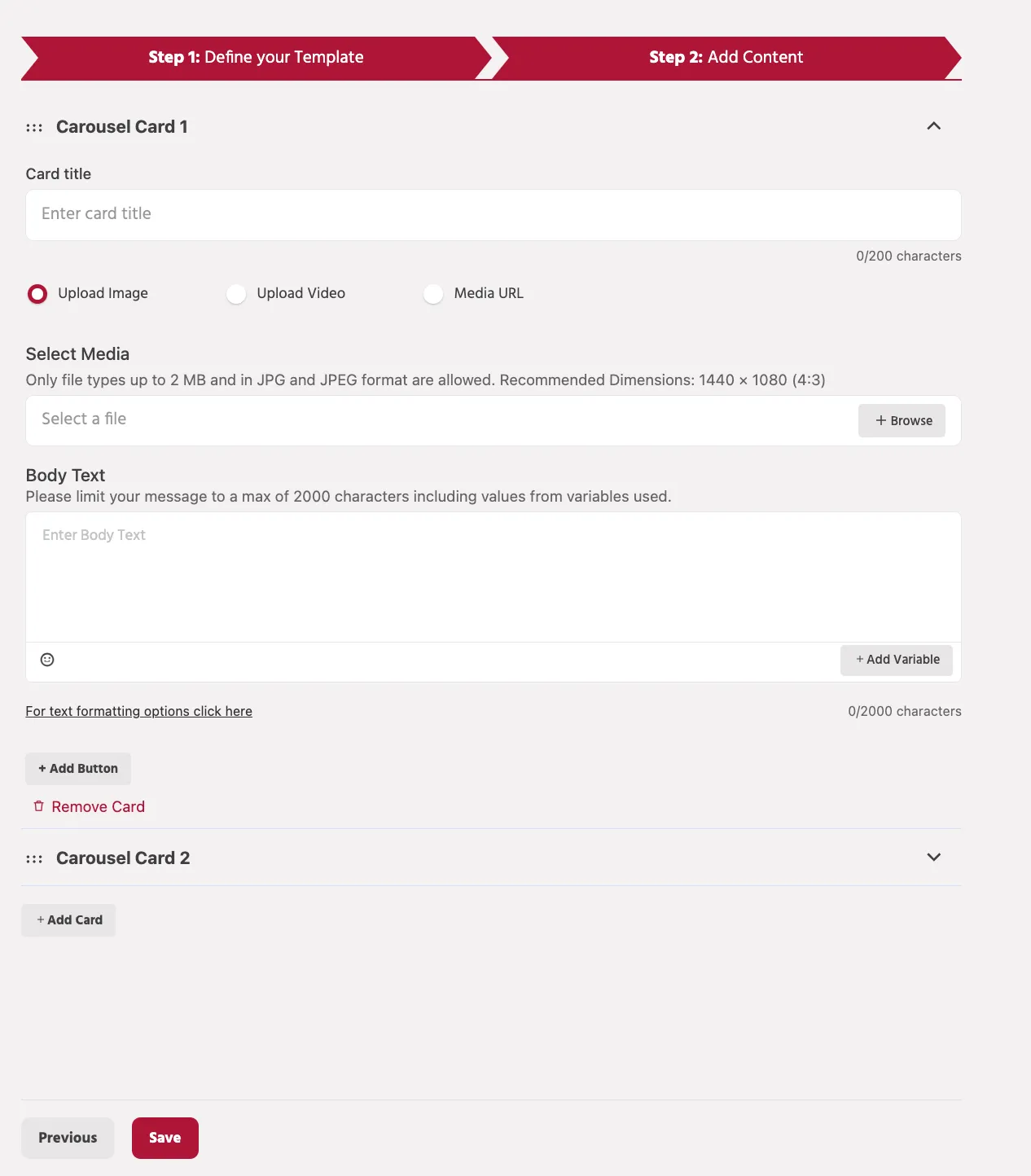
rcs templates allow businesses to create pre approved rich message formats directly from the engati portal ui these templates can be used for broadcasts, api triggered flows, and bot initiated conversations templates must be created and approved before they can be sent to users you can create rich card, carousel, text, and media templates under the rcs templates section creating an rcs template to create an rcs template navigate to marketing campaigns → rcs templates click create new template step 1 define your template template name the template name is the internal identifier used to manage and reference the template inside the engati platform guidelines use a clear and descriptive name that represents the purpose of the template the recommended length is up to 20 characters this name helps teams quickly identify the template when selecting it for broadcasts or bot workflows example order update promo offer support message language the language field defines the language in which the message will be sent to users this ensures the template is created and delivered in the correct language for your target audience for example english hindi spanish french selecting the appropriate language helps maintain clarity and improves user experience select the content of your template choose one of the following template types rich card carousel text message media click continue to proceed to content configuration step 2 add content the content fields will vary based on the selected template type in this step, you configure the message content that will be delivered to users the available fields depend on the template type selected in step 1 in the case of a carousel template, each message can contain multiple cards with media, text, and interactive buttons carousel card each carousel message consists of one or more cards every card represents an item with its own media, text, and actions card title the card title is the heading displayed at the top of the carousel card it should briefly describe the content or offer shown in the card media options you can attach media to the template to make the message more engaging the platform supports three ways to add media to a card upload image , upload video , and media url upload image select upload image to upload an image directly from your device guidelines supported formats jpg / jpeg maximum file size 2 mb recommended dimensions may vary depending on the card format and orientation images help provide visual context and improve user engagement within the message upload video select upload video to upload a video file directly from your device guidelines supported format mp4 maximum allowed file size after processing 10 mb a thumbnail image may be required for video preview videos are useful for demonstrations, announcements, or promotional content body text the body text is the main message shown inside the card it can be used to provide additional information about the product, offer, or service maximum limit 2000 characters the character count includes values inserted through variables variables you can personalize messages by inserting variables using the add variable option variables are dynamically replaced with user specific information when the message is sent example "hello {{1}}, check out this offer just for you!" buttons buttons allow users to interact with the message directly click add button to add interactive actions such as quick reply – sends a predefined response back to the bot url – opens a webpage when clicked phone number – initiates a phone call to the specified number buttons help guide users toward specific actions such as viewing a product page or contacting support template types rich card template a rich card is a single interactive message card that combines media, text, and action buttons in one structured format it allows businesses to send visually engaging messages to users through the rcs channel rich cards are commonly used for promotions, product highlights, service updates, and announcements , where a single focused message needs to be delivered with clear actions card orientation vertical components of a vertical rich card a rich card is a structured message format used in rcs that combines media, text, and interactive buttons within a single card this format enables businesses to deliver visually engaging messages while allowing users to interact directly with the content a rich card typically includes the following components card title the card title is the main heading displayed at the top of the card it briefly describes the message content and helps users quickly understand the purpose of the message example "check out our latest offers!" media you can attach visual media to make the message more engaging supported media options include image upload – upload an image directly from your device video upload – upload a video to enhance the visual presentation media url – provide a hosted media link if the media is stored externally media improves user engagement and provides visual context for the message media requirements (vertical card ) when adding media to a rich card, ensure the following requirements are met image requirements supported formats jpg / jpeg maximum file size 2 mb recommended dimensions 1440 × 720 px (2 1 aspect ratio) using the recommended dimensions ensures the card displays properly across supported rcs devices video requirements supported format mp4 maximum file size after processing 10 mb if uploading a video, a thumbnail image may also be required to display a preview of the video media url requirements when using a media url instead of uploading files the url must be publicly accessible the link must point directly to the media file , not to a webpage file size limits remain the same as uploaded media example https //example com/product image jpg body text the body text section contains the main message content it can include additional details such as product descriptions, offers, instructions, or announcements you can also insert variables to personalize messages for users example hello {{1}}, check out our latest offers! variables allow dynamic values to be inserted when the message is delivered to the user body text limits maximum character limit 2000 characters character count includes values inserted through variables buttons buttons allow users to interact with the message and perform actions directly from the card supported button types include quick reply sends a predefined response back to the bot and continues the conversation in the configured bot flow url button opens an external webpage when the user clicks the button phone number button allows users to directly call a specified phone number buttons help guide users toward the next action, such as visiting a website, contacting support, or continuing the conversation with the bot best practices use high quality images or videos to increase user engagement keep the card title short and clear ensure media files follow the recommended dimensions and size limits use buttons strategically to guide users toward the desired action properly structured rich cards can significantly improve interaction and response rates in rcs conversations card orientation horizontal when creating a rich card template, you can choose the orientation of the card layout the horizontal orientation displays the media and text side by side, allowing the image or video to appear on one side and the message content on the other this layout is useful when you want to emphasize visual content while still providing descriptive text and action buttons within the same card components of a horizontal rich card a horizontal rich card includes the following components card title media body text buttons these elements work together to deliver a visually engaging and interactive message card title the card title is the main heading of the card that briefly describes the message content it helps users quickly understand the purpose of the message example check out our latest offers! character limit maximum 200 characters media media helps make the message more engaging by adding visual context to the content in a horizontal rich card , the media is displayed on either the left or right side of the card, while the text content appears on the opposite side supported media options include upload image – upload an image directly from your device upload video – upload a video file to enhance the visual presentation media url – provide a hosted media link if the media is stored externally media requirements (horizontal card) to ensure proper display across supported rcs devices, the media should follow the recommended specifications image requirements supported formats jpg / jpeg maximum file size 2 mb recommended dimensions 768 × 1024 pixels aspect ratio 3 4 following the recommended image dimensions helps maintain proper card layout and ensures the media displays correctly on supported devices video requirements supported format mp4 maximum file size after processing 10 mb videos help enhance engagement but should remain within the supported size limits for optimal performance media url requirements if using a media url instead of uploading files the url must be publicly accessible it must point directly to the media file file size and format restrictions remain the same example https //example com/product video mp4 body text the body text contains the main message content displayed in the card it can include additional information such as product details, offers, instructions, or announcements you can also include variables to personalize the message example hello {{1}}, explore our latest collection today! body text limits maximum 2000 characters character count includes values inserted through variables buttons buttons allow users to interact with the message directly from the card supported button types include quick reply sends a predefined response back to the bot and continues the conversation in the configured bot flow url button opens an external webpage when the button is clicked example use cases visit a website view product details access promotional offers phone number button allows users to directly call a phone number from the message example use cases contact customer support call a sales representative request assistance best practices use high quality media that follows the recommended dimensions keep the card title concise and clear use buttons to guide users toward meaningful actions ensure media files are optimized for faster loading test the card before sending it in broadcasts or campaigns rich card carousel a rich card carousel allows you to send multiple rich cards within a single message each card can contain media, text, and interactive buttons, enabling users to browse through multiple items by swiping horizontally carousel card structure each card in a carousel can contain the following elements card title the heading displayed at the top of the card that summarizes the content media media can be added to visually enhance the card supported options include image upload video upload media url media provides visual context and helps increase user engagement body text the body text contains the main message content of the card this section can include details such as product descriptions, promotional information, or instructions variables can also be added to personalize the message for users example hello {{1}}, explore our latest products! buttons buttons allow users to interact with the message directly supported button types include quick reply – sends a predefined response back to the bot to continue the conversation url button – opens an external webpage when clicked phone number button – allows users to call a specified phone number buttons help guide users toward the next action, such as visiting a website, viewing product details, or contacting support adding multiple cards you can add multiple cards within a carousel to display different content items in a single message users can scroll through the cards horizontally to explore the available options this format is commonly used for product catalogs promotional campaigns service listings feature highlights card width + media height image dimensions aspect ratio max file size video thumbnail size short + short 960 × 720 px 5 4 max 1 mb thumbnail 565 × 452 px short + medium 576 × 720 px 4 5 max 1 mb thumbnail 362 × 452 px medium + short 1440 × 720 px 2 1 max 1 mb thumbnail 904 × 452 px medium + medium 1440 × 1080 px 4 3 max 1 mb thumbnail 605 × 452 px text message a text message template allows you to send a simple text based message to users through the rcs channel this format is useful for delivering clear and direct communication without media elements text messages can include message content, variables for personalization, and interactive buttons , enabling users to take actions directly from the conversation creating a text message template to create a text message template enter a template name to identify the template within the platform select the language for the message under select the content of your template , choose text message once the template type is selected, you can proceed to add the message content body text the body text field contains the main message content that will be sent to users maximum length 2500 characters the character count includes values inserted through variables you can also insert variables to personalize messages dynamically example hello {{1}}, your order has been successfully confirmed variables allow the system to automatically replace placeholders with user specific data when the message is sent buttons buttons allow users to interact with the message and perform actions directly from the chat supported button types include quick reply sends a predefined response back to the bot, allowing the conversation to continue based on the user's selection url button opens an external webpage when the user clicks the button phone number button allows users to initiate a phone call to a specified phone number each button requires a button label , which defines the text displayed to the user use cases text message templates are commonly used for order confirmations appointment reminders notifications and alerts customer support updates service announcements this format ensures clear communication while still allowing users to interact with the message through buttons text message with media a text message with media template allows you to send a message that includes both text content and media elements such as images, videos, or documents this format helps enhance communication by combining informative text with visual or supporting media it is commonly used for promotions, announcements, product updates, or informational messages where visual context improves user understanding creating a text message with media template step 1 define your template to create a text message with media template, configure the following details template name – enter a unique name to identify the template within the platform language – select the language in which the message will be sent select the content of your template – choose text message with media as the template type once the template type is selected, proceed to the next step to add the message content step 2 add content in this step, you configure the text, media, and interactive buttons that will be included in the message body text the body text field contains the main message content maximum length 2500 characters character count includes variables used in the message you can insert variables to personalize messages dynamically example hello {{1}}, check out our latest product updates! variables allow the system to replace placeholders with user specific data when the message is delivered media you can attach media to the message to make it more engaging supported media types include image video document media helps provide visual context and improves message engagement buttons buttons allow users to interact with the message directly supported button types include quick reply sends a predefined response back to the bot to continue the conversation url button opens an external webpage when clicked phone number button allows users to call a specified phone number each button requires a button label , which defines the text displayed to the user use cases text message with media templates are commonly used for promotional campaigns product launches event announcements informational updates customer support communication this format allows businesses to combine text communication with visual or supporting media , creating a more engaging messaging experience