Sitemap Setup Guide
Step 1 — Select Sitemap Source
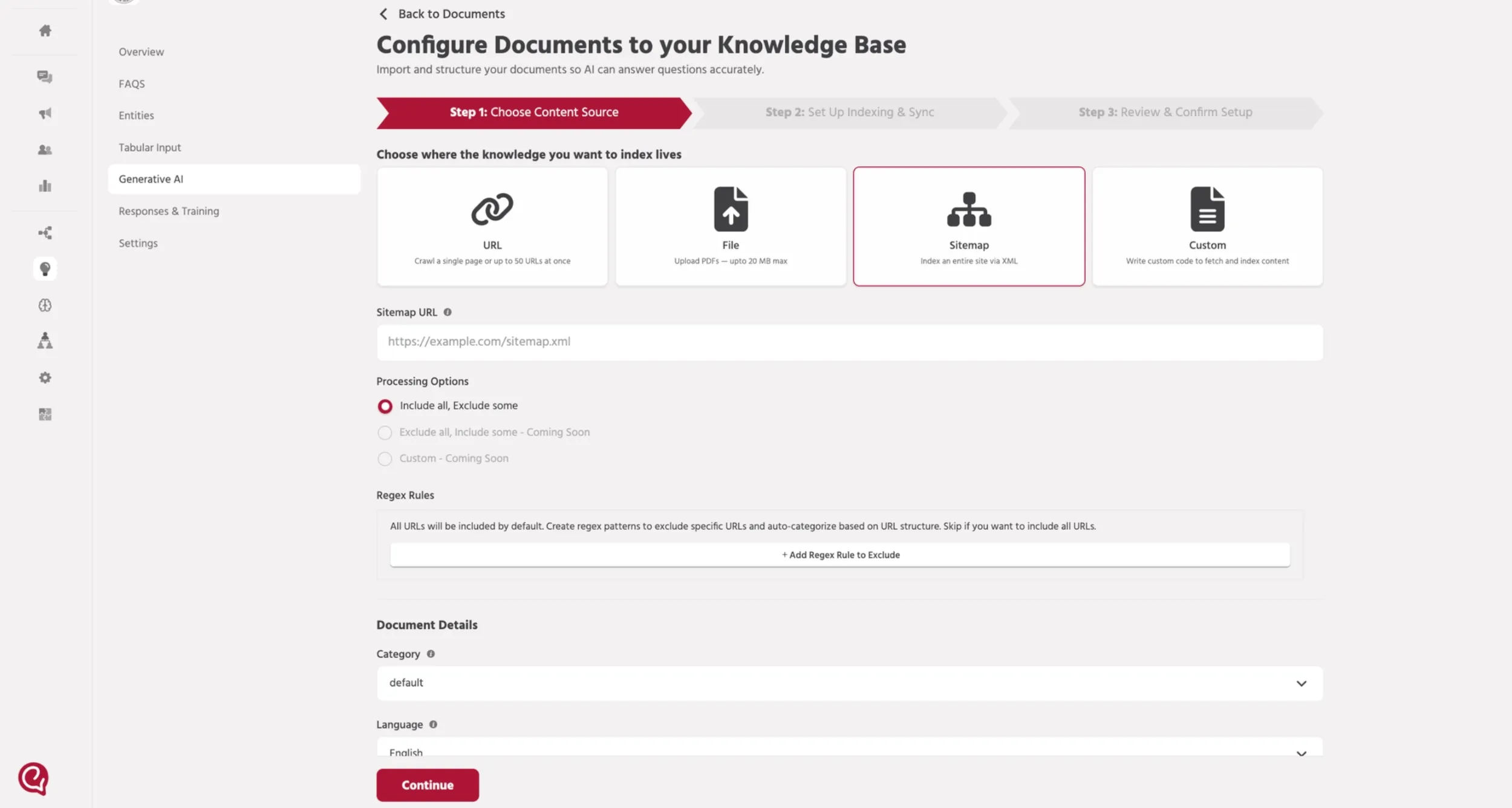
Navigate to Train → Generative AI → Documents → Upload Document.
Select Sitemap as the content source.
Step 2 — Enter Sitemap URL
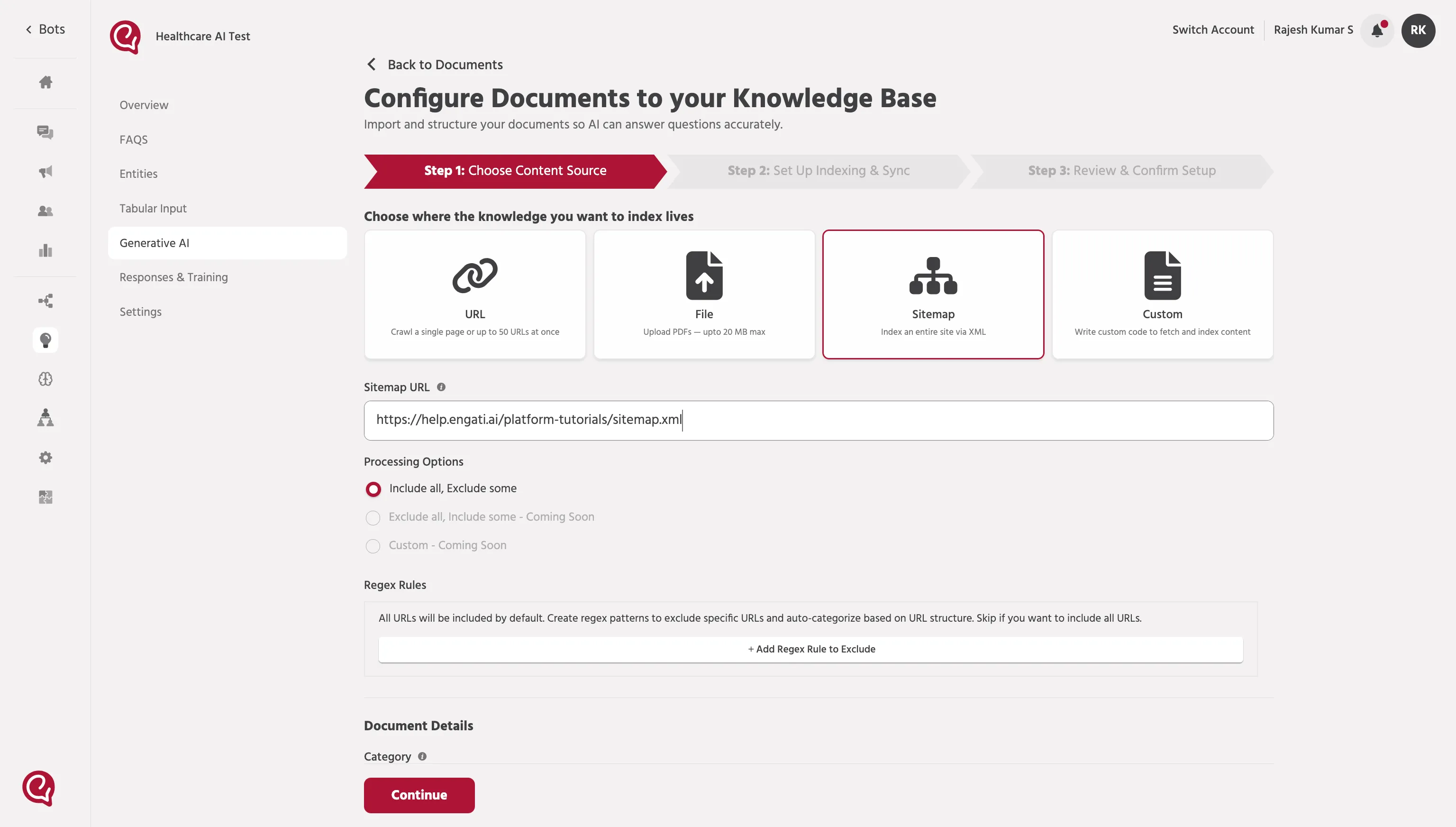
Provide the Sitemap XML URL of the website.
Example:
The system will crawl all URLs listed inside the sitemap.
Step 3 — Configure Processing Options
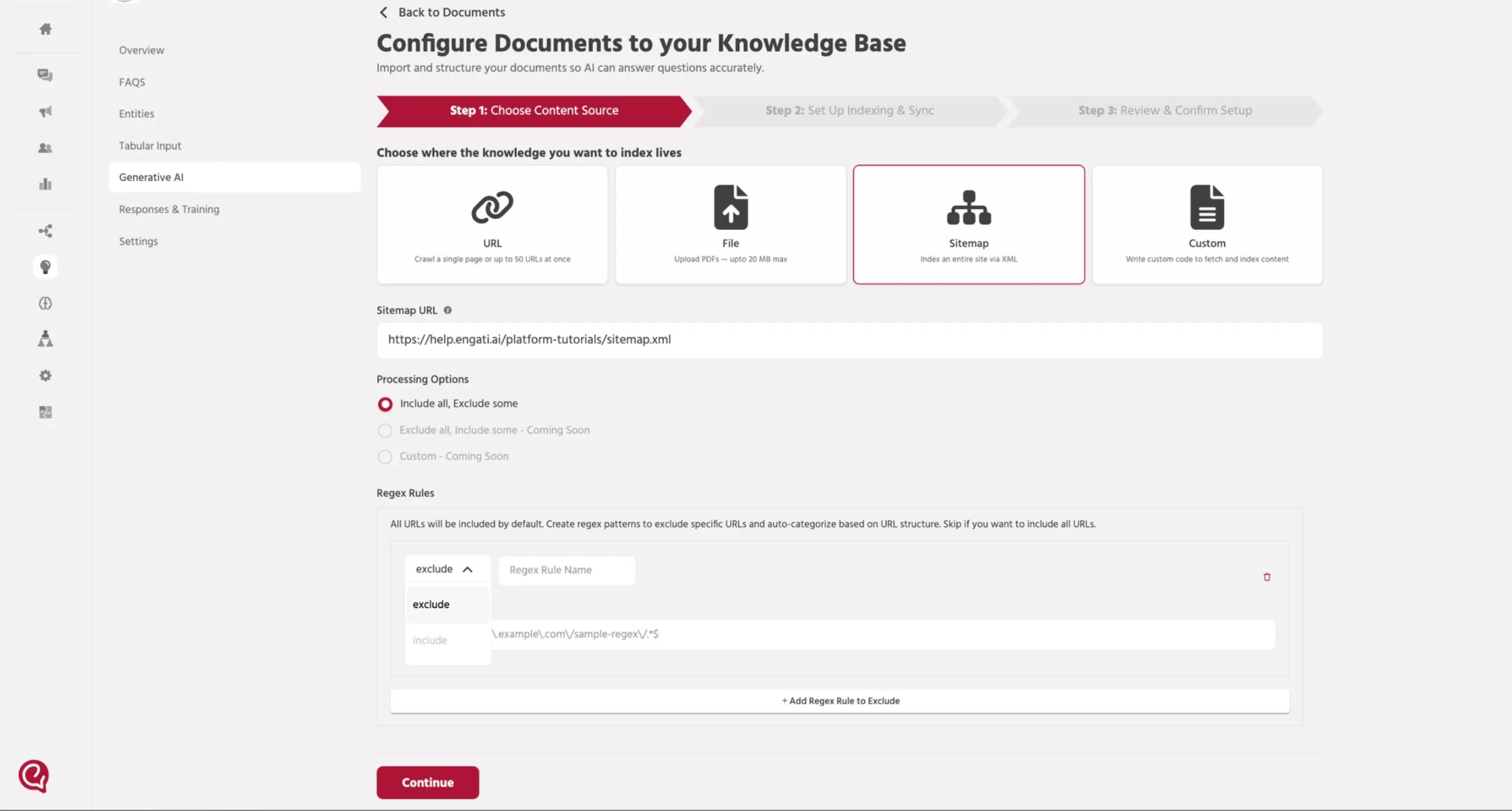
Select how the URLs should be processed from the sitemap.
Available option: Include all, Exclude some
This option crawls all URLs by default and allows you to exclude specific pages using regex rules.
Other options such as Exclude all, Include some and Custom will be available in future releases.
Step 4 — Configure Regex Rules (Optional)
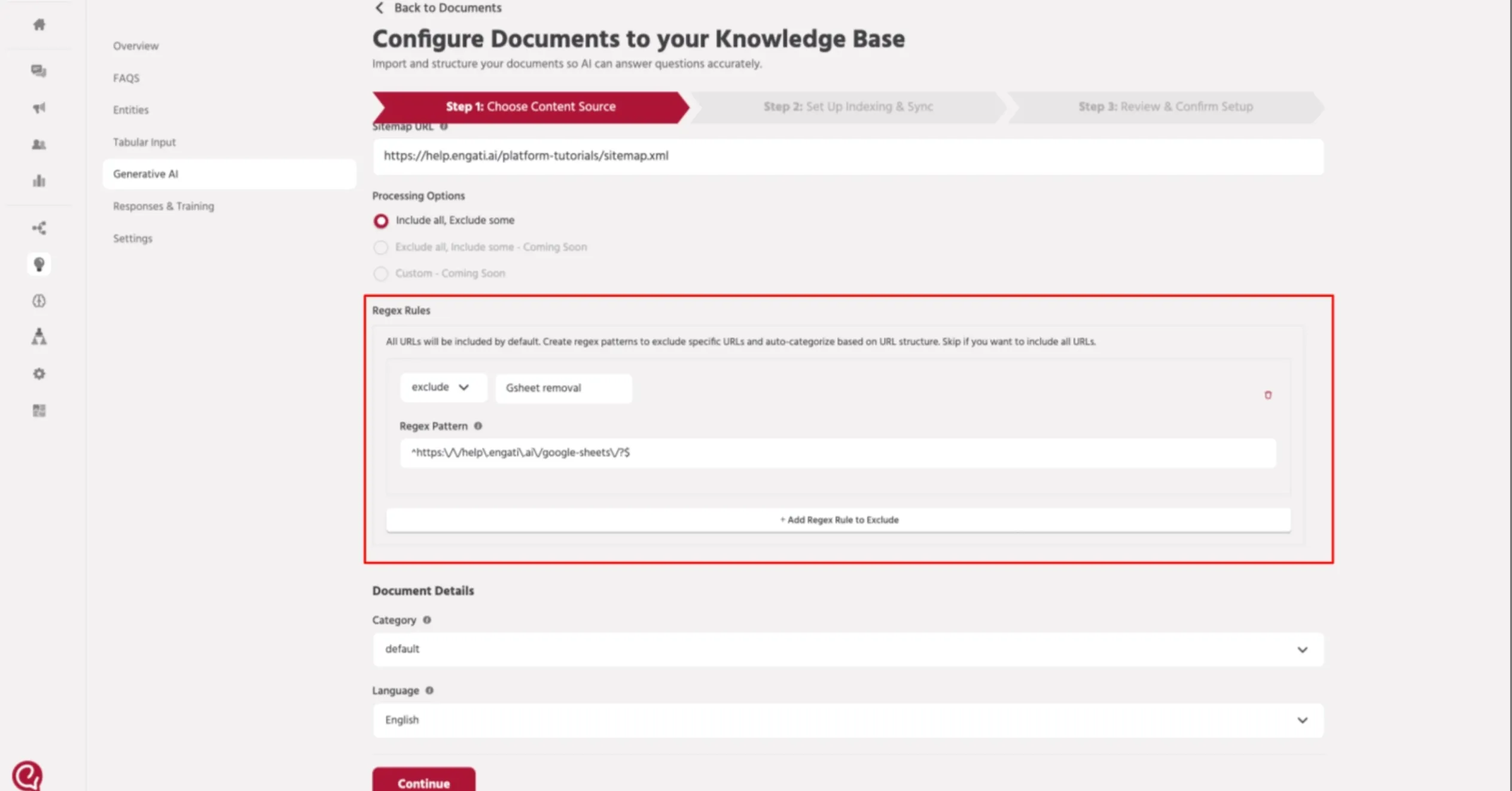
Regex rules allow you to exclude specific URLs from being indexed.
Example sitemap entry:
Example regex pattern:
You can create multiple rules using Add Regex Rule to Exclude.
Category: Select the appropriate category.
Language: Choose the language used on the website.
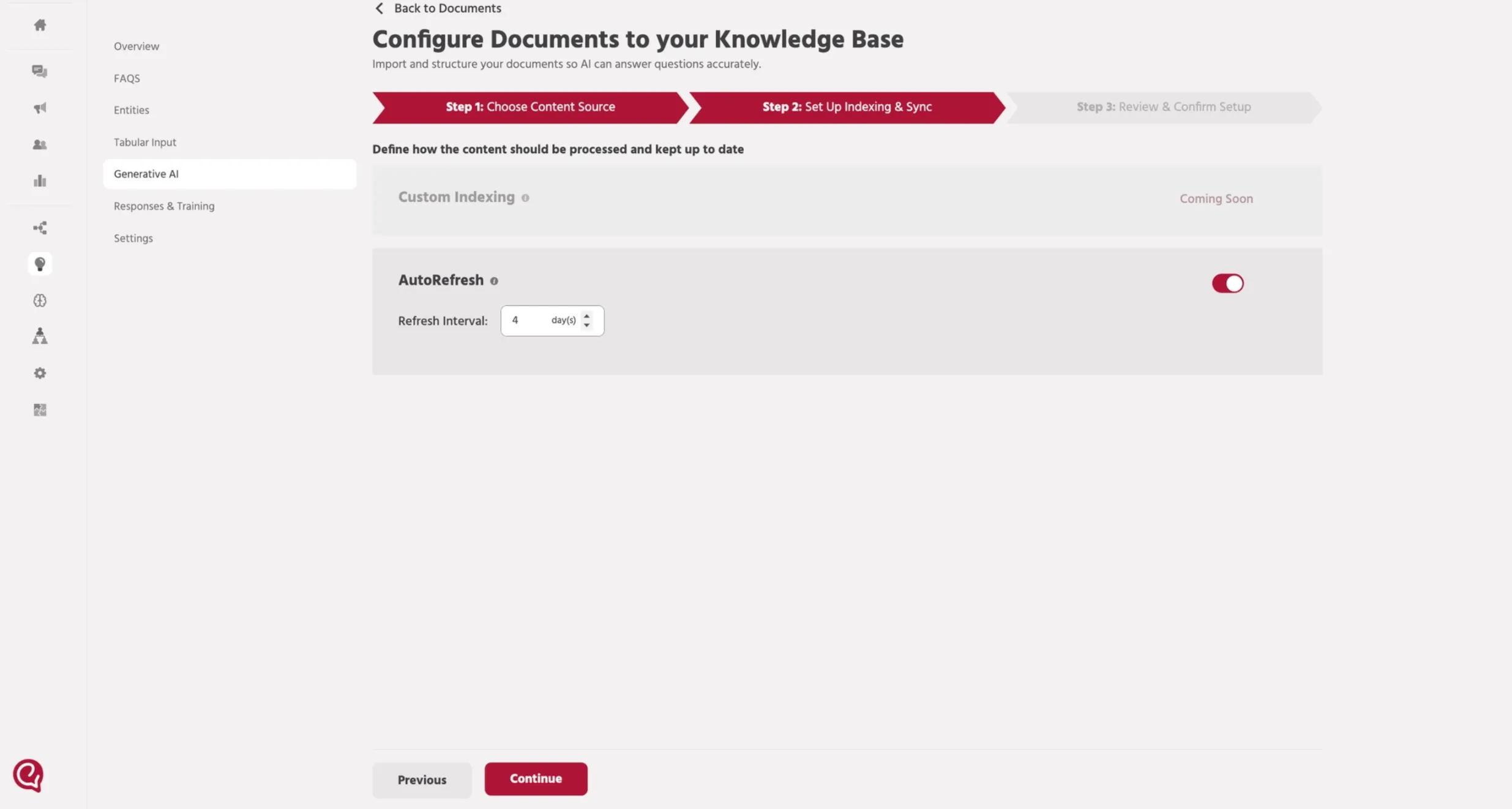
Step 5 - Set up Indexing & Sync
You can enable Auto Refresh to automatically re-index the sitemap content at regular intervals.
When Auto Refresh is enabled, the system will crawl the sitemap again and update the indexed content based on the configured refresh interval.
Refresh Interval
Specify how frequently the sitemap should be refreshed.
Example: 7 days – The system will re-crawl the sitemap and update the indexed pages every 7 days.
This ensures that any new or updated webpages in the sitemap are automatically included in the AI knowledge base.
Step 5 — Review Setup
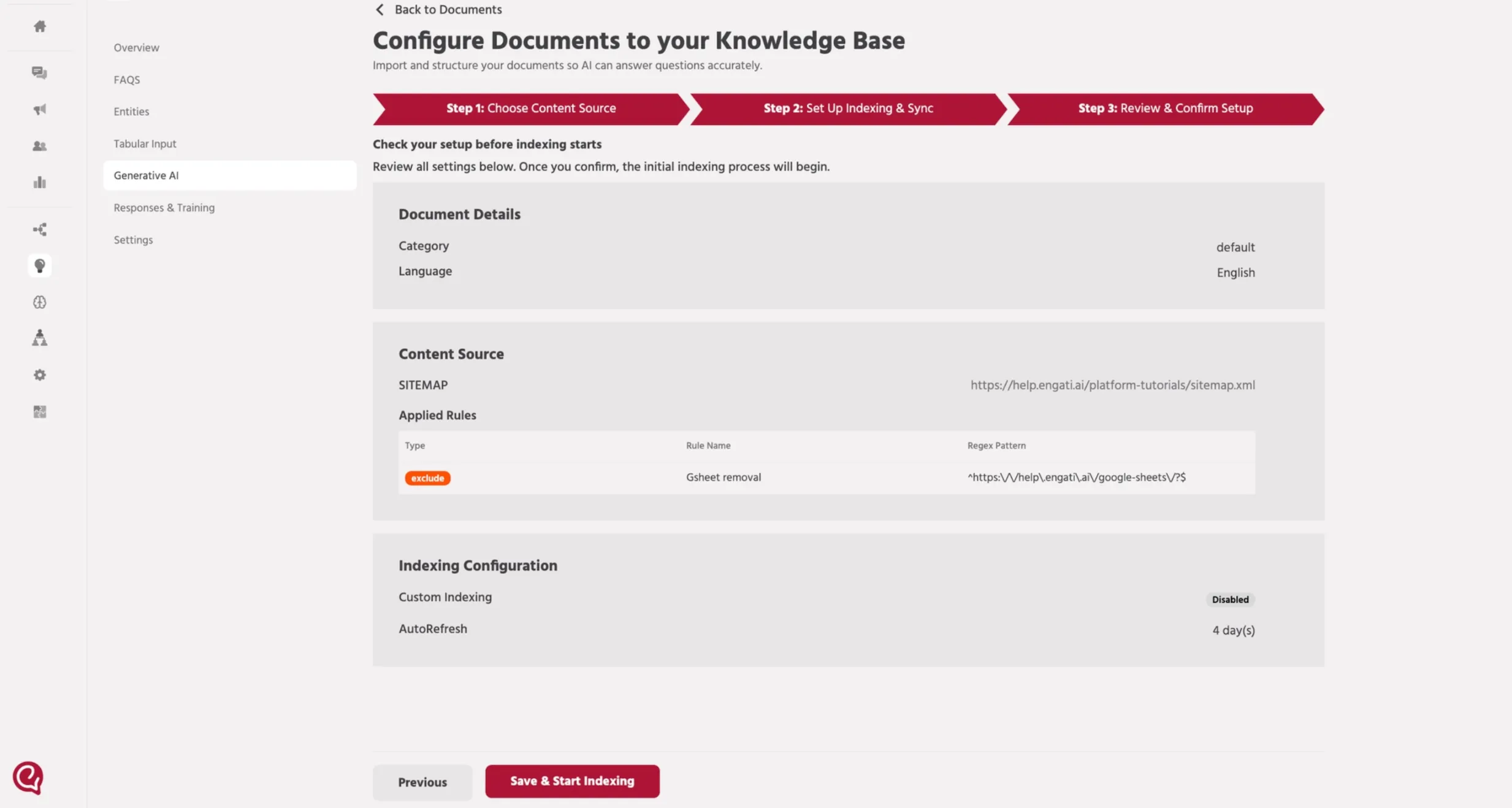
Verify the sitemap URL, regex rules, and document details.
Click Save & Start Indexing to begin crawling the website
📚 Next Steps
Once the sitemap indexing status shows Ready to Search, configure the agent workflow so the AI can retrieve knowledge from the indexed website content.
➡️ Continue with 3. Path SetupPath setup for Agents