RAG Path Setup
Once the document or custom script status shows Ready to Search, the next step is to configure a Path so the agent can retrieve trained knowledge during conversations.
This path uses a JSON API node to call the RAG Search API and fetch relevant results based on the user query.
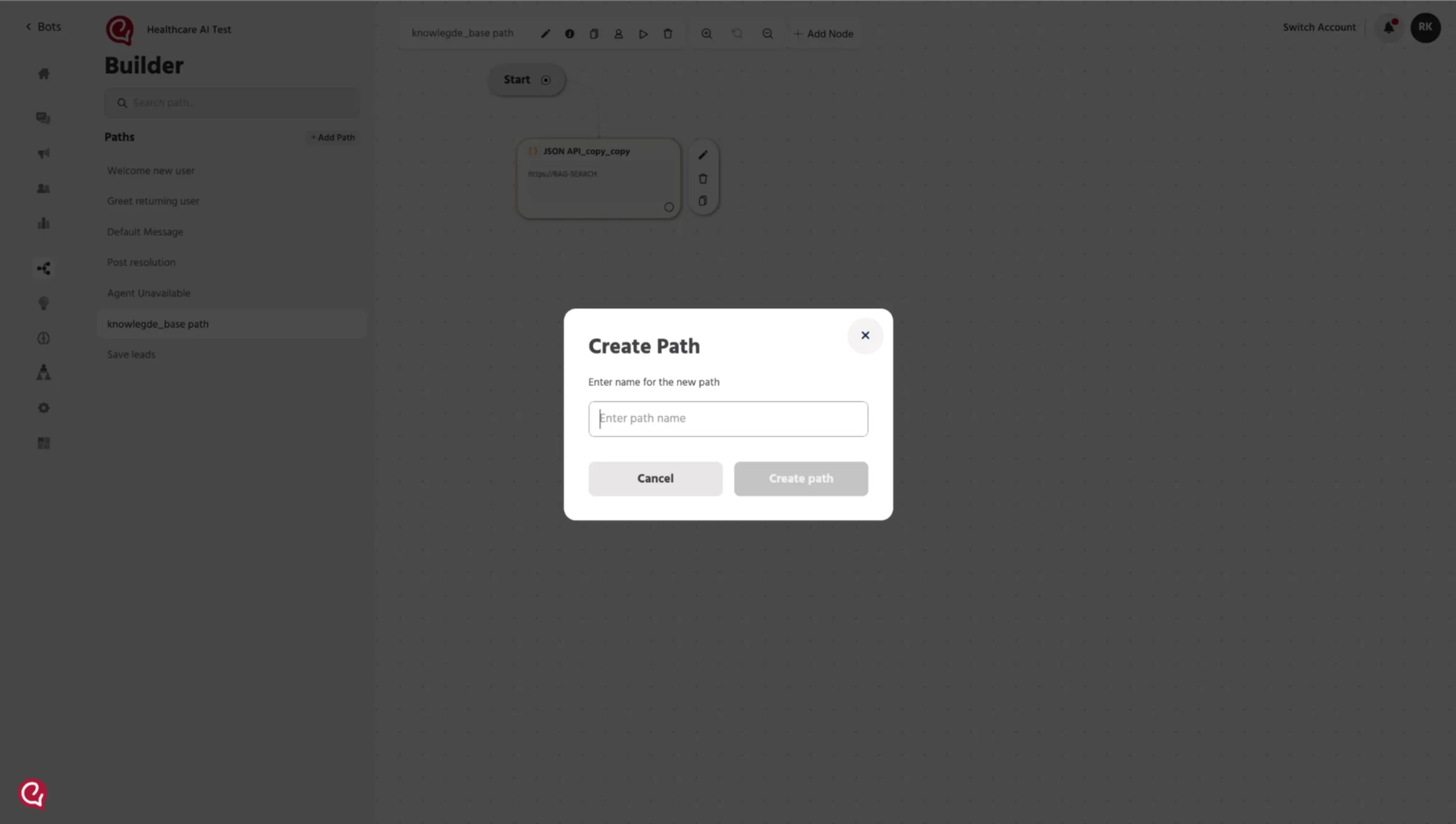
Step 1 — Create a New Path
Go to the Builder section.
Click + Add Path and create a new path.
Example path name: knowledge_base path
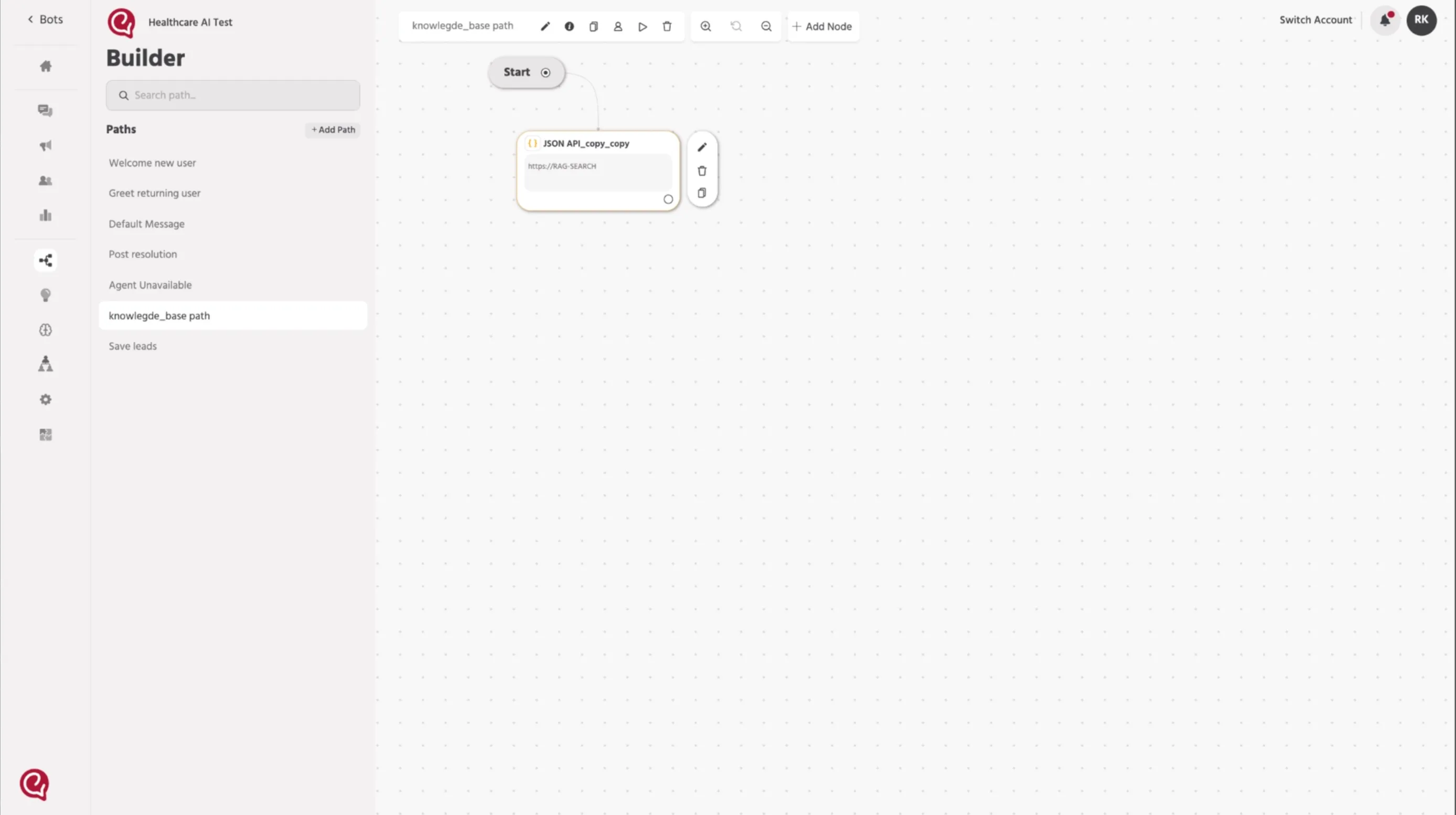
Step 2 — Add a JSON API Node
Inside the path, click Add Node and select JSON API.
This node will be used to call the RAG API and fetch trained knowledge.
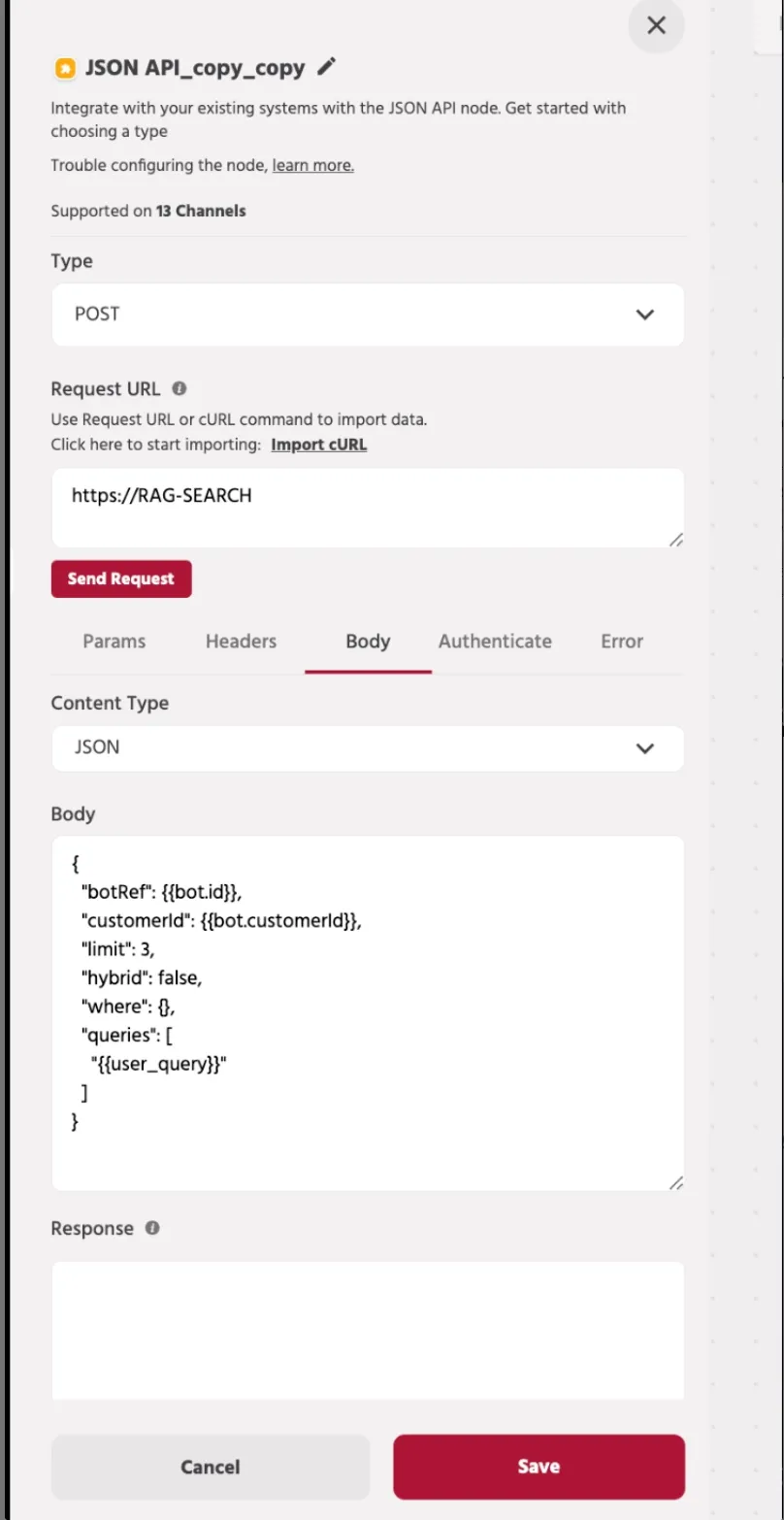
Step 3 — Configure the JSON API Request
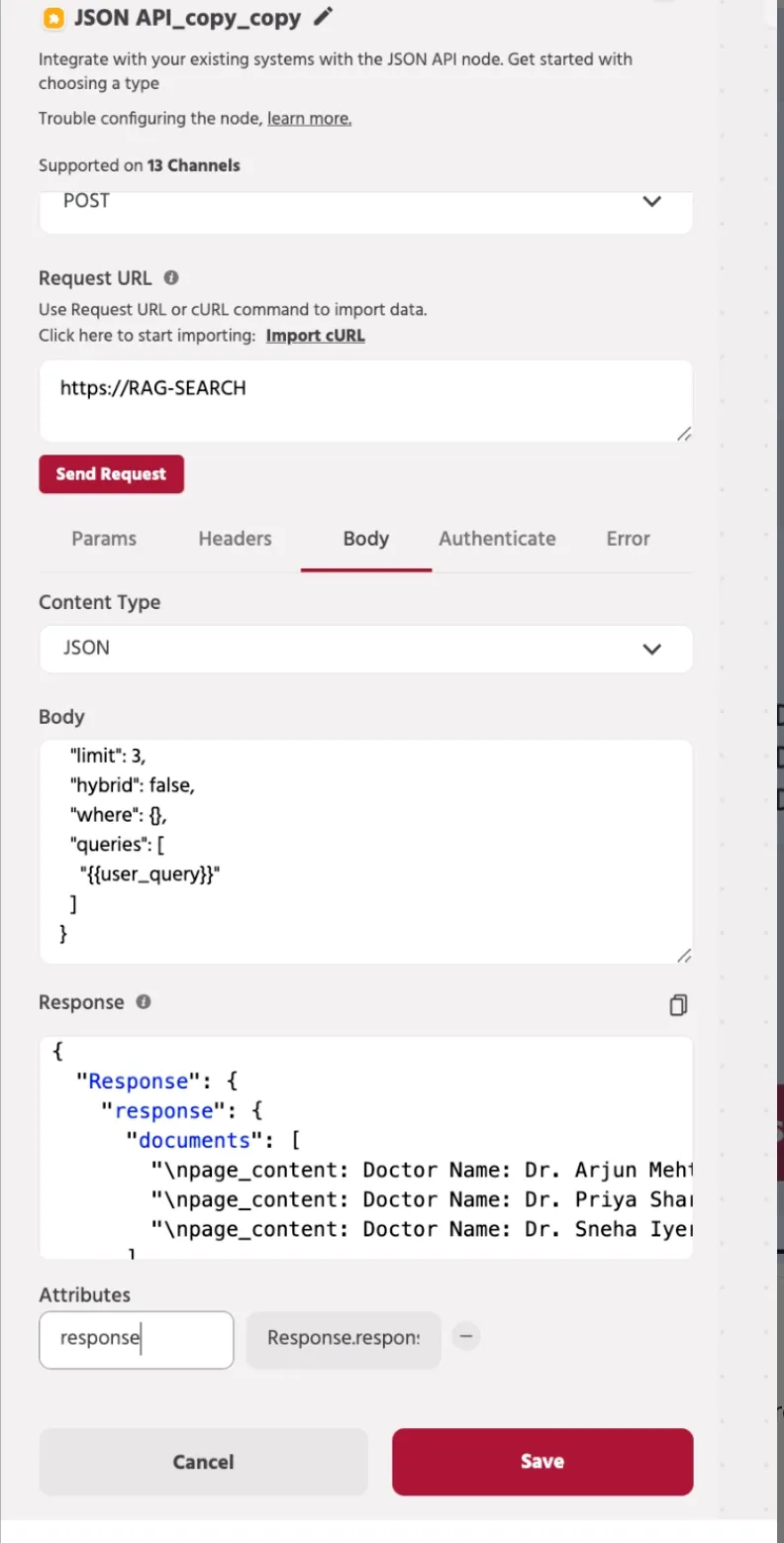
Set the request method to POST.
In the Request URL field, enter the RAG API endpoint.
Example:
Go to the Body tab and set Content Type as JSON.
Use the following request body:
This request sends the user query to the RAG API and asks for the top matching results.
Request Body Explanation
Field | Description |
|---|---|
botRef | Unique identifier of the bot |
customerId | Customer identifier of the bot account |
limit | Maximum number of matching results to return |
hybrid | Controls whether hybrid search is enabled or not |
where | Optional filter object for narrowing results |
queries | Contains the user query sent for RAG search |
Step 4 — Test the API Request
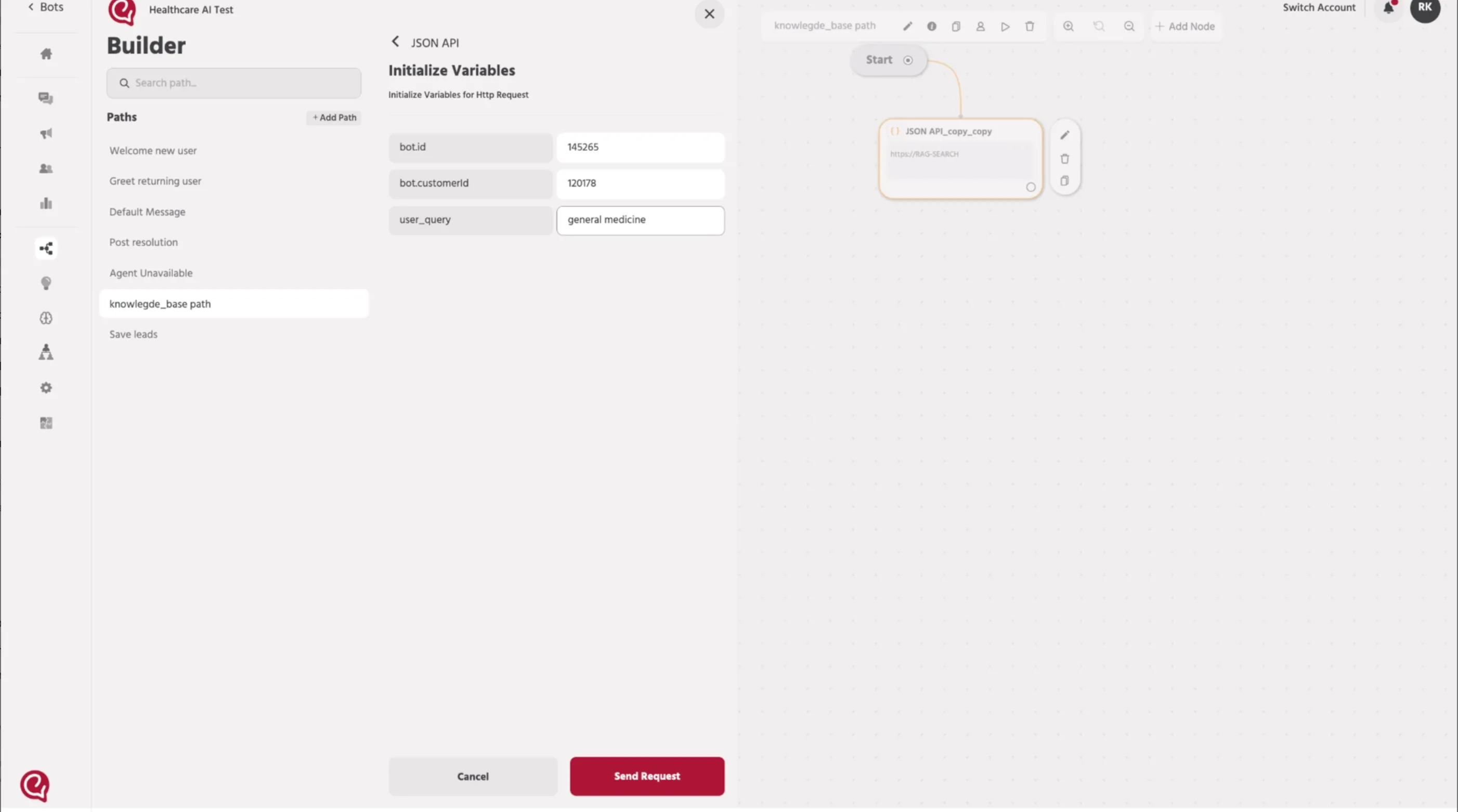
Click Send Request to test the API.
The system will prompt you to enter test values for:
- bot.id
- bot.customerId
- user_query
Where to Find bot.id and customerId: Bot ID (bot.id) – Found in the Builder URL (last number in the URL). Example: 145265 Customer ID (customerId) – Found in Integrations → Engati API → Customer Identifier. Example: 120178
Enter sample values and submit the request. Example:
- bot.id → 145265
- bot.customerId → 120178
- user_query → general medicine
Step 5 — Verify the API Response
Once the request is successful, the API response will appear in the Response section.
The returned data contains the matched documents from the trained RAG knowledge base.
Review the response and identify which part of the response needs to be stored as an attribute.
Example response structure:
Response Explanation
Field | Description |
|---|---|
response.documents | Retrieved text content from the trained RAG knowledge base |
response.ids | Unique IDs of the matched indexed records |
response.metadata | Additional source information about each matched record |
status.message | API execution result |
status.status_code | Status code returned by the API |
Step 6 — Map the Response to an Attribute
In the Attributes section, create an attribute to store the required response value.
For example, you can create an attribute such as: response
Then map it to the response field returned by the API.
Example mapping: Response.response
This stores the selected API response inside an Engati attribute so it can be used later in the path or agent response.
Step 7 — Save the Node
After configuring the request, testing the response, and mapping the attribute, click Save.
The JSON API node is now ready to fetch trained RAG knowledge during conversation flow execution.
How This Works
When the path is triggered:
- The user query is sent to the RAG Search API
- The API returns the most relevant trained content
- The selected part of the response is stored in an attribute
- That attribute can then be used in the next nodes to generate the final agent reply
📚 Next Step
Once the RAG API response is stored in an attribute, you can use that attribute in the next node to send the retrieved answer back to the user.
👉 Continue to the next section: 4. Workflow SetupWorkflow Setup