Onboarding & Deployment
10 min
Configure Engati on your Shopify Account
In order to integrate your Shopify store, you need to create a private app for Engati on your Shopify account via following steps -
Step 1: Creating custom App
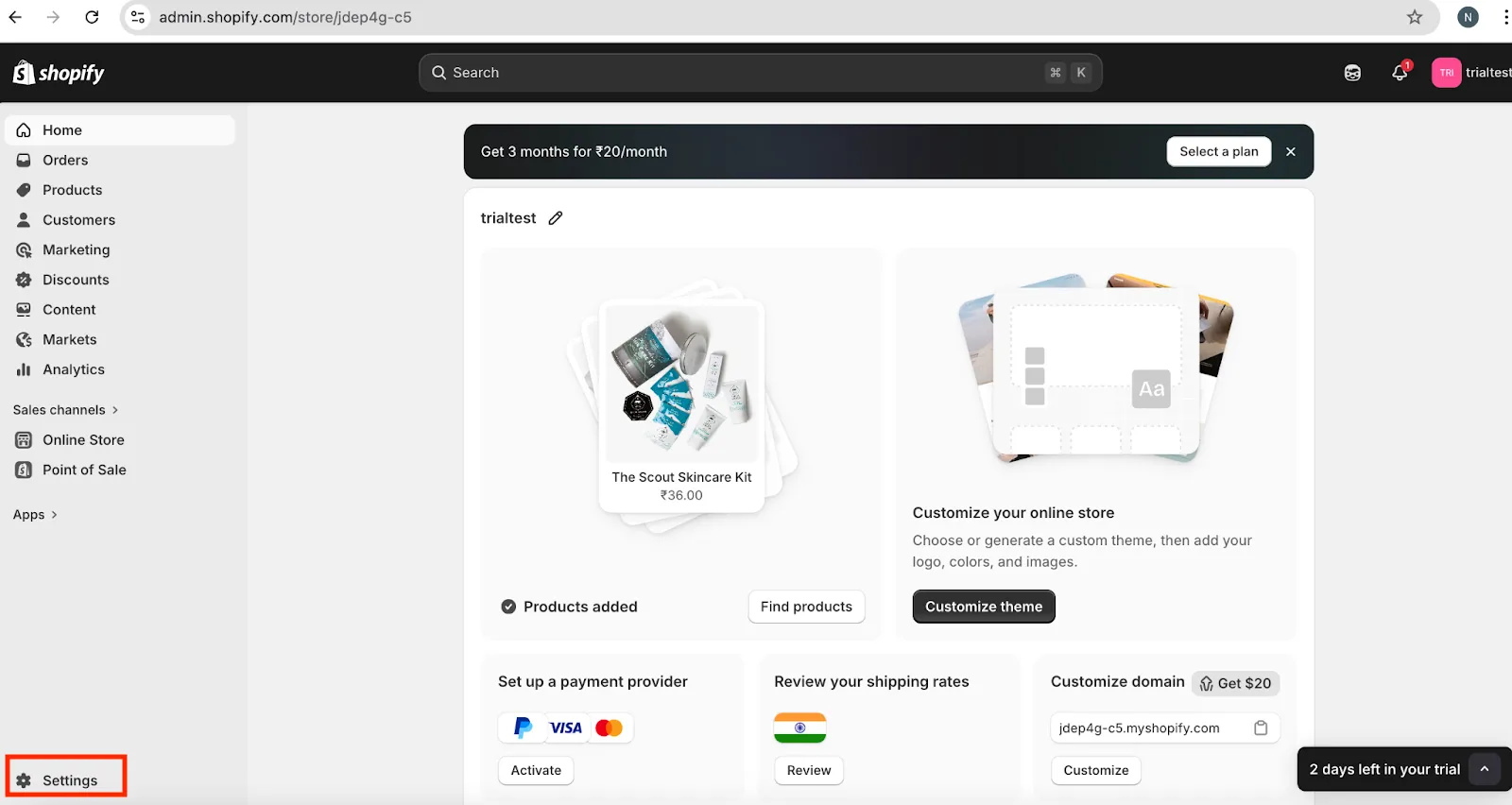
- Go to your Shopify account Settings (at the bottom of the left navigation panel)
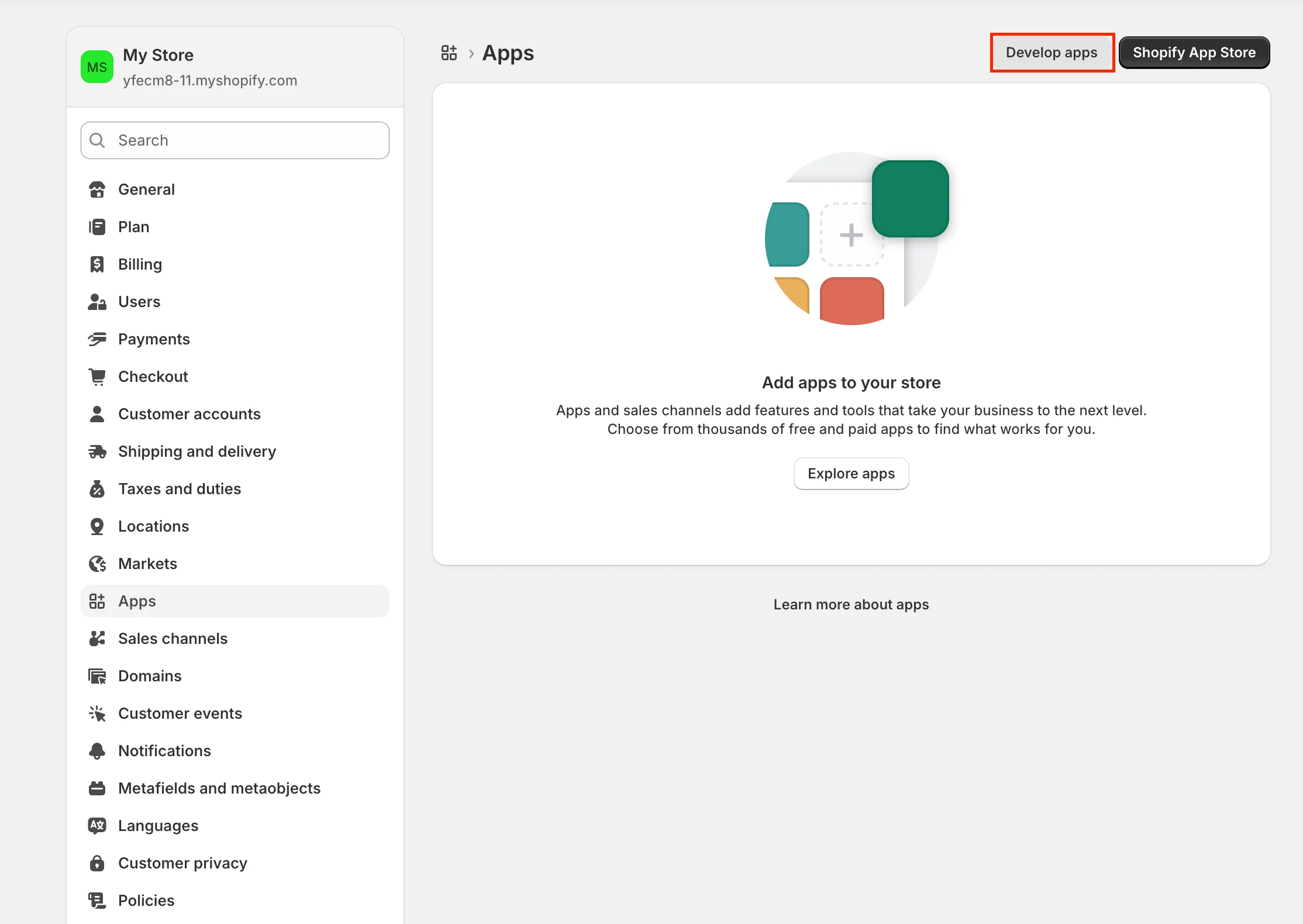
- Scroll down to Apps → Develop Apps → Build Apps on Dev Dashboard.
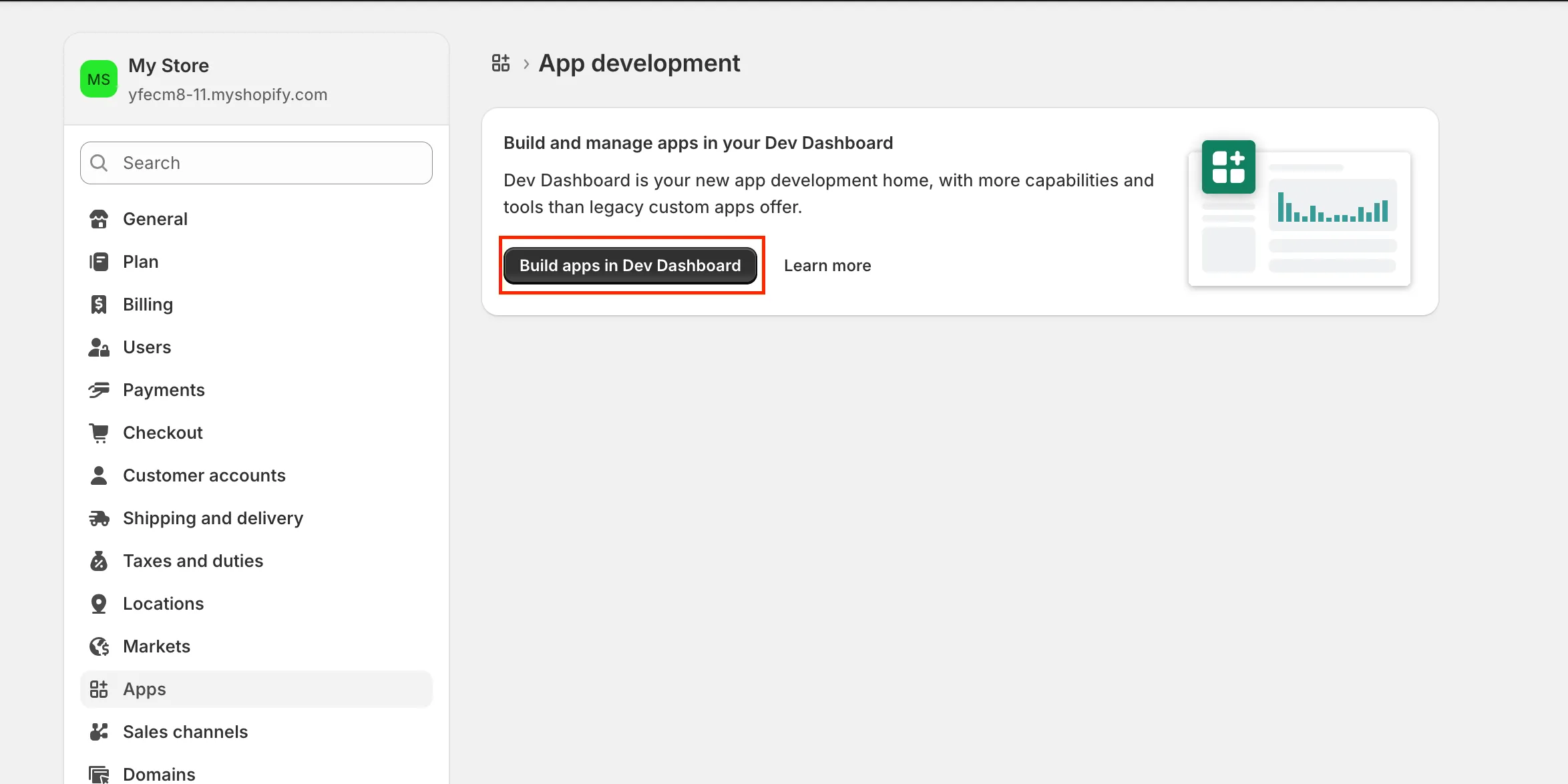
- You will be redirected to the Dev Dashboard, click Create App.
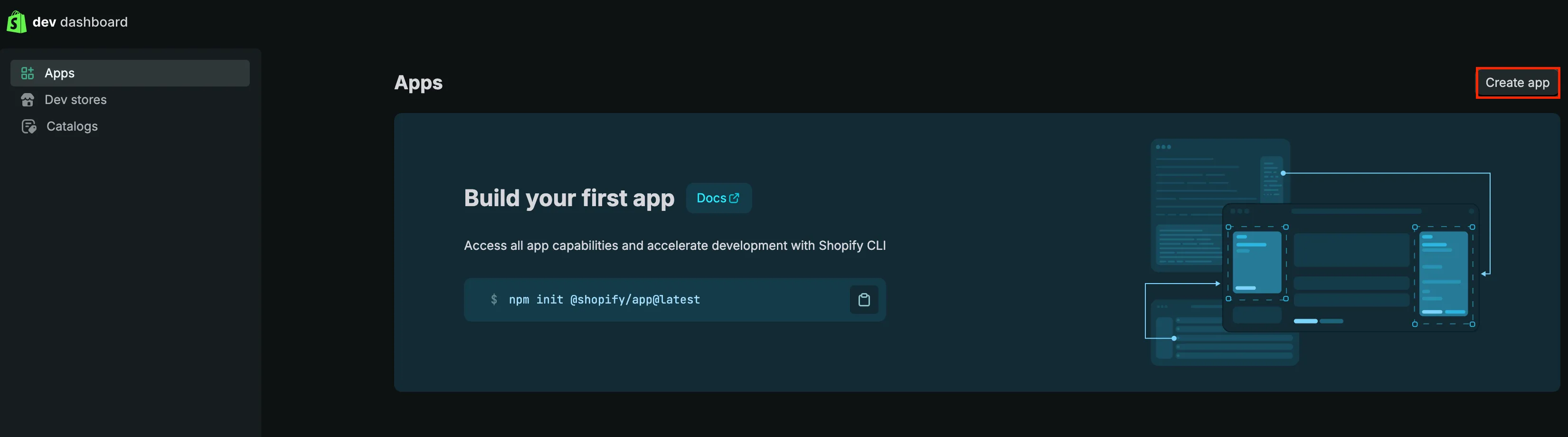
- Enter the app name, and then click Create.
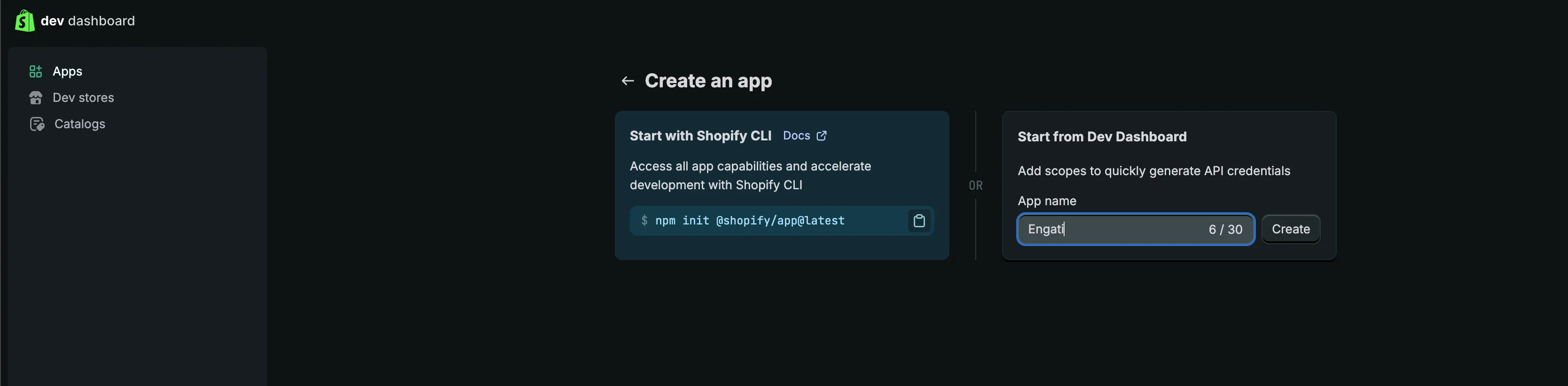
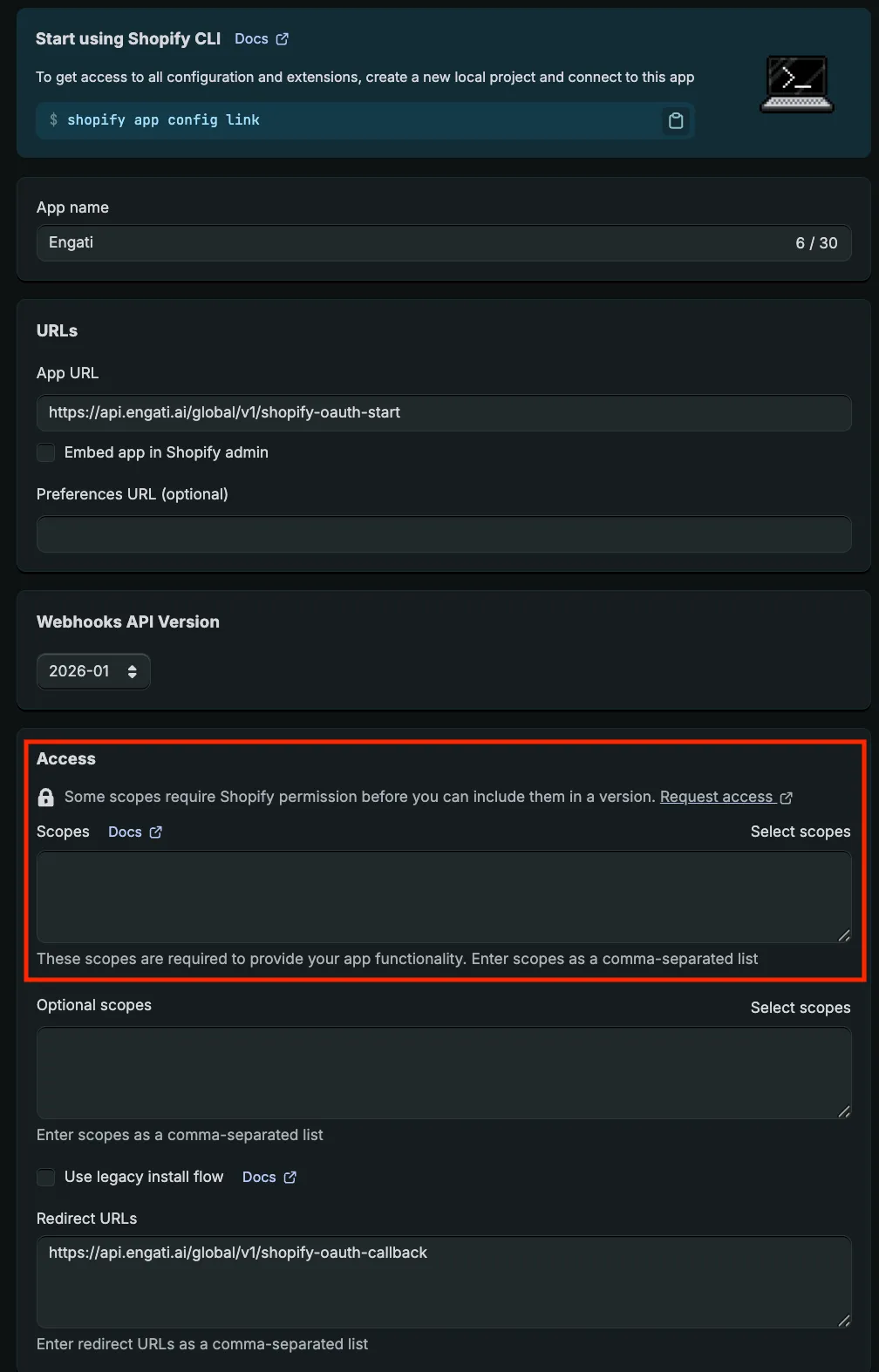
- Configure the following URLs: App URL: https://api.engati.ai/global/v1/shopify-oauth-start Redirect URL: https://api.engati.ai/global/v1/shopify-oauth-callback Don’t select Embed app in Shopify admin icon
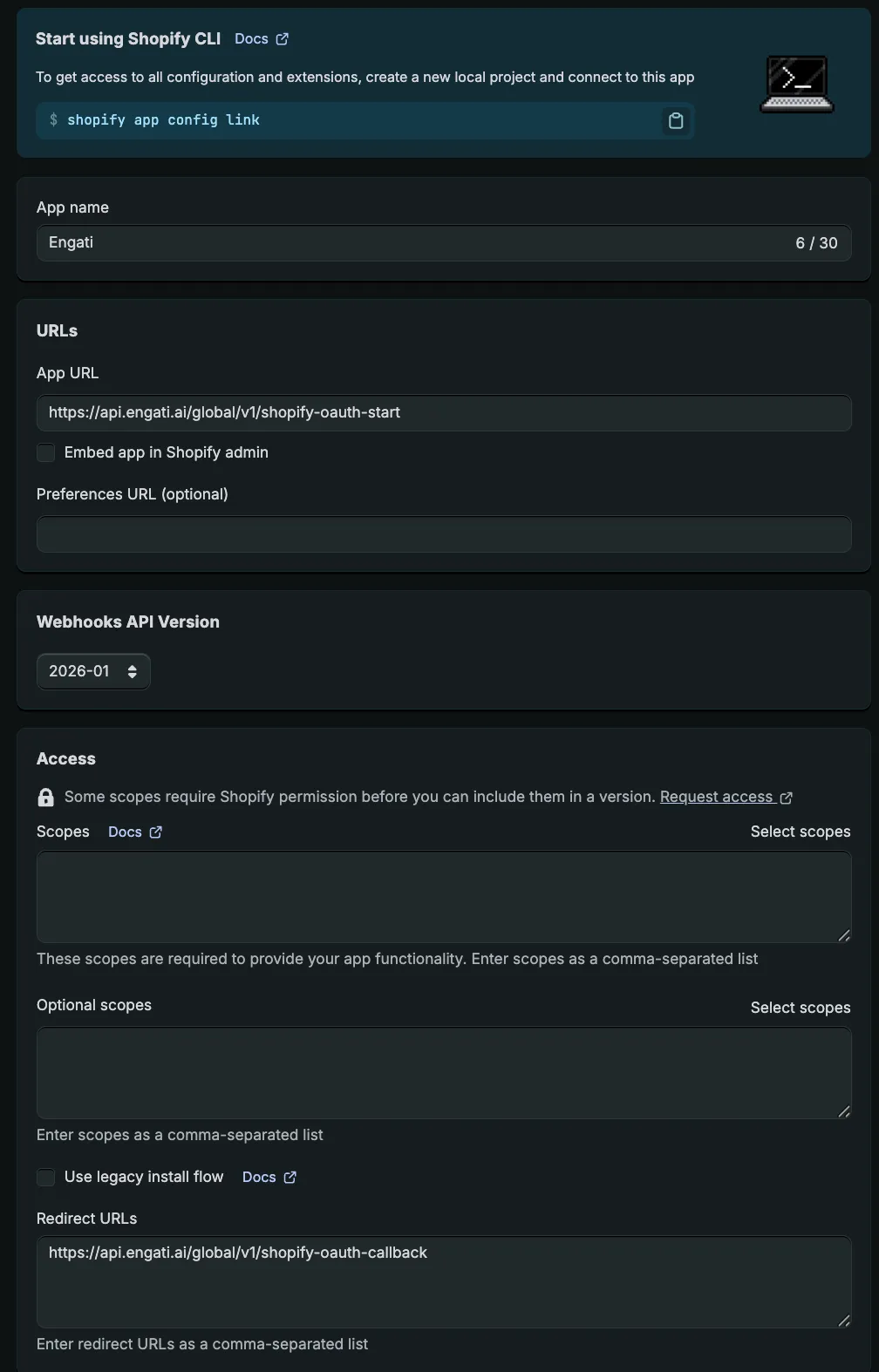
- Configure the scopes.
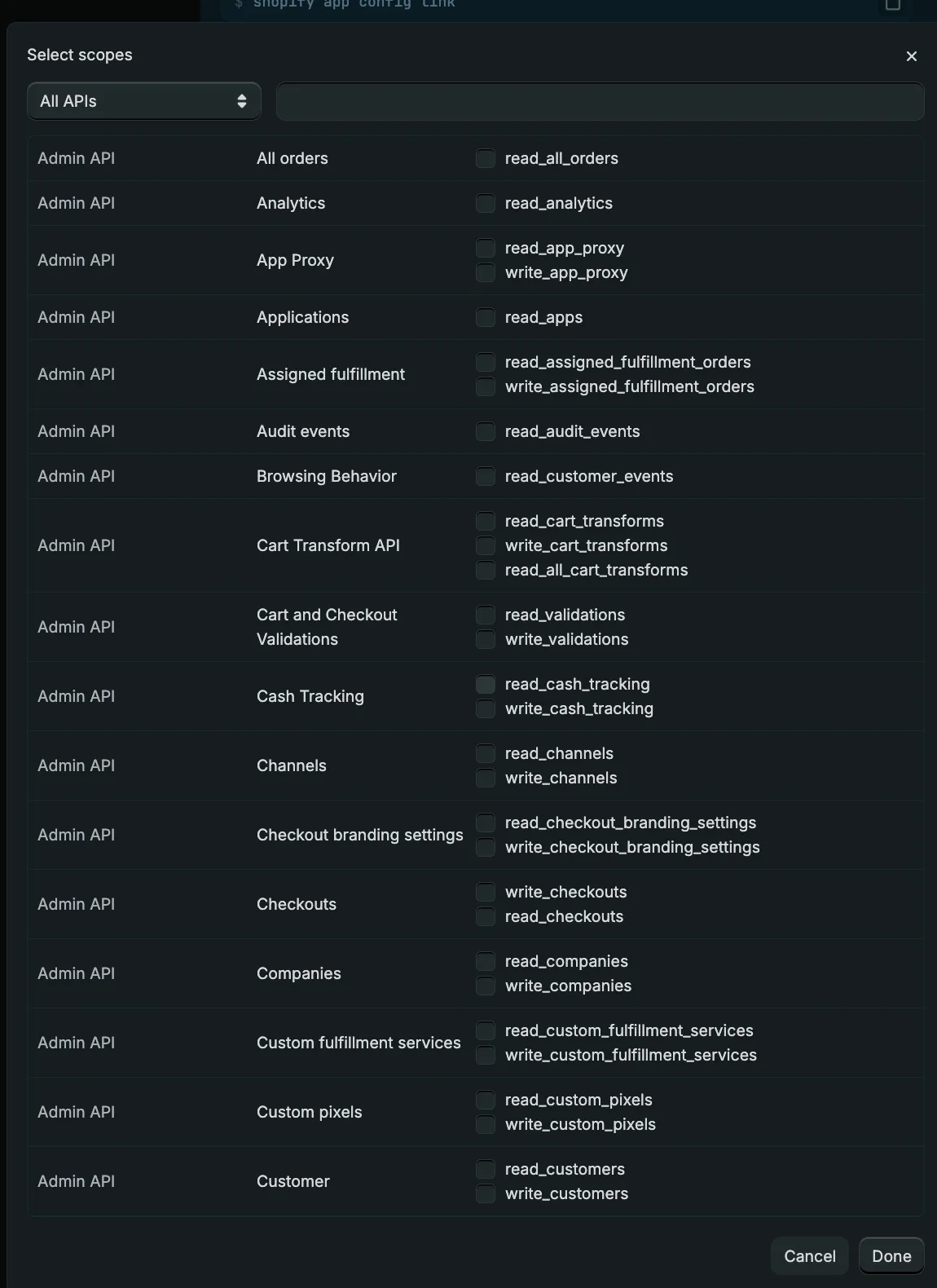
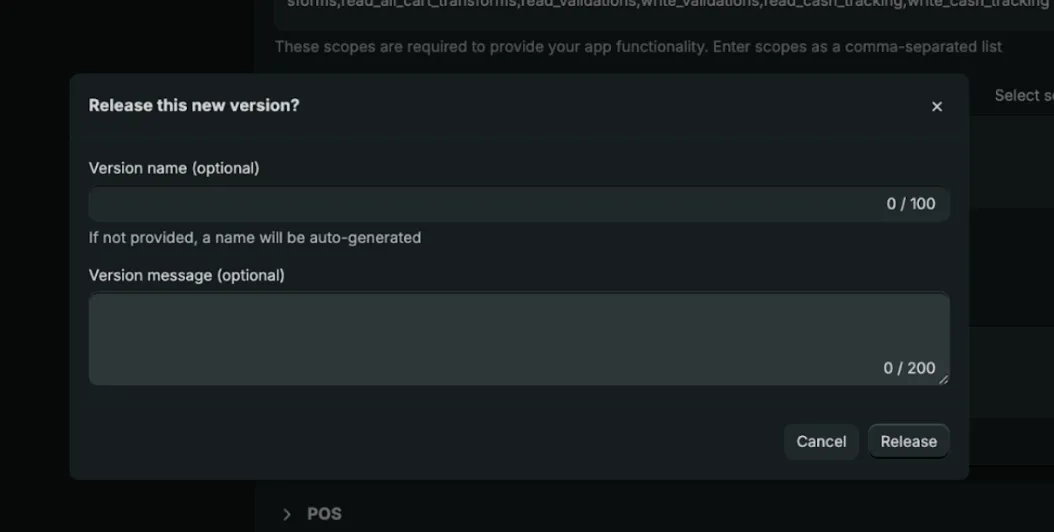
- Scroll down, click Release. The version name is optional. Click Release again to confirm.
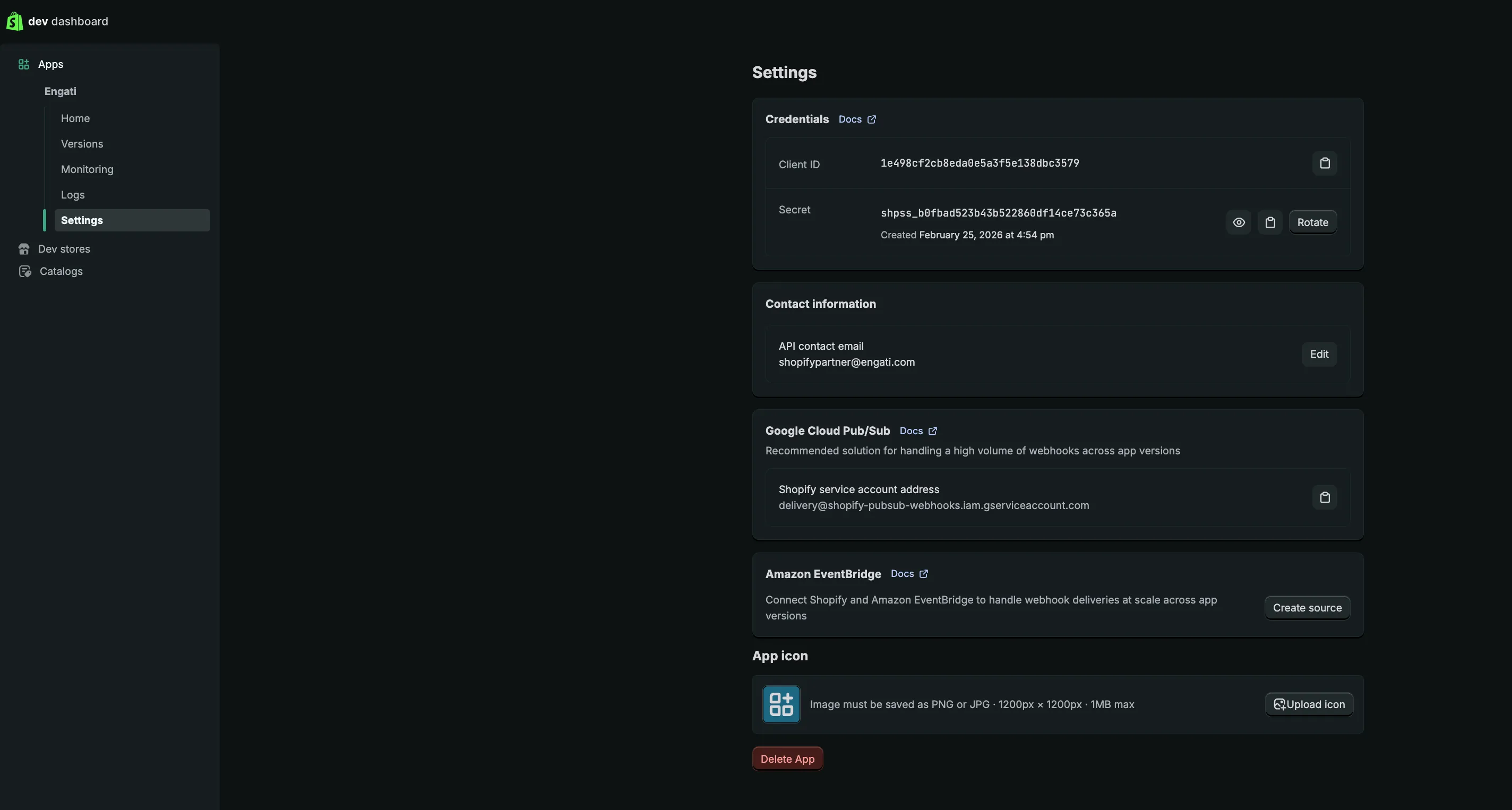
- Go to Settings, locate the Client ID and Client Secret, and copy these values for future use.
Step 2: Onboarding with Engati Platform
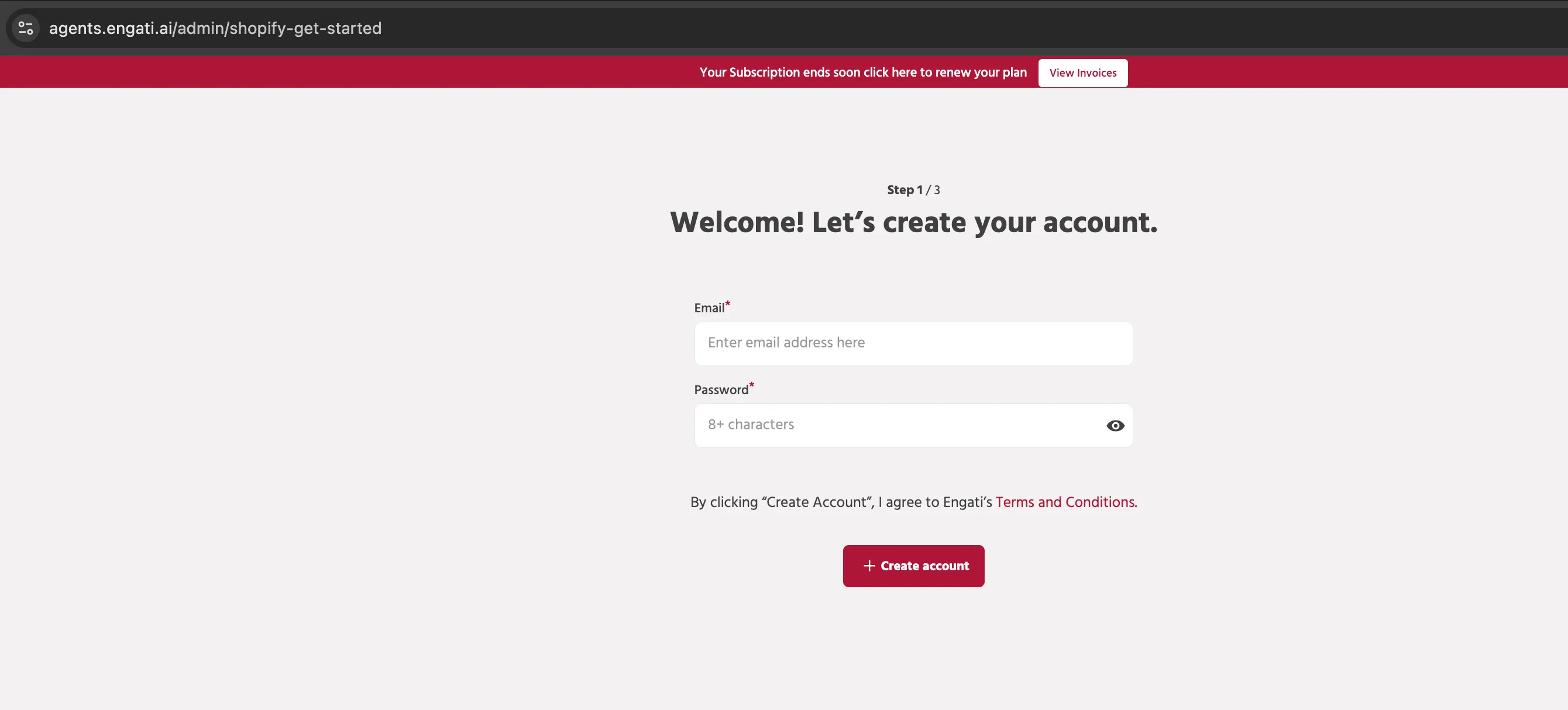
- Create account on Engati - Go to https://agents.engati.ai/admin/shopify-get-started - Add Email Address and Password - Click on Create account
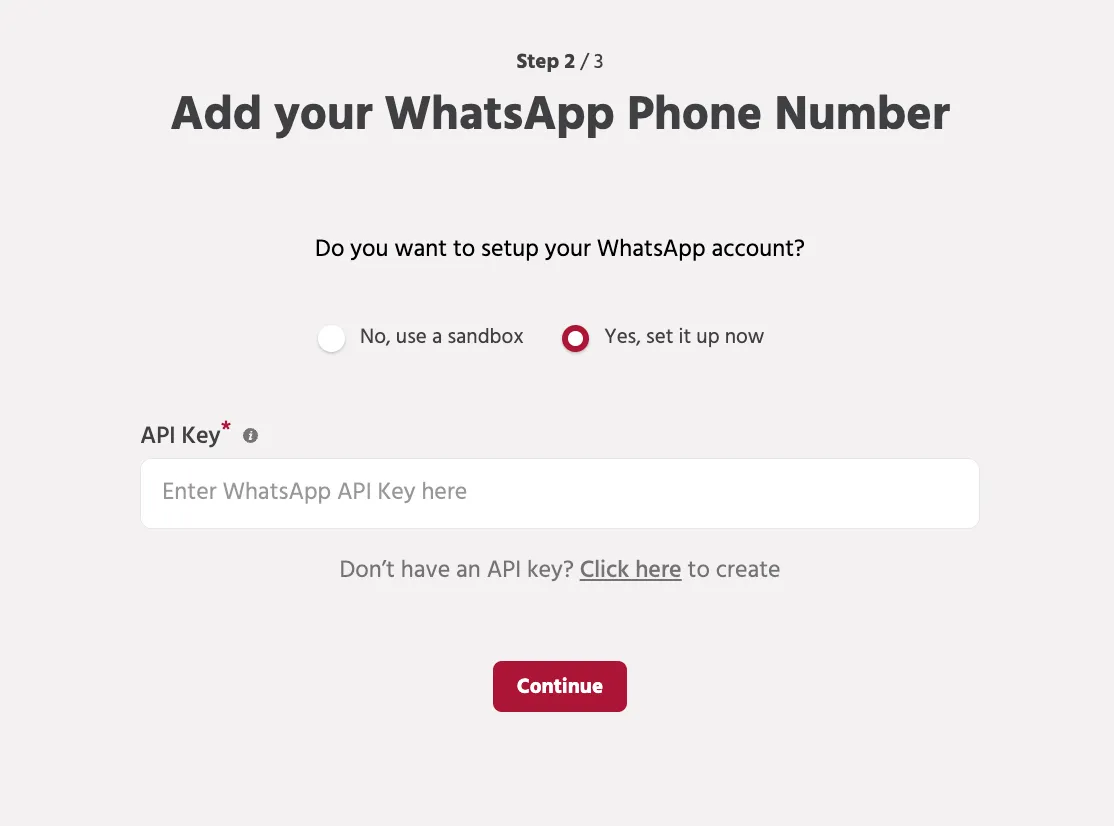
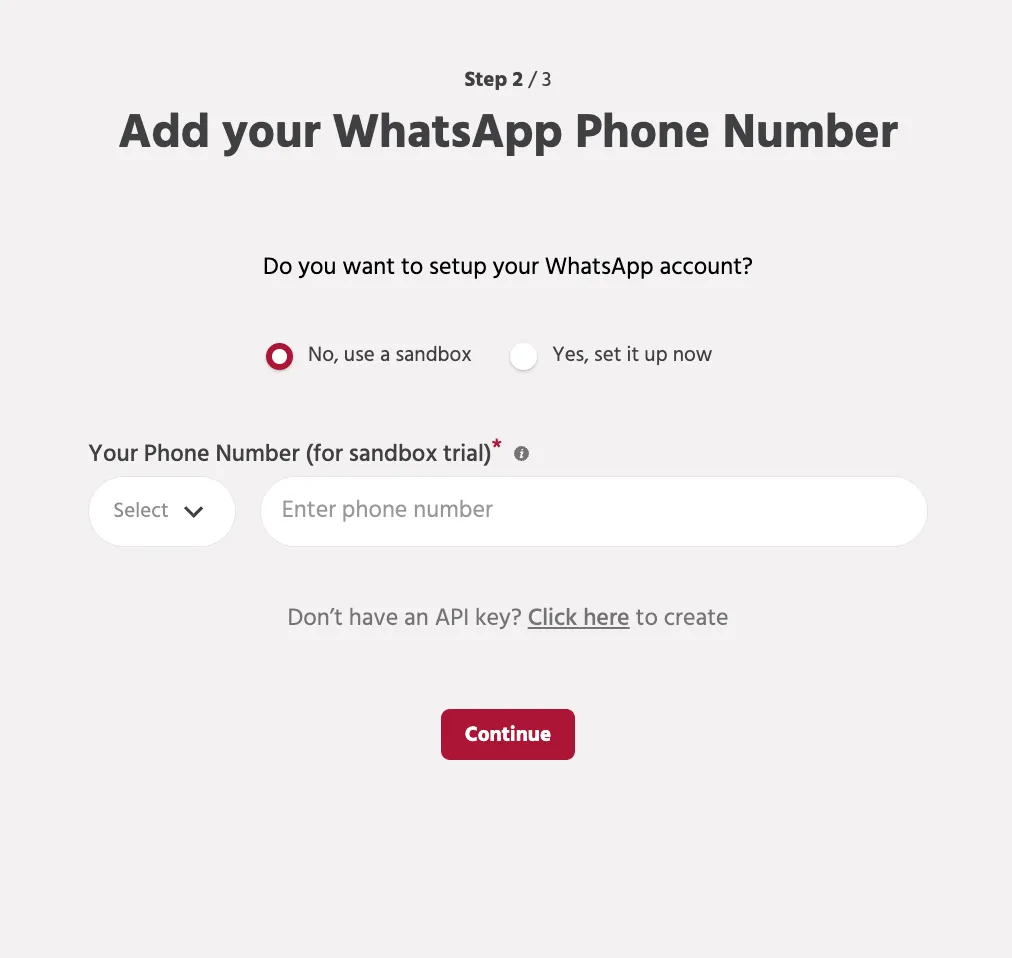
- Whatsapp account setup / Sandbox Option 1 - Set up Whatsapp Business Account - Connect your number with Whatsapp business APIs to interact with your customers for customer support, to send promotional campaigns, connect your own eCommerce store to automate transactional notifications and much more. - Enter the API key of Whatsapp business account to complete the setup. - In case you don’t have an API key, please visit - https://wa.cbots.live/engati to create one. - Click on “Continue” to proceed. Option 2 - Connect to Engati’s Sandbox Mode - In case you are not ready to connect your own number right away, you can connect to the sandbox mode (test mode) to experience Engati’s features and functionalities without the hassle of connecting your WhatsApp Business API. - Simply, add your personal Whatsapp number to enable the Sandbox trial mode. - Click on “Continue” to proceed. - Once the sandbox mode is activated for you, you will get an automated message on Whatsapp (on the number connected to Sandbox), where you need to tap on “Get Started” to explore campaign and broadcast templates and many more.
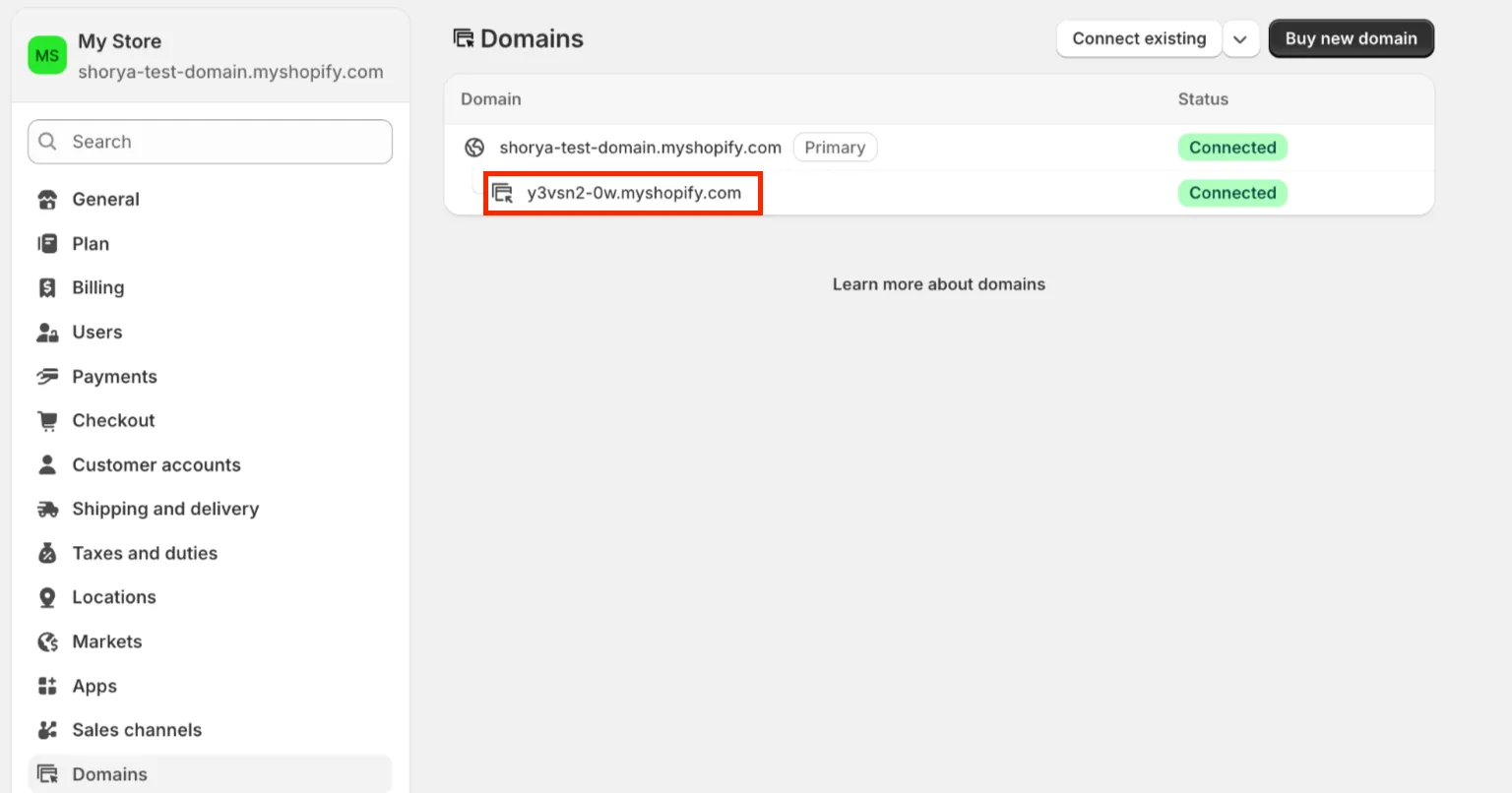
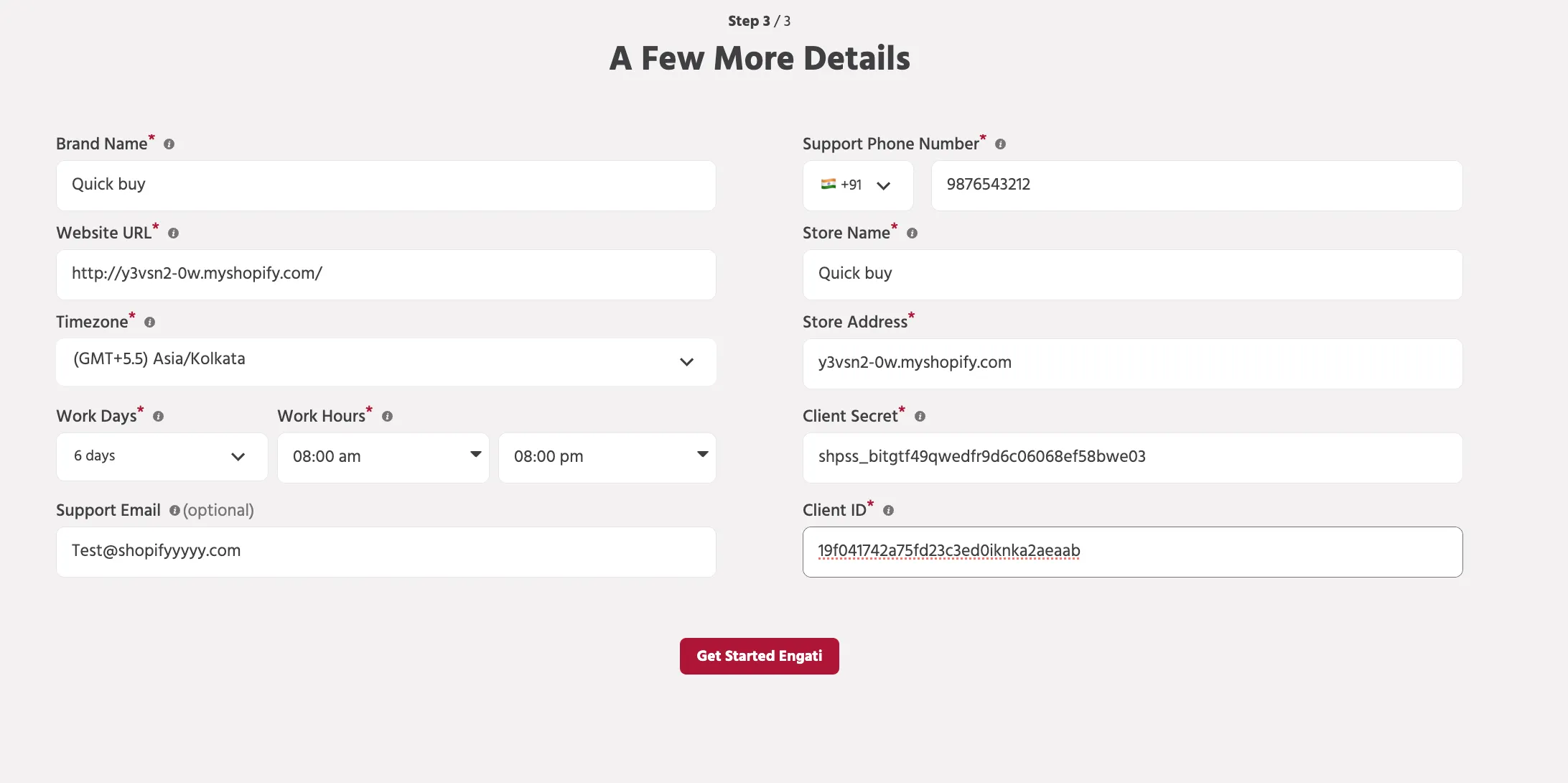
- Setup your Shopify store Brand name -> Add your brand name that will be visible to your users. Website URL -> Add your Shopify website url Timezone -> Add the timezone to setup your bot Work Days -> Add your working days and working hours to set up the chatbot’s availability. Support Email and Phone Number -> Add the support email address and phone number to communicate with your business. Store Name - Add your Shopify store name Store Address - Shopify creates a default internal domain when a store is set up, usually in a format like .myshopify.com (as seen in the screenshot). Customers may later configure custom domains for their storefront, but those domains internally redirect to the Shopify-created domain. During the Engati app integration process, Engati receives the default Shopify domain even if a custom primary domain is being used. To complete the integration successfully, use the internal Shopify domain visible under the Domains section in Shopify.
Client ID - Add the Shopify Client ID generated on your Shopify. Client Key - Add the Client Secret generated on your Shopify.
Step 3: Installing the custom created app
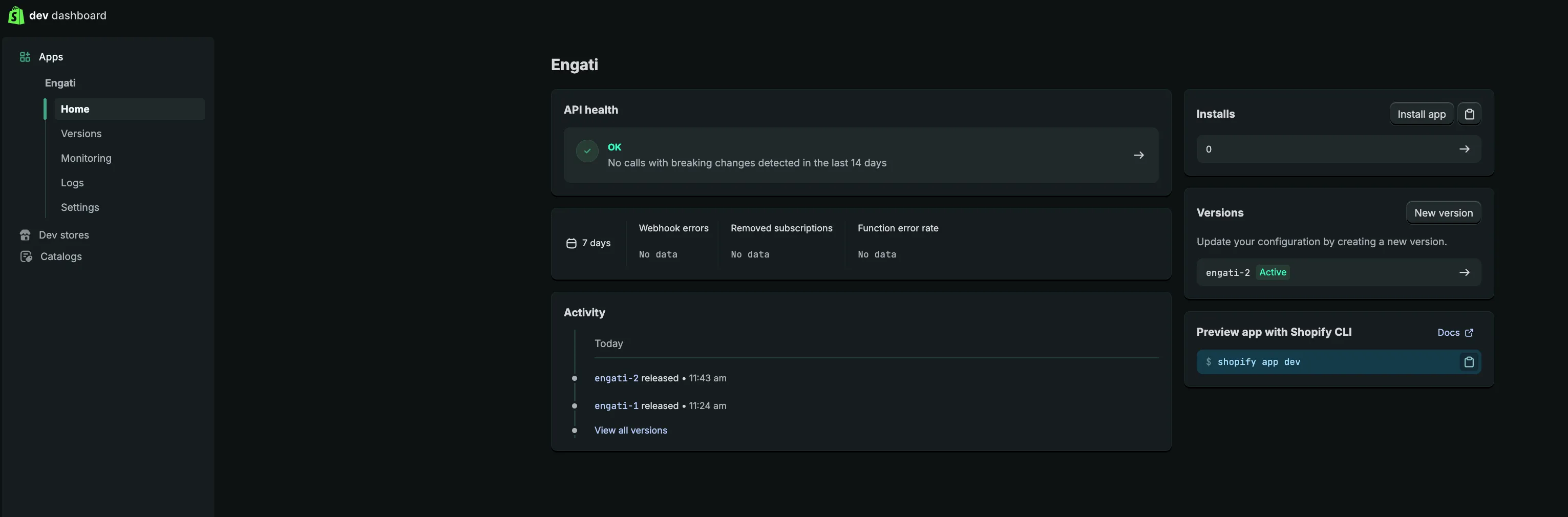
- Return to the Shopify Dev Dashboard where the app was created and click the Install App button located on the right side.
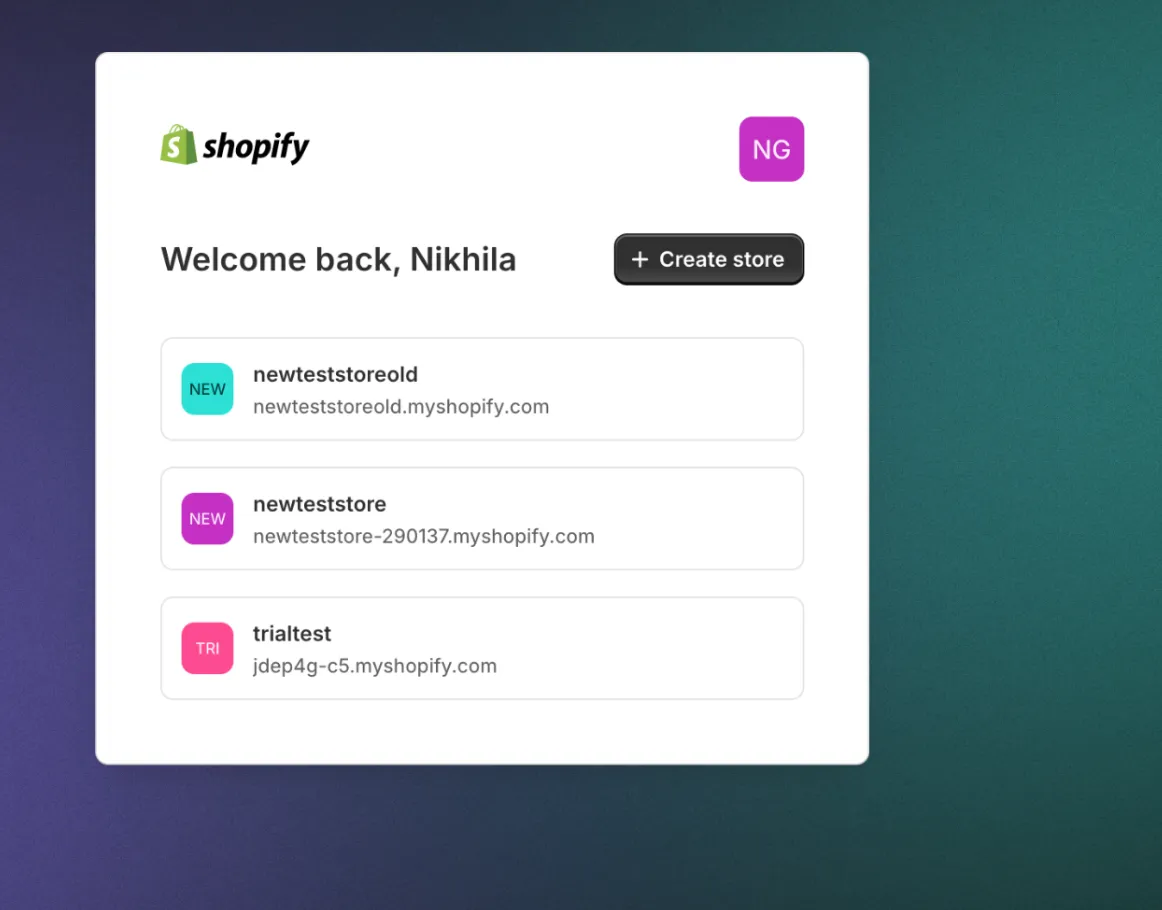
- You will be redirected to a page to select the store where you want to install the app. Select your store to proceed.
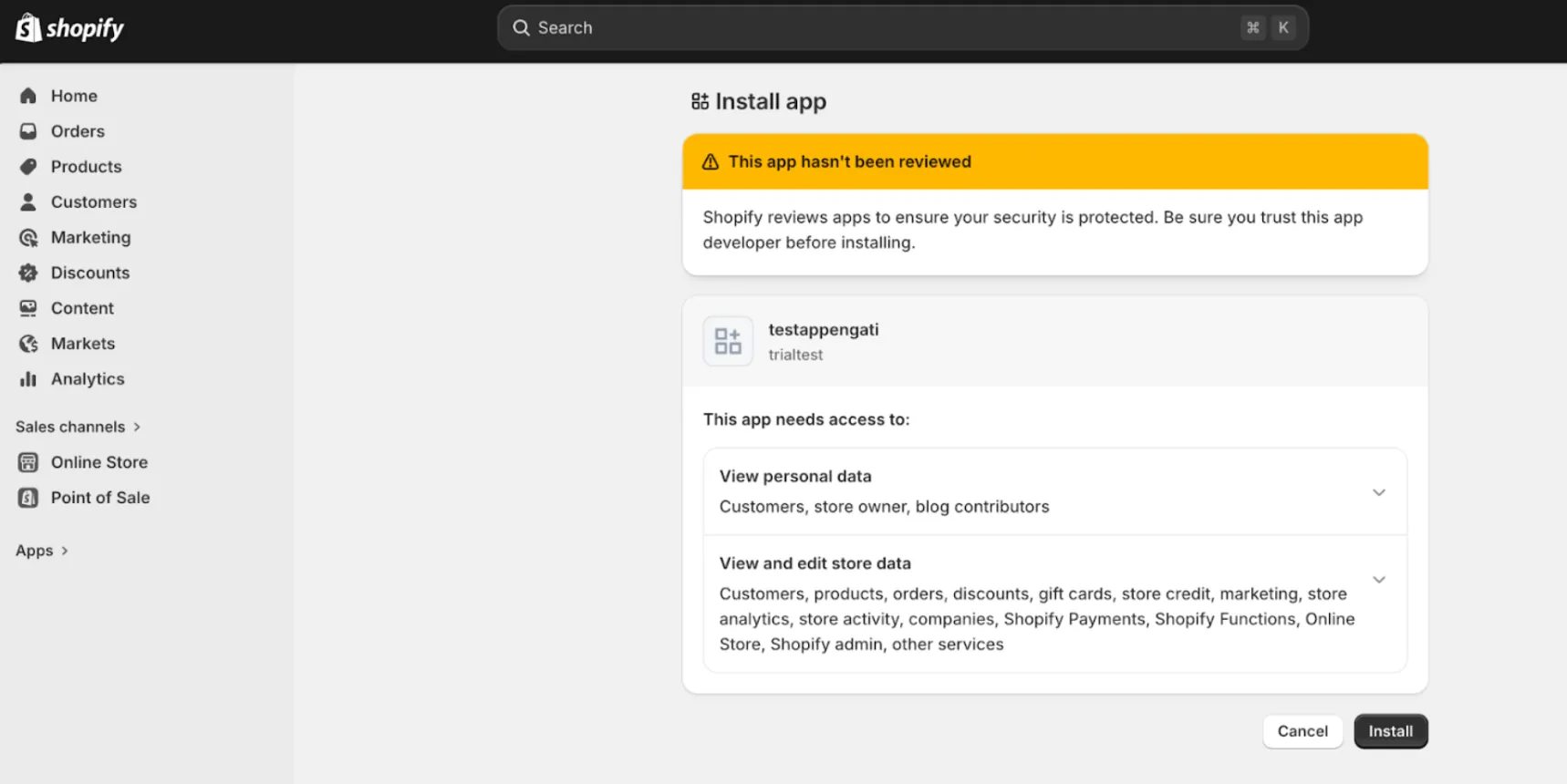
- You will be redirected to the consent page displaying the store data. Click Install again to proceed.
- After installation, Shopify will redirect us to the login page (https://agents.engati.ai/admin/login).This shows that app is installed successfully
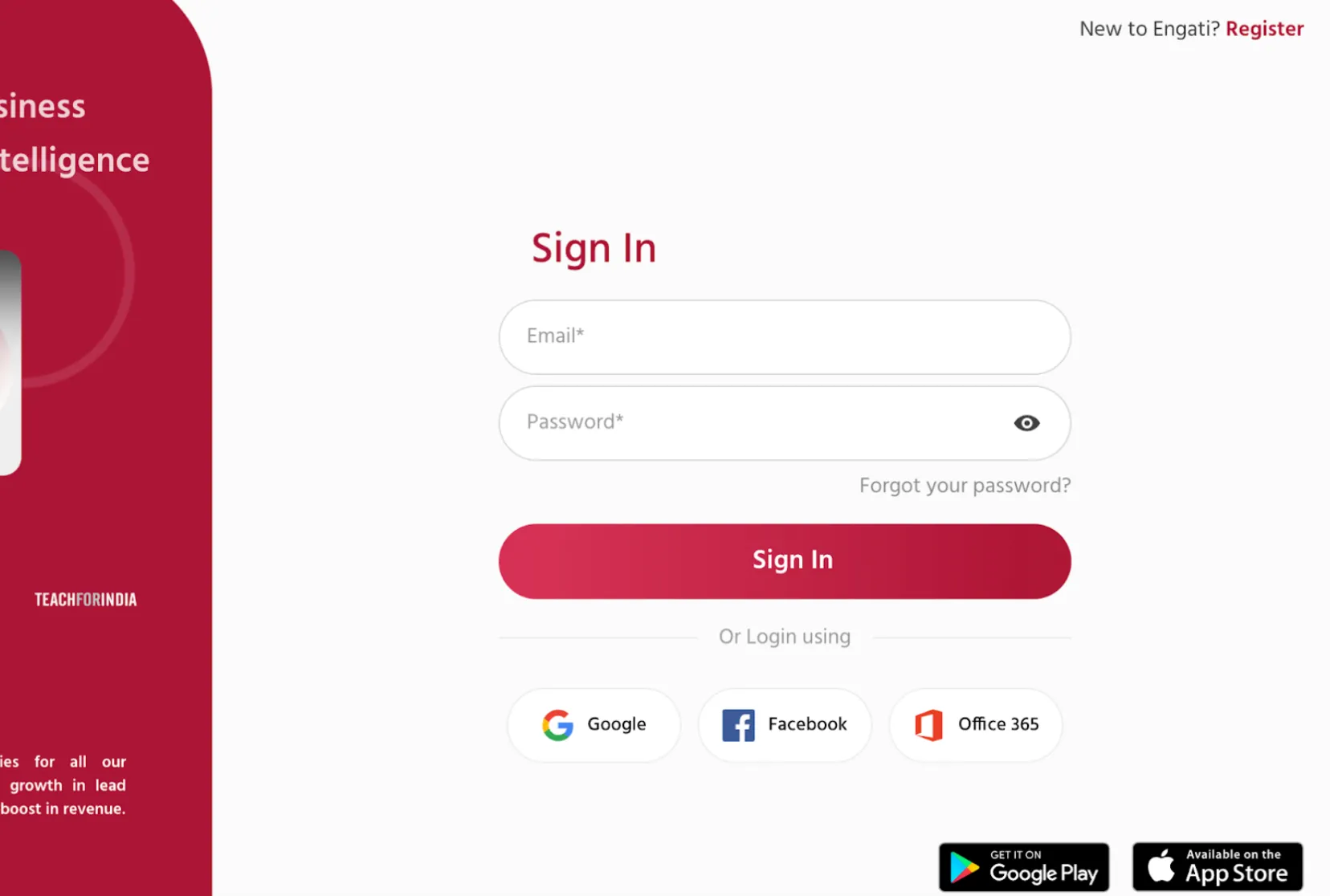
Step 4: Integration Shopify with Engati
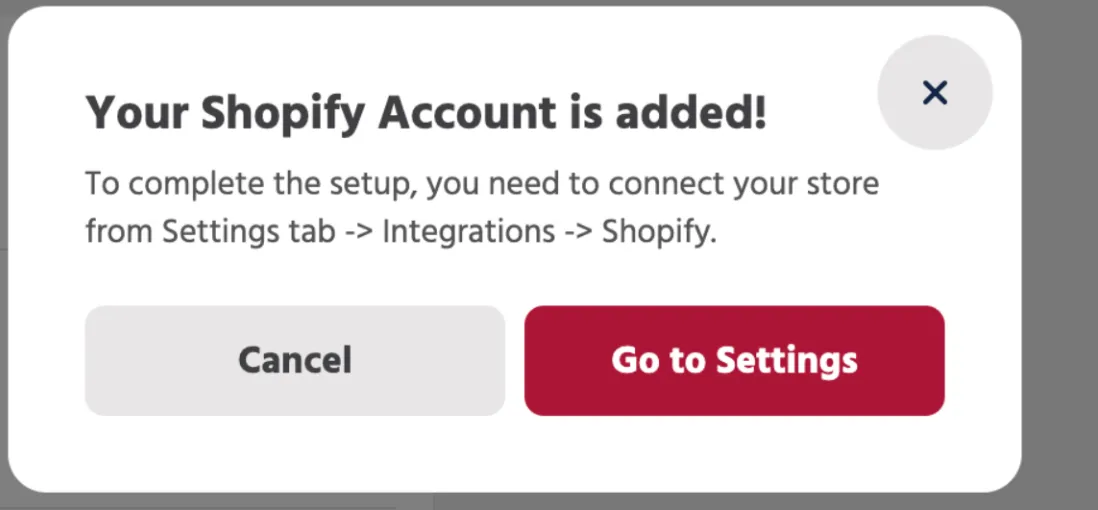
- Navigate to Integrations → My Integrations → Shopify, and click Connect Now or Add Account.
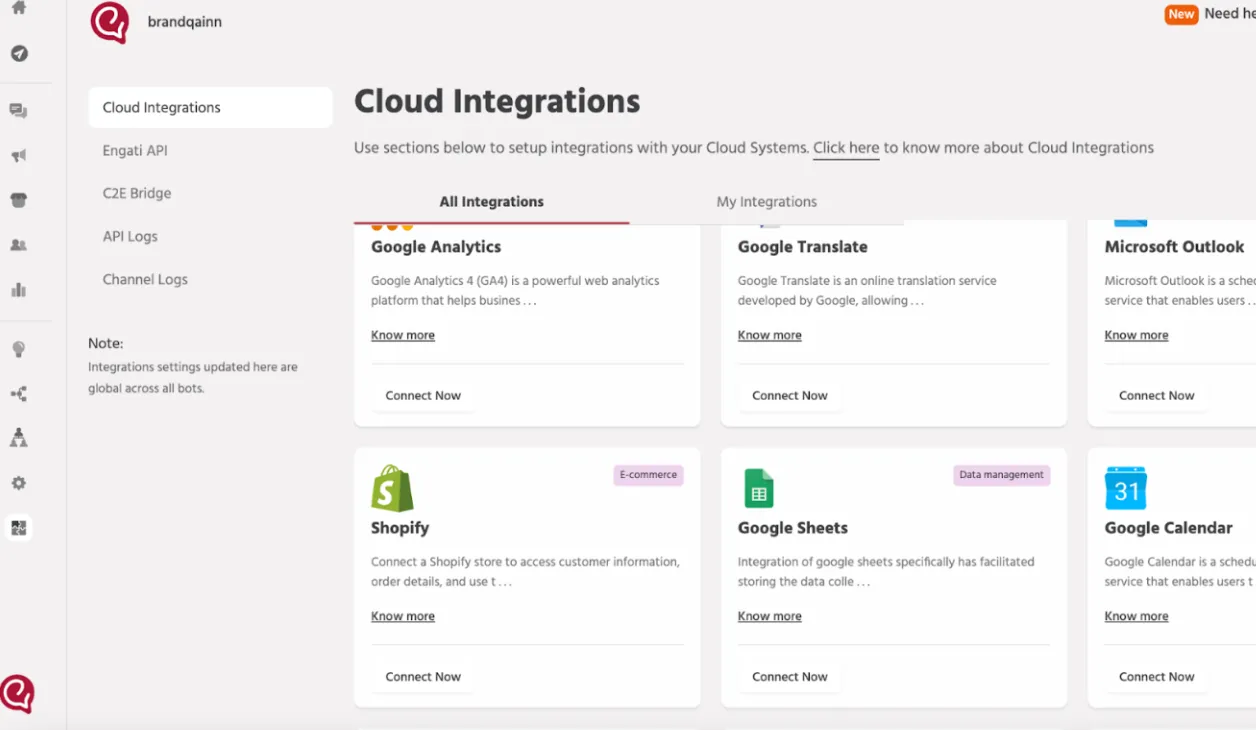
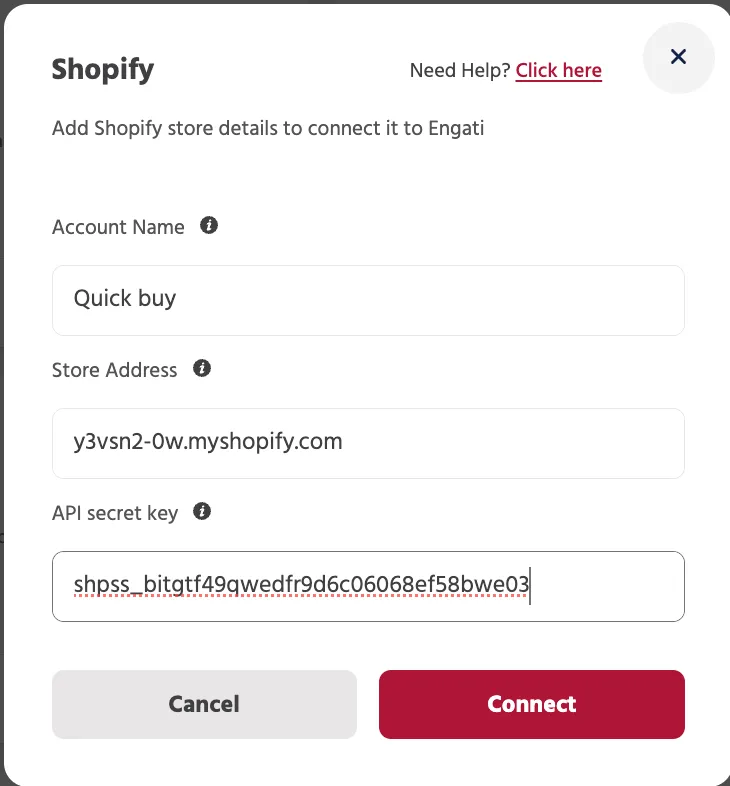
- Enter Store name, store address, API Secret key(Client Secret from shopify app) and Click Connect
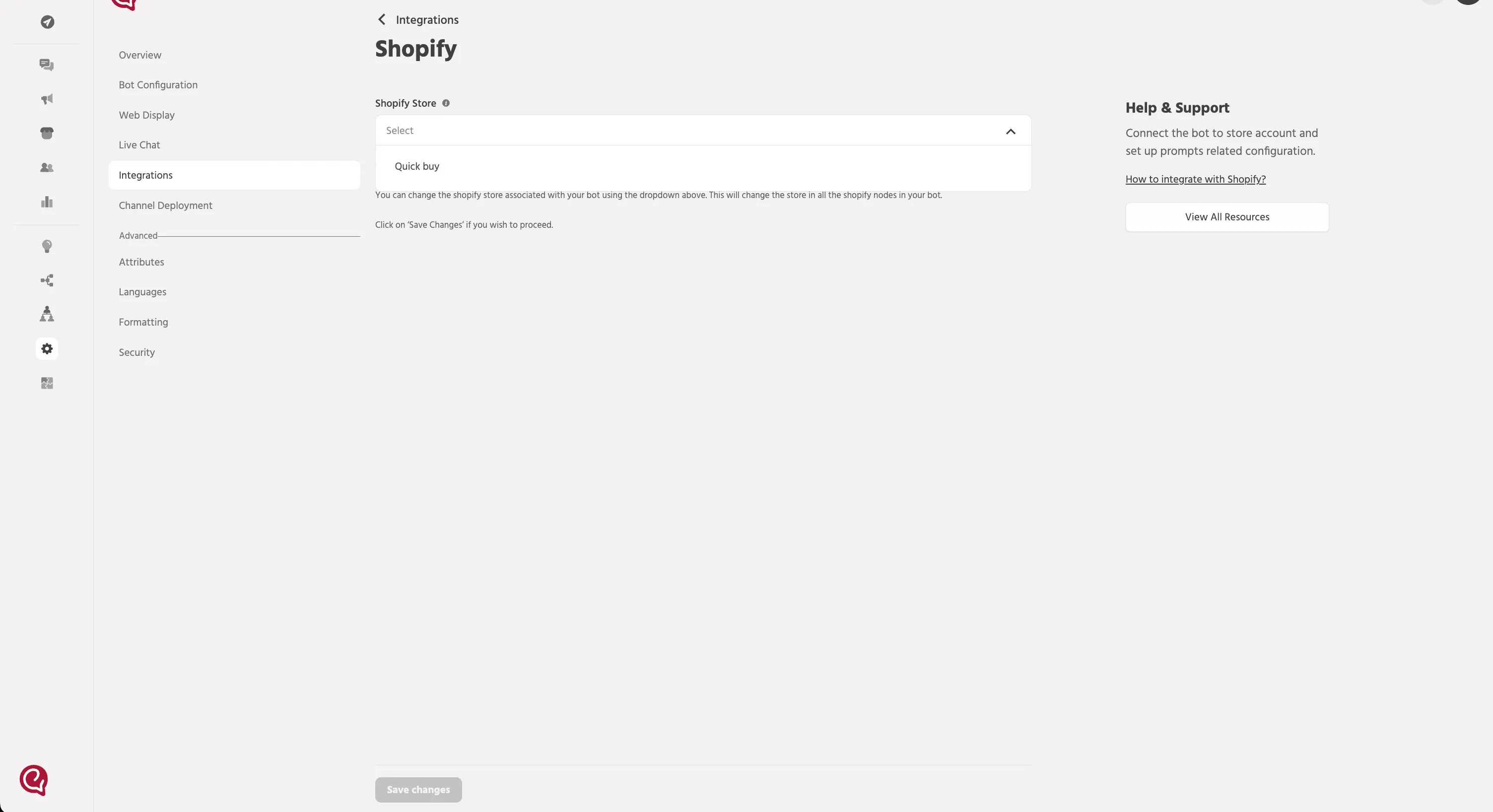
- Go to settings and connect Store to bot →select your store name →Save changes