Creating a Broadcast
Engati’s broadcast feature enables you to send one‑to‑many messages across supported channels like WhatsApp and RCS. The redesigned interface simplifies the process into three clear steps: Define, Configure, and Review. This document walks through each step and highlights all available options.
Step 1: Define
During the Define step you enter the basic details of your broadcast.
1. Broadcast Name – Provide a descriptive internal name that will help you identify the broadcast in your history and reports.
2. Target Channel – Choose the channel on which the message will be delivered. Options include WhatsApp and RCS. Selecting a channel determines which broadcast types are available.
3. Broadcast Type – Select how the message will be sent:
- Send Template Message – Uses a pre‑approved template (required for WhatsApp and RCS broadcasts).
- Send Message – Sends a single, non‑interactive message.
- Send Message with Options – Sends a message with interactive buttons (supported channels only).
4. Objective – Pick the purpose of your campaign (e.g., increase website visits, promote offers, engage customers, capture leads, retarget customers, notifications or others). Objectives help categorize broadcasts in analytics.
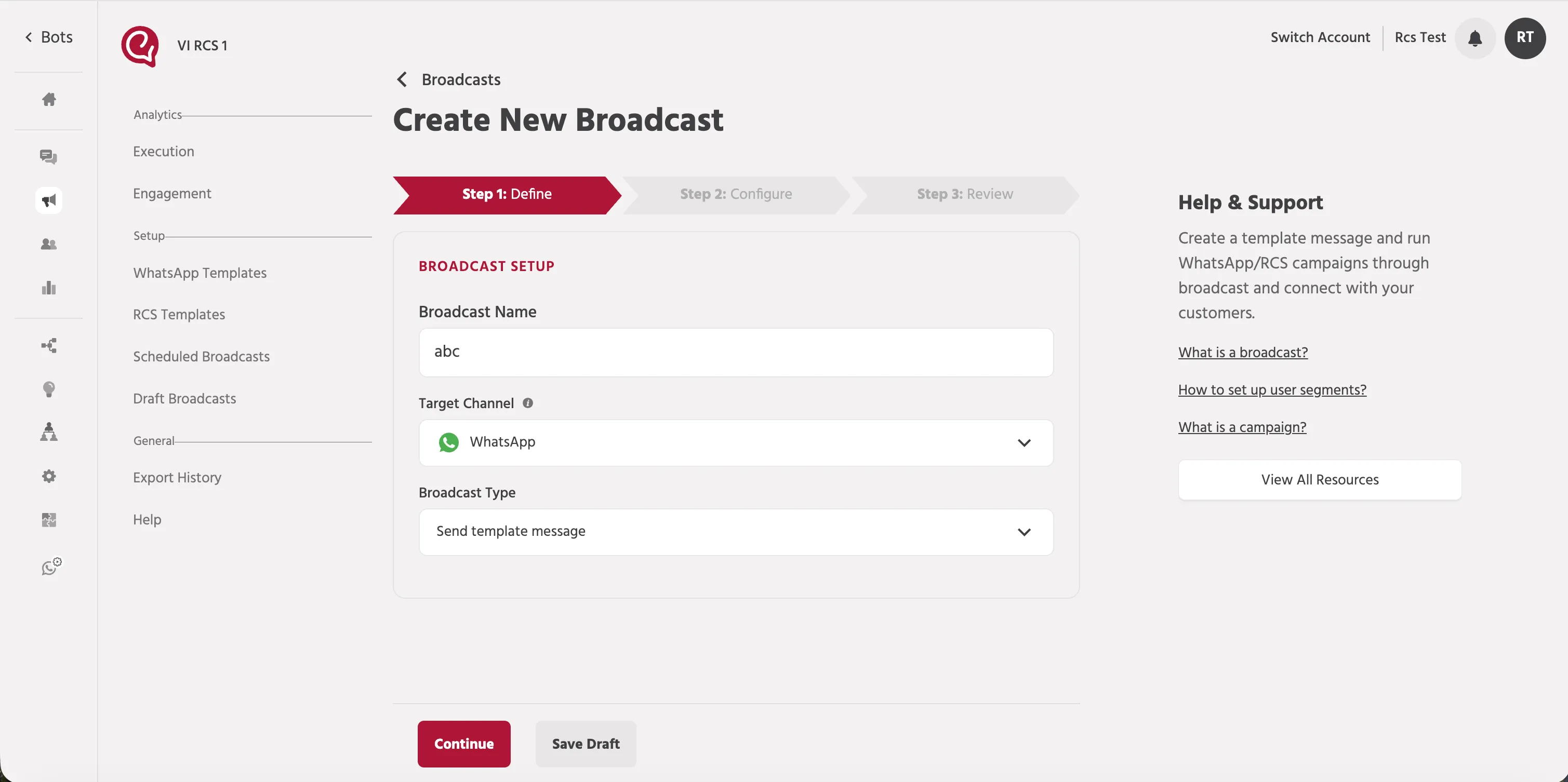
After entering these details, click Continue to move on or Save Draft to save your progress.
Step 2: Configure
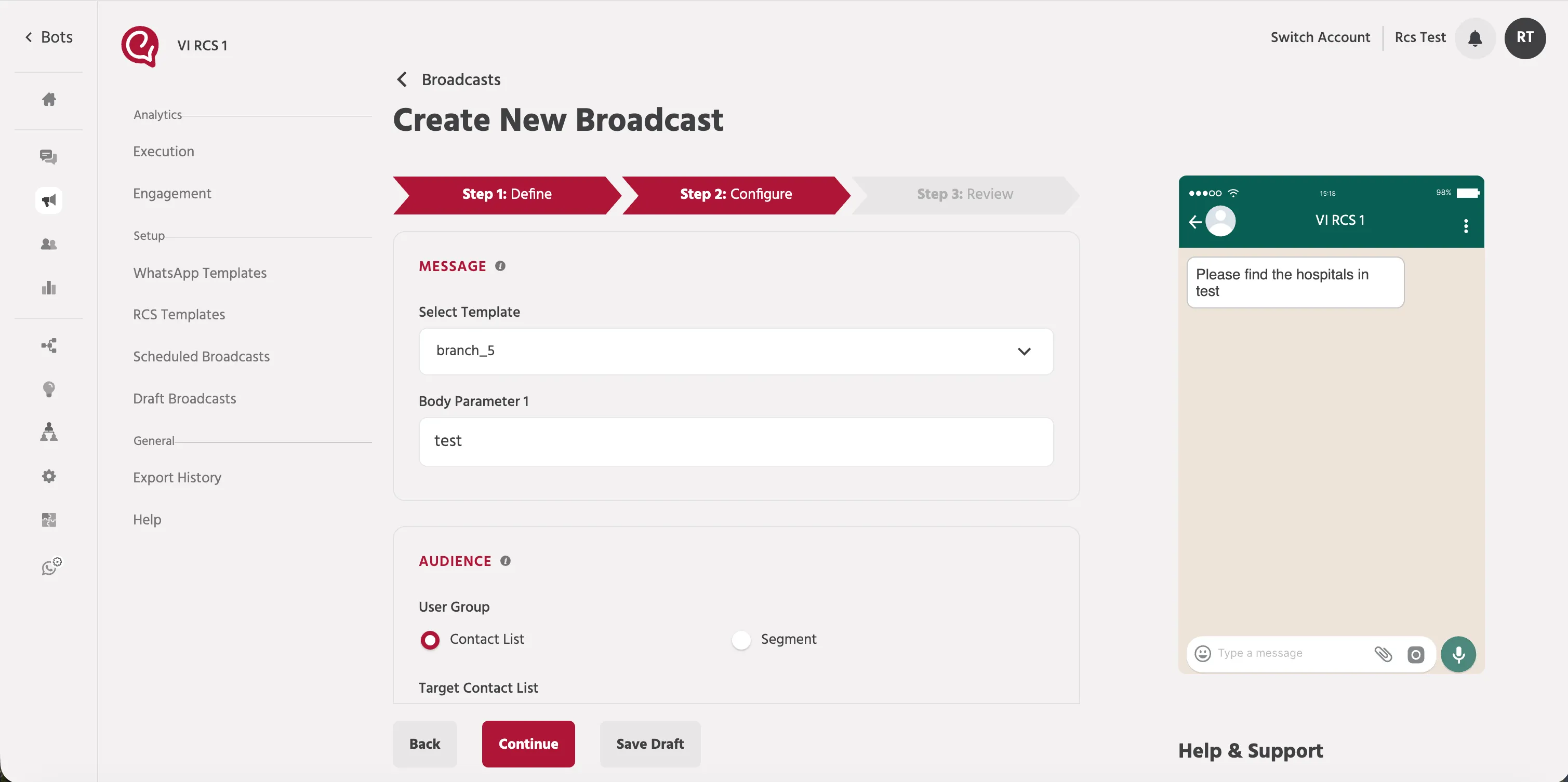
In the Configure step you design the message, select recipients, set up retries or fallbacks, and schedule the send.
Message
- Select Template – Choose an approved template from your provider. WhatsApp templates are imported from 360dialog or Kaleyra. RCS templates are created and approved in the Engati portal.
- Parameter Fields – If the template contains variables, fill in the values. Use static text or user attributes (e.g., {{user.first_name}}). Each placeholder in the template is mapped to a field.
- Preview Pane – A live preview on the right displays the message as the user will see it, including buttons and media.
Audience
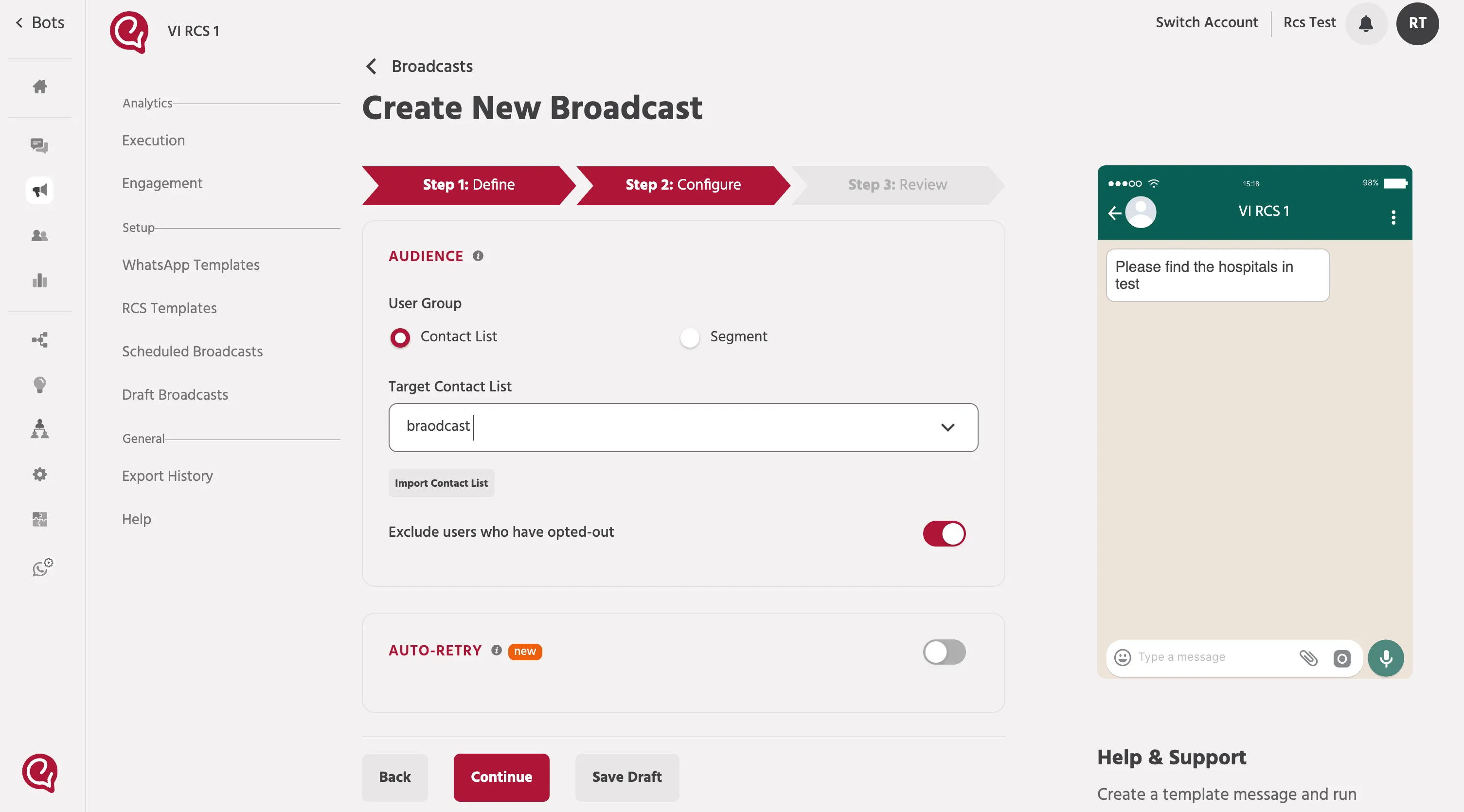
Determine who will receive the broadcast.
- User Group – Select one of:
- Contact List – Send to contacts you have imported. Choose an existing contact list from the drop‑down. Click Import Contact List to upload a new CSV/XLSX file. At minimum, include a phone no column for WhatsApp and the appropriate identifier for RCS. When uploading you can permute system and custom attributes as needed.
- Segment – Send to users who have previously interacted with your bot. Choose from segments you have defined under *Users > Segments*.
- Exclude users who have opted out – Toggle this option to remove contacts who have opted out of receiving messages.
Auto Retry and Channel Fallbacks
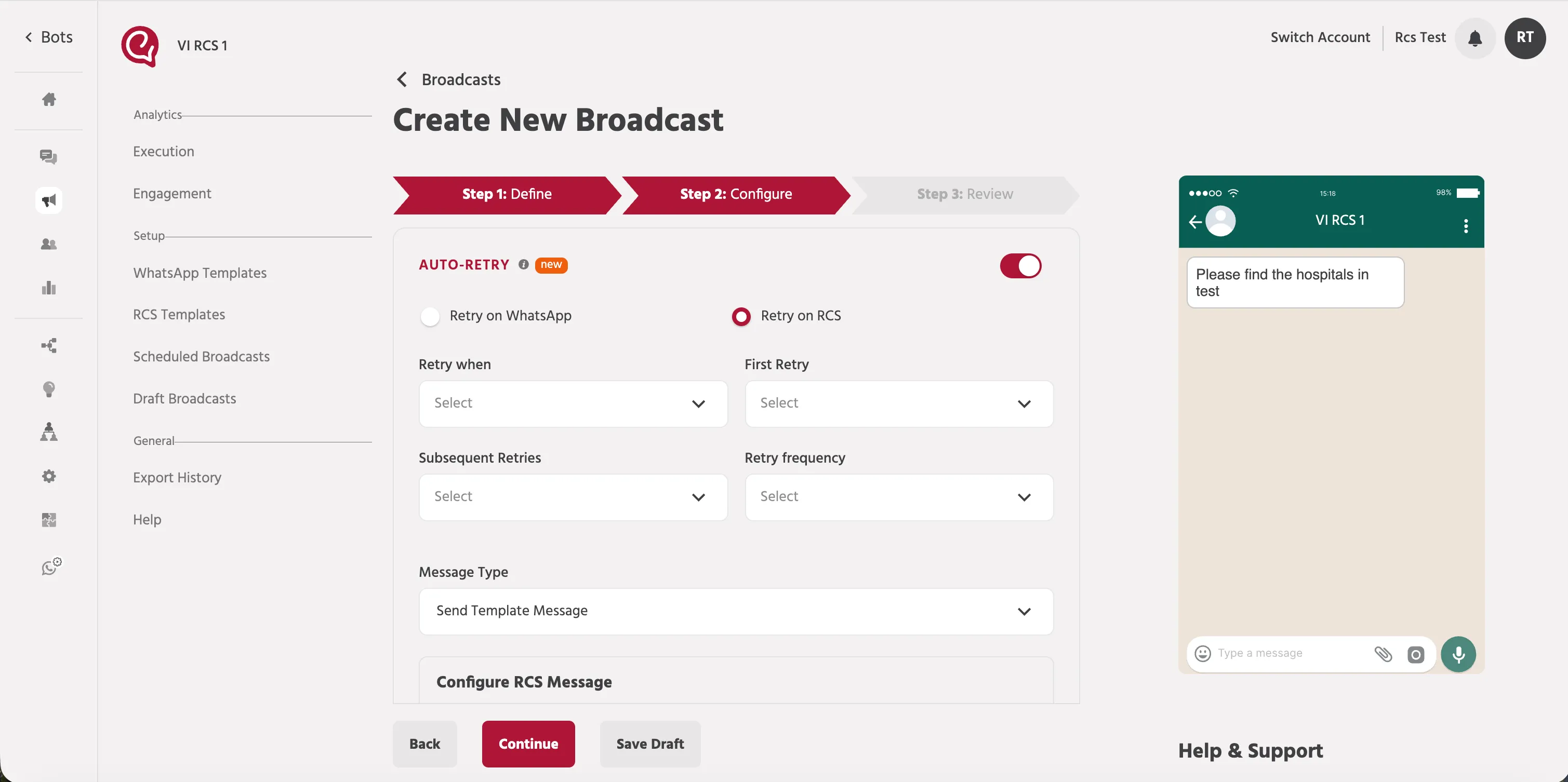
You can automatically retry failed messages or send them on an alternate channel.
1. Enable Auto Retry – Turn on the toggle to reveal additional options.
2. Retry Channel – Choose where to retry the message if it fails. When the broadcast is sent on WhatsApp, you can retry on RCS. Conversely, if it is sent on RCS, you can retry on WhatsApp.
3. Retry When – Specify the condition that triggers a retry, such as Not delivered (failed). The retry will occur only when the message meets this condition.
4. First Retry – Set how long to wait before sending the first retry (e.g., 2 hours).
5. Subsequent Retries – Choose the delay between further retries (e.g., every 1 hour).
6. Retry Frequency – Define how many retries will be attempted (e.g., up to 5 times). Retries stop when the message is delivered or the limit is reached.
7. Message Type – Select the type of message used for the retry. Normally this remains Send Template Message.
8. Configure RCS Message – If you are retrying on RCS, select the fallback RCS template and fill in its parameters.
If the fallback channel is not configured for your bot (for example, if RCS is not set up), the interface will display a warning. You must enable multi‑channel fallback in your bot settings before you can use cross‑channel retries.
Schedule
Choose when the broadcast should be sent.
- Send Now – Deliver the broadcast immediately upon publishing.
- Schedule – Schedule the broadcast for a future date and time. Select a date, specify the time and time zone, and optionally set a recurring frequency (e.g., daily, weekly). Recurring schedules are available when your WhatsApp integration is active with providers like 360dialog or Kaleyra.
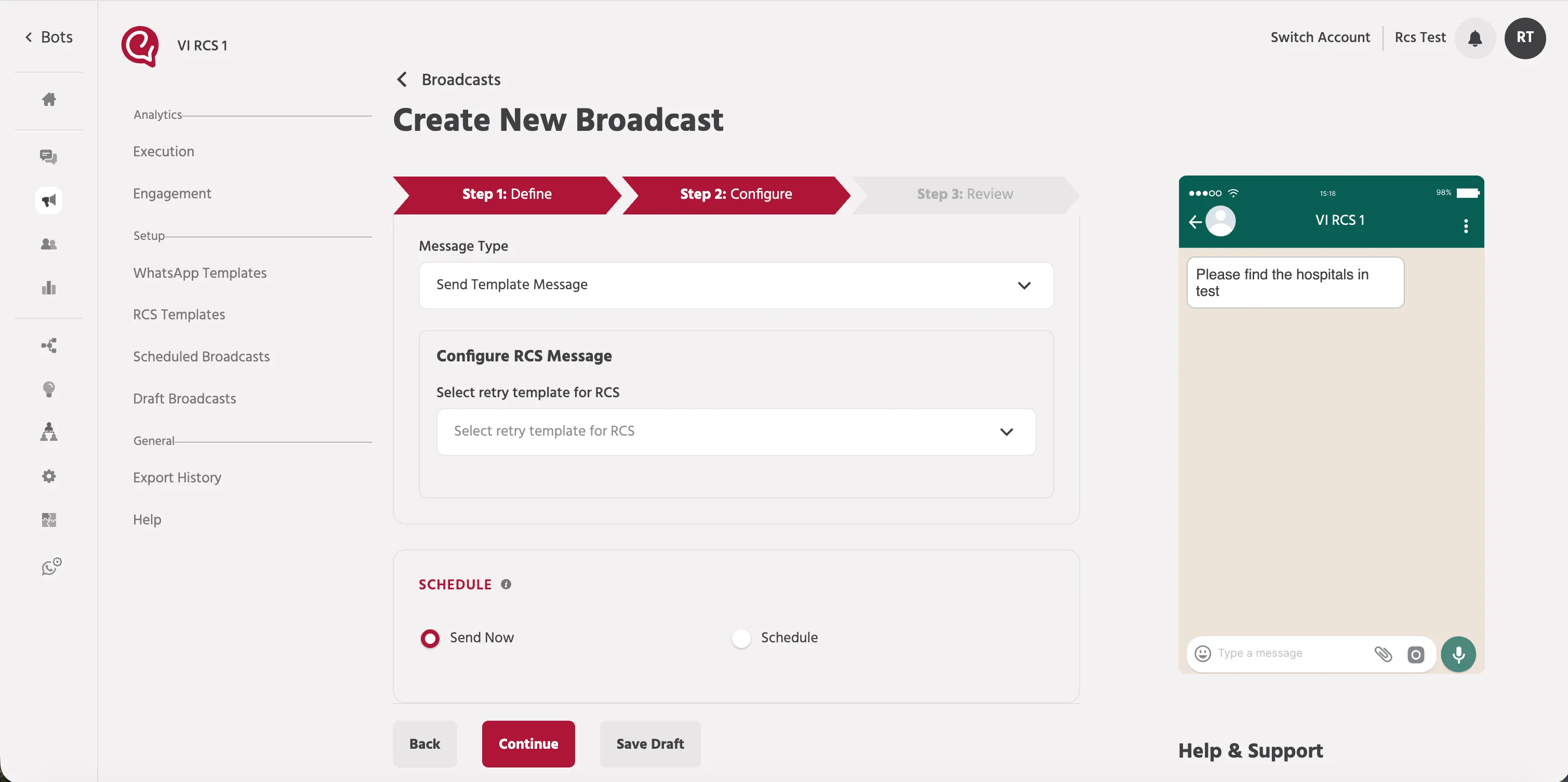
After completing all configuration sections, click Continue to proceed to the review step or Save Draft to save your work.
Step 3: Review
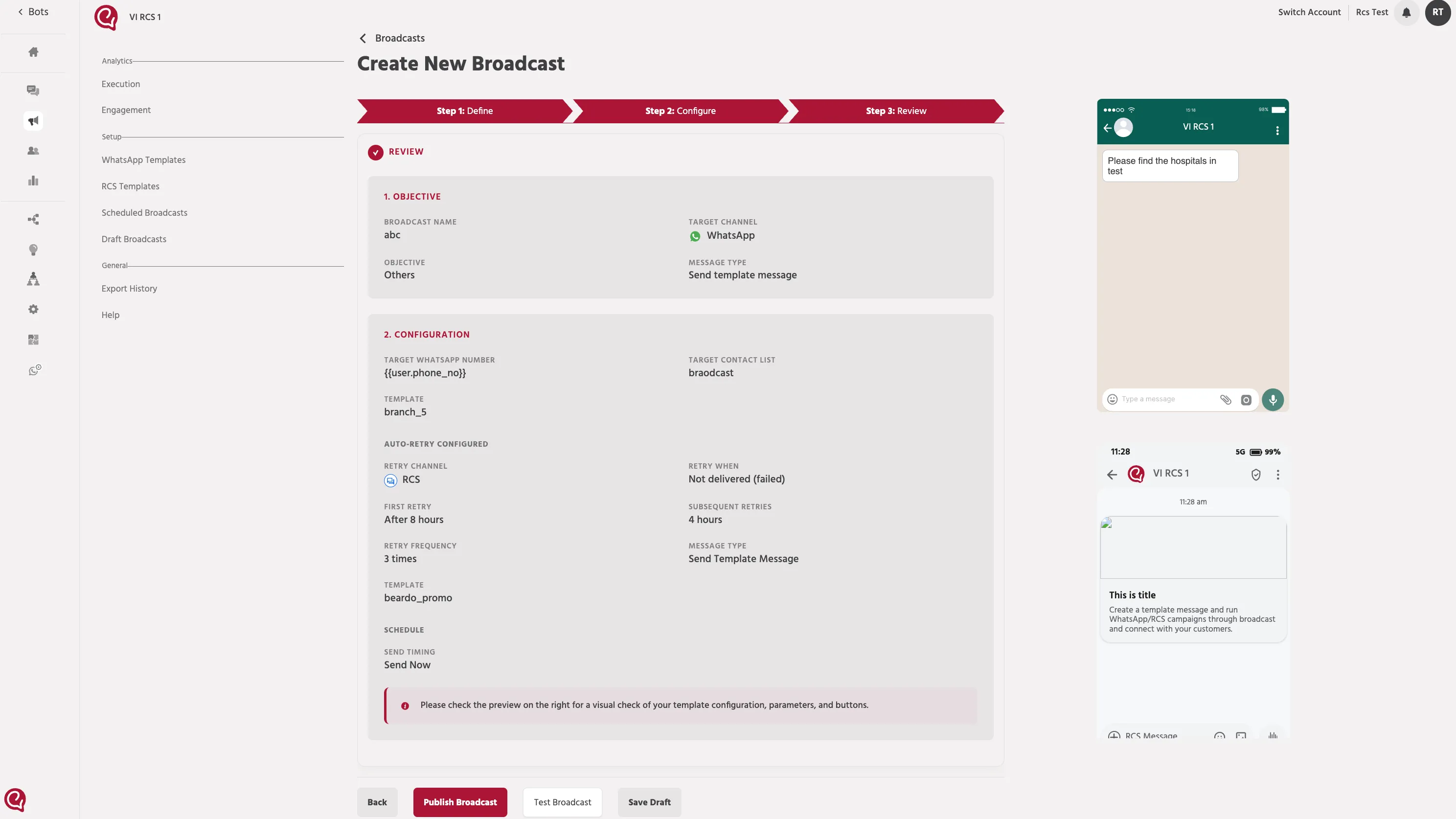
The Review step lets you verify your setup before sending.
1. Objective – Displays the broadcast name, target channel, selected objective and message type.
2. Configuration – Summarizes key settings from the Configure step:
- Selected template and parameter values.
- Selected contact list or segment.
- Variables (e.g., {{user.phone_no}}) used in the message.
- Auto Retry settings: fallback channel, trigger condition, timing and frequency, and fallback template.
- Scheduling details (immediate or scheduled send).
3. Preview Pane – Shows the final message as it will appear to recipients. Verify text, media and button layout.
4. Actions – At the bottom of the page:
- Publish Broadcast – Immediately send or schedule the broadcast based on your configuration.
- Test Broadcast – Send a test message to a single user to see how it looks in the channel.
- Save Draft – Save your configuration to return to later.
- Back – Return to the Configure step if changes are needed.
Additional Notes
- Broadcast History – After publishing, you can monitor your broadcast in Broadcast History. Statistics show how many messages were sent, delivered, read and clicked. You can also download CSV reports of the target users and any failed deliveries.
- Copy, Export, Retry and Retarget – From Broadcast History you can copy a broadcast to reuse its configuration, export a report of sent messages, retry delivery to failed recipients, or retarget the same audience.