Carousel Message Template
A Rich Card Carousel allows you to send multiple rich cards within a single message. Each card can contain media, text, and interactive buttons, enabling users to browse through multiple items by swiping horizontally.
Carousel Card Structure
Each card in a carousel can contain the following elements:
Card Title The heading displayed at the top of the card that summarizes the content.
Media Media can be added to visually enhance the card. Supported options include:
- Image upload
- Video upload
- Media URL
Media provides visual context and helps increase user engagement.
Body Text The body text contains the main message content of the card. This section can include details such as product descriptions, promotional information, or instructions.
Variables can also be added to personalize the message for users.
Example:
Buttons Buttons allow users to interact with the message directly.
Supported button types include:
- Quick Reply – Sends a predefined response back to the bot to continue the conversation.
- URL Button – Opens an external webpage when clicked.
- Phone Number Button – Allows users to call a specified phone number.
Buttons help guide users toward the next action, such as visiting a website, viewing product details, or contacting support.
Adding Multiple Cards
You can add multiple cards within a carousel to display different content items in a single message. Users can scroll through the cards horizontally to explore the available options.
This format is commonly used for:
- Product catalogs
- Promotional campaigns
- Service listings
- Feature highlights
Template Creation Steps
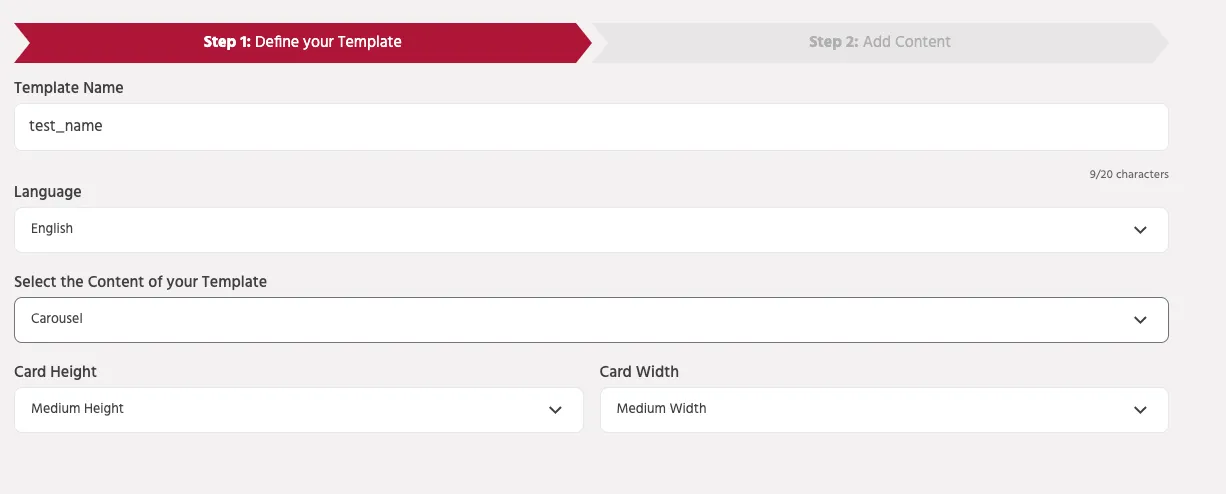
Step 1: Define Template
When creating a carousel template, configure the following:
- Template Name – Name of the template.
- Language – Language used for the template.
- Content Type – Select "Carousel".
- Card Height – Choose card height (Short, Medium, etc.).
- Card Width – Choose card width.
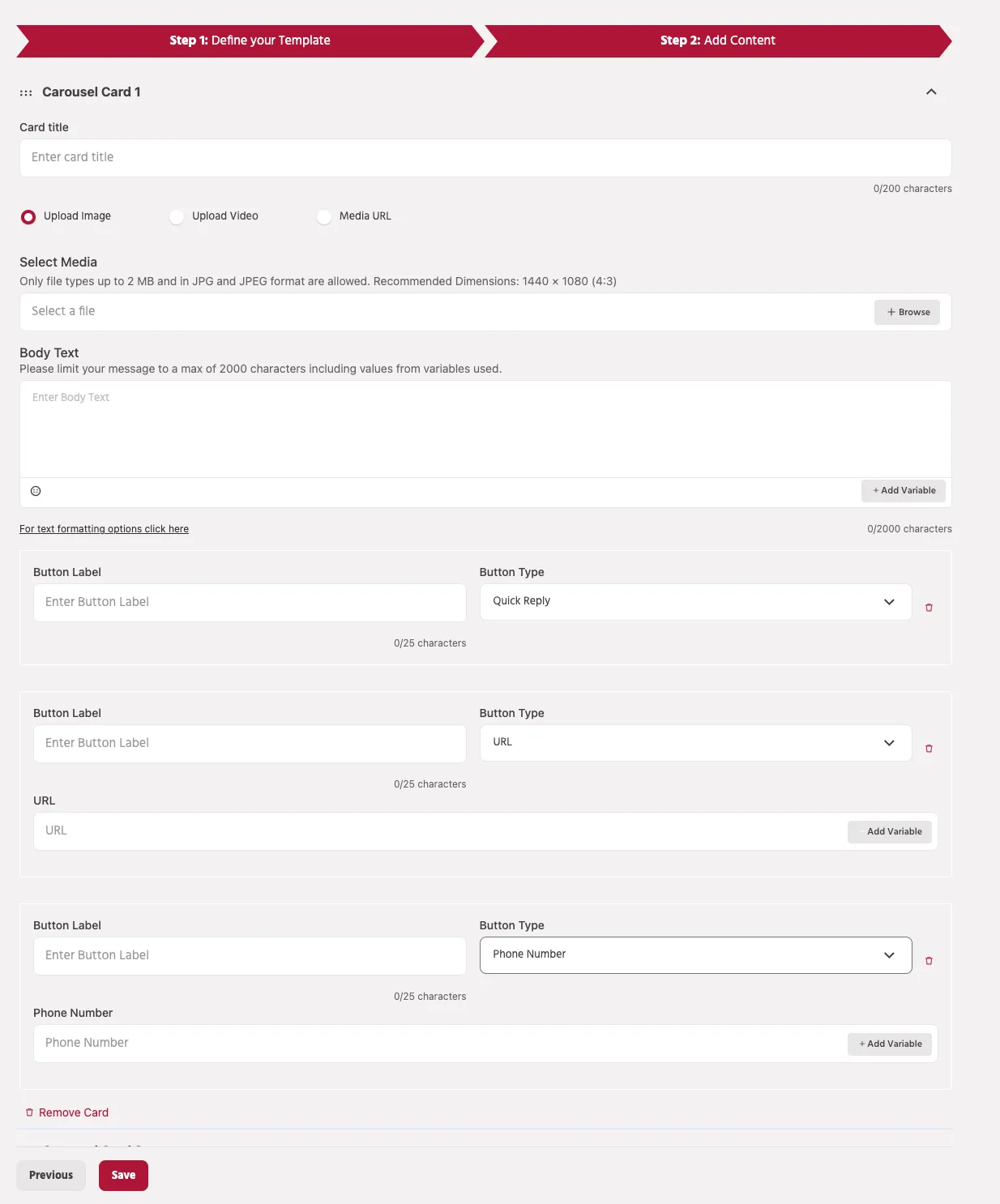
Step 2: Add Content
Each carousel card includes the following fields:
Card Title
- Enter the title of the card.
Media Options
- Upload Image
- Upload Video
- Provide Media URL
Body Text
- Maximum 2000 characters.
- Variables can be inserted for personalization.
Buttons Each card can contain multiple buttons:
- Button Label – Text displayed on the button (max 25 characters).
- Button Type – Select one of the following:
- Quick Reply
- URL
- Phone Number
Additional fields appear depending on the button type:
- URL field (for URL button)
- Phone Number field (for phone button)
Card Width + Media Height | Image Dimensions | Aspect Ratio | Max File Size | Video Thumbnail Size |
|---|---|---|---|---|
Short + Short | 960 × 720 px | 5:4 | Max 1 MB | Thumbnail: 565 × 452 px |
Short + Medium | 576 × 720 px | 4:5 | Max 1 MB | Thumbnail: 362 × 452 px |
Medium + Short | 1440 × 720 px | 2:1 | Max 1 MB | Thumbnail: 904 × 452 px |
Medium + Medium | 1440 × 1080 px | 4:3 | Max 1 MB | Thumbnail: 605 × 452 px |
Additional Fields
Image Caption – Optional caption for the image.
Image Alt Text – Alternative text for accessibility and screen readers.
Best Practices
- Use clear and concise titles.
- Ensure media follows recommended dimensions.
- Limit text to essential information.
- Use actionable button labels.
- Maintain consistency across cards in the carousel.