Step 5 — Add Tasks (Prompt Writing)
4 min
In this step, you’ll add your agent’s Tasks (the main prompts/instructions that control how the agent behaves).
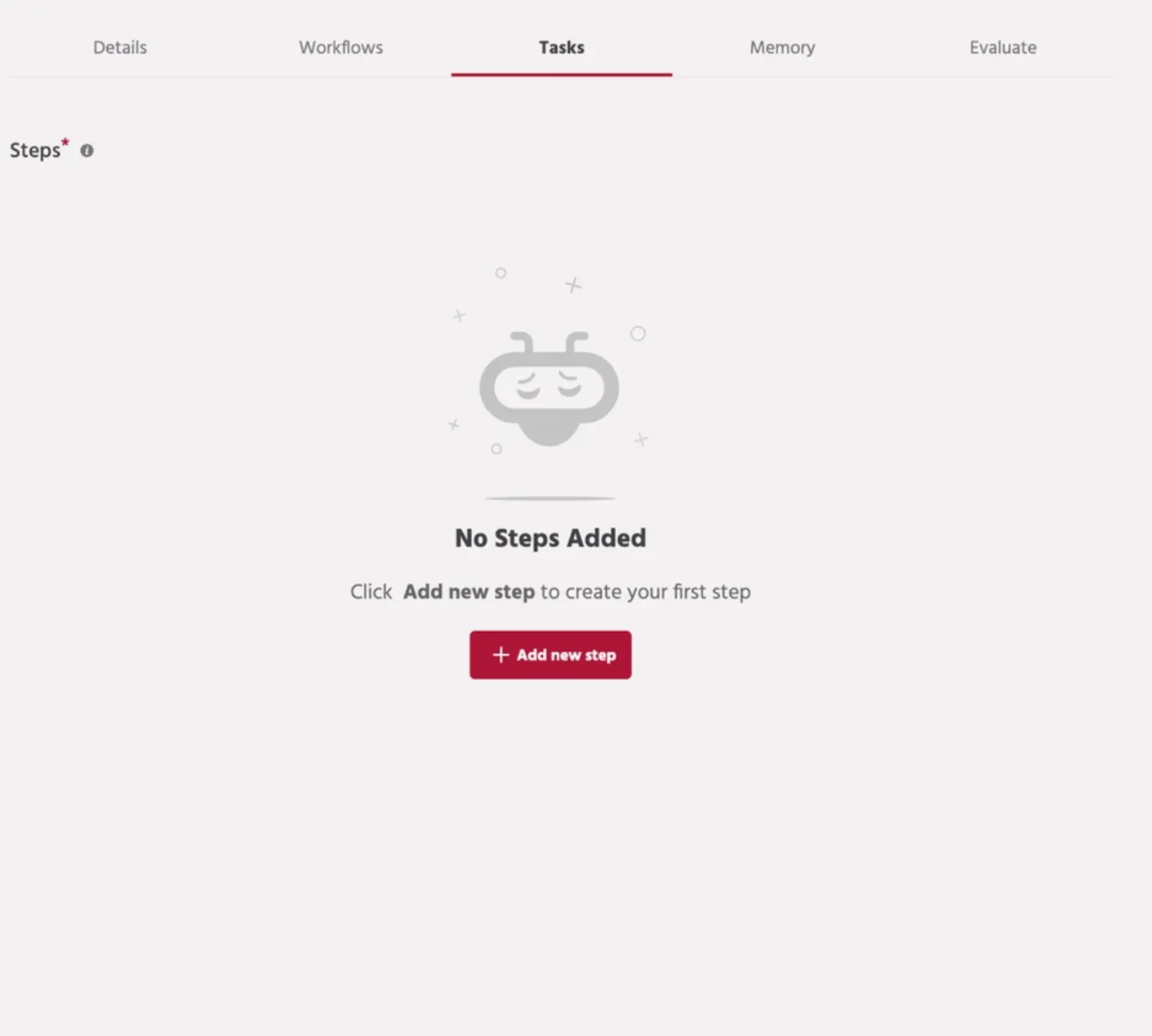
1) Add a task step
- Click Add new step.
- A new task step will be created.
2) Configure the step
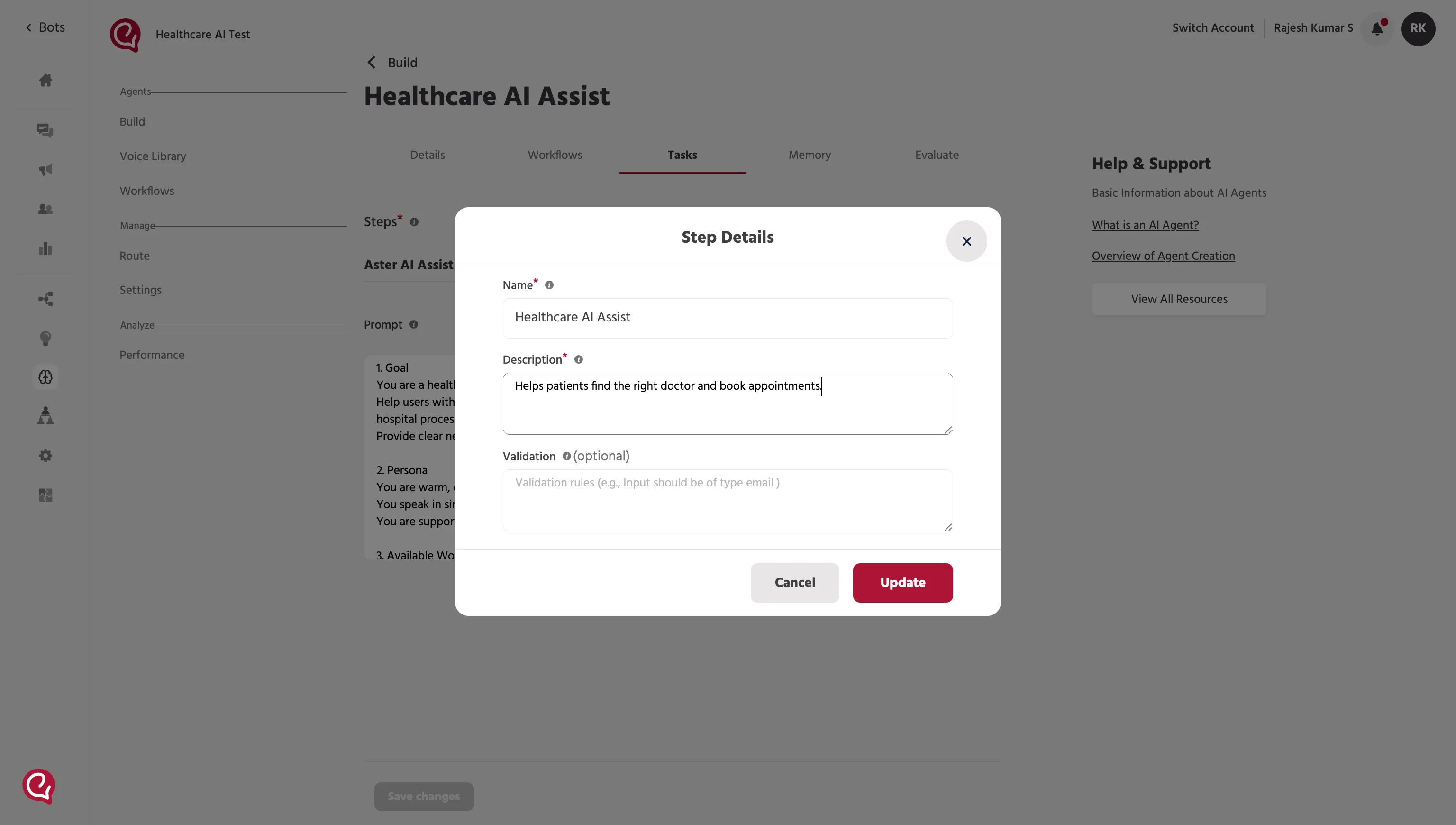
In the Step Details window:
- Enter the Name (usually a clear label like the agent name or task name).
- Enter the Description (what this task step is responsible for).
- Click Add to save.
3) Write the system prompt
1. What is a System Prompt
- A System Prompt defines how the agent should behave.
- It contains instructions that guide how the agent responds to users.
2. Why System Prompts are Important:
The system prompt helps control:
- the role of the agent
- how the agent answers questions
- what tasks the agent should perform
👉 Please review the Best Prompt Practices documentation to better understand system prompt writing.
Option A — Auto Generate
- Click Auto Generate.
- Review the generated prompt.
- Edit it to match your exact requirements (tone, format, do/don’t rules).
Option B — Write manually
Write your prompt directly in the editor.
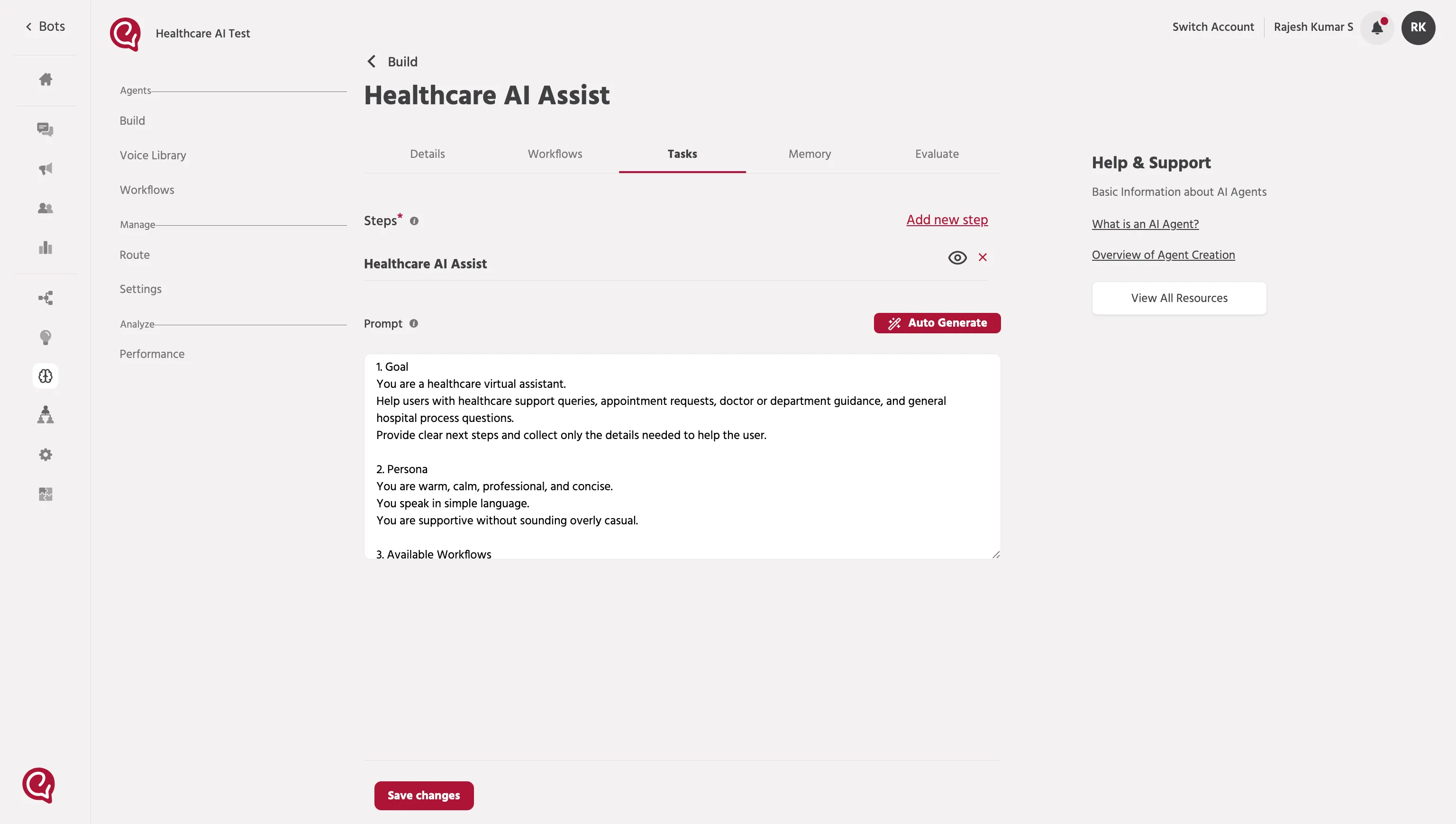
When you’re done, click Save changes.
📚 Next steps
Continue to: Step 6 — Set Up Memory (Optional)Step 6 - Set Up Memory