Step 4 — Add Tasks (Prompt Writing)
4 min
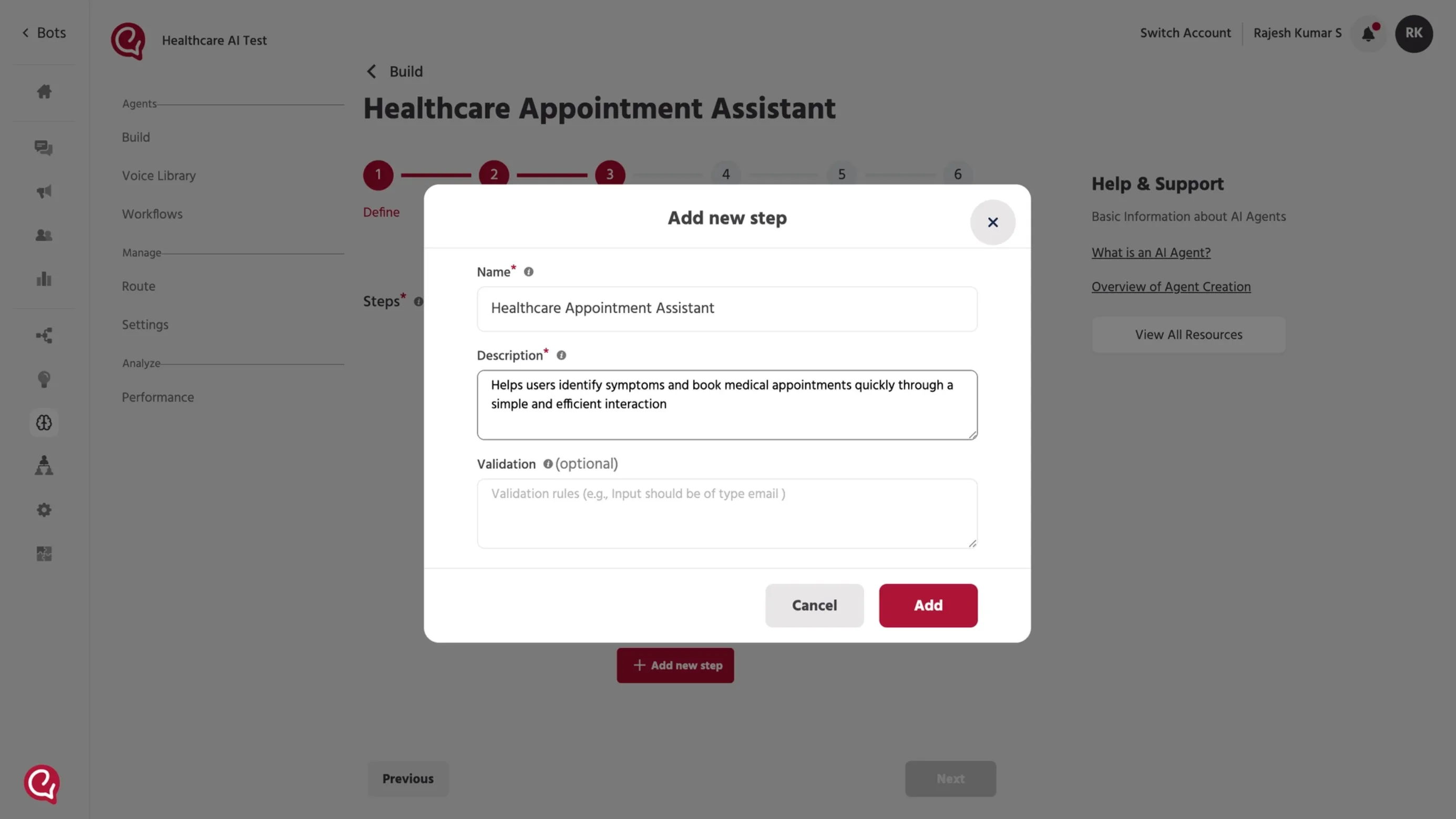
1) Add a task step
- Click Add new step.
- A new task step will be created.
2) Configure the step
In the Step Details window:
- Enter the Name (a clear label like the agent name or task name).
- Enter the Description (what this task step is responsible for).
- Click Add to save.
3) Write the system prompt
After saving, you’ll see the Prompt editor where you define the agent’s behavior.
Write manually
Write your prompt directly in the editor.
When you’re done, click Save changes.
Voice-specific prompt guidelines (important)
When writing prompts for voice agents, follow these best practices:
- Use short and natural sentences suitable for spoken conversation
- Avoid long paragraphs or complex explanations
- Use a conversational tone (friendly, clear, and direct)
- Add confirmation steps where needed (e.g., “Would you like me to proceed?”)
- Avoid special characters, bullet-heavy outputs, or formatting that doesn’t translate well to speech
- Ensure responses are easy to listen and understand in real-time
Need help with prompt writing?
Refer to the Prompt Best Practices documentation to understand how to write effective prompts for voice interactions.
👉 Review the Voice Agent Best Practises File.
📚 Next steps
Continue to: Step 6 — Set Up Memory (Optional)Step 5 — Set Up Memory (Optional)