RCS Template Creation
RCS templates allow businesses to create pre-approved rich message formats directly from the Engati portal UI. These templates can be used for broadcasts, API-triggered flows, and bot-initiated conversations. Templates must be created and approved before they can be sent to users.
You can create Rich Card, Carousel, Text, and Media templates under the RCS Templates section.
Creating an RCS Template
To create an RCS template:
- Navigate to Marketing Campaigns → RCS Templates
- Click Create New Template
Step 1: Define your Template
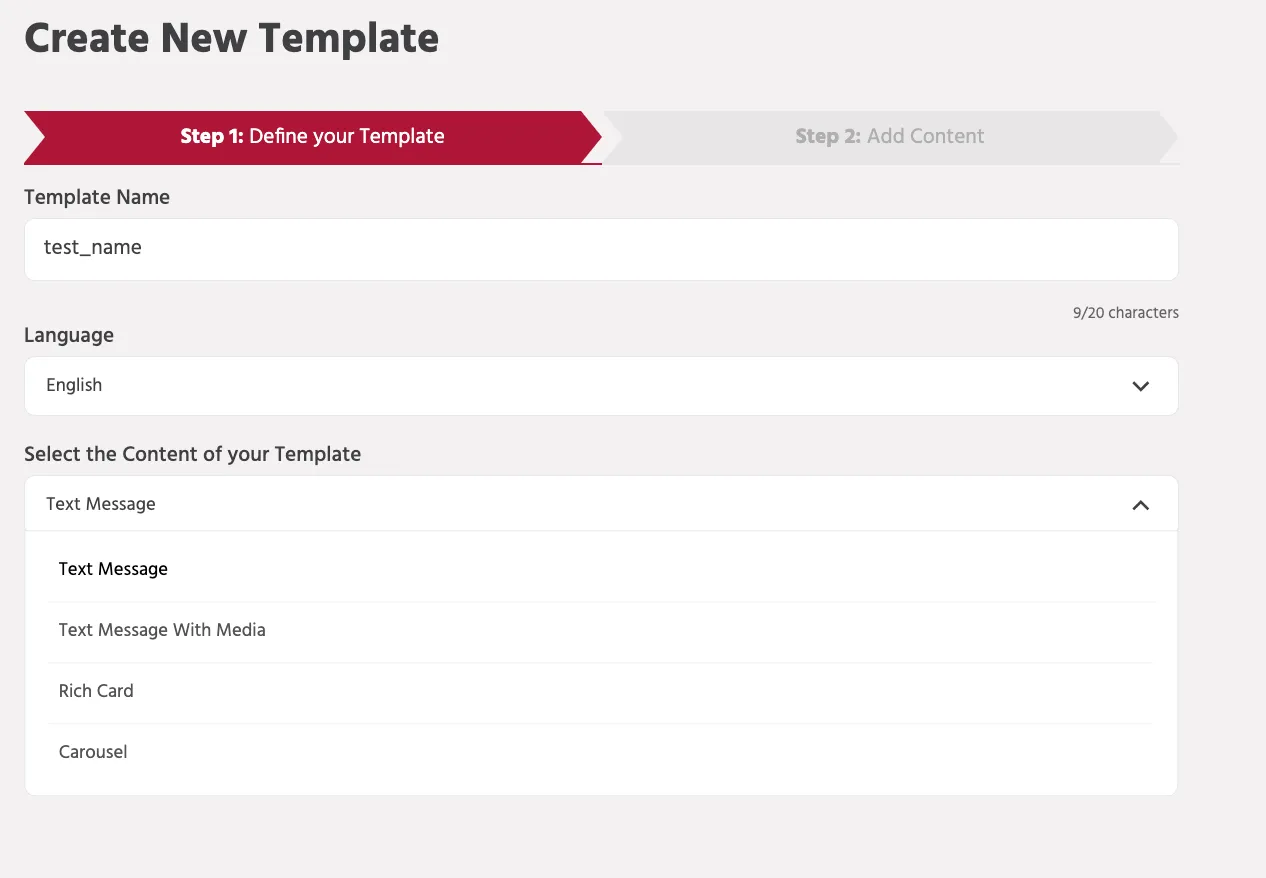
Template Name
The Template Name is the internal identifier used to manage and reference the template inside the Engati platform.
Guidelines
- Use a clear and descriptive name that represents the purpose of the template.
- The recommended length is up to 20 characters.
- This name helps teams quickly identify the template when selecting it for broadcasts or bot workflows.
Example
order_update promo_offer support_message
Language
The Language field defines the language in which the message will be sent to users.
This ensures the template is created and delivered in the correct language for your target audience.
For example:
- English
- Hindi
- Spanish
- French
Selecting the appropriate language helps maintain clarity and improves user experience.
Select the Content of your Template
Choose one of the following template types:
- Rich Card
- Carousel
- Text Message
- Media
Click Continue to proceed to content configuration.
Step 2: Add Content
The content fields will vary based on the selected template type.
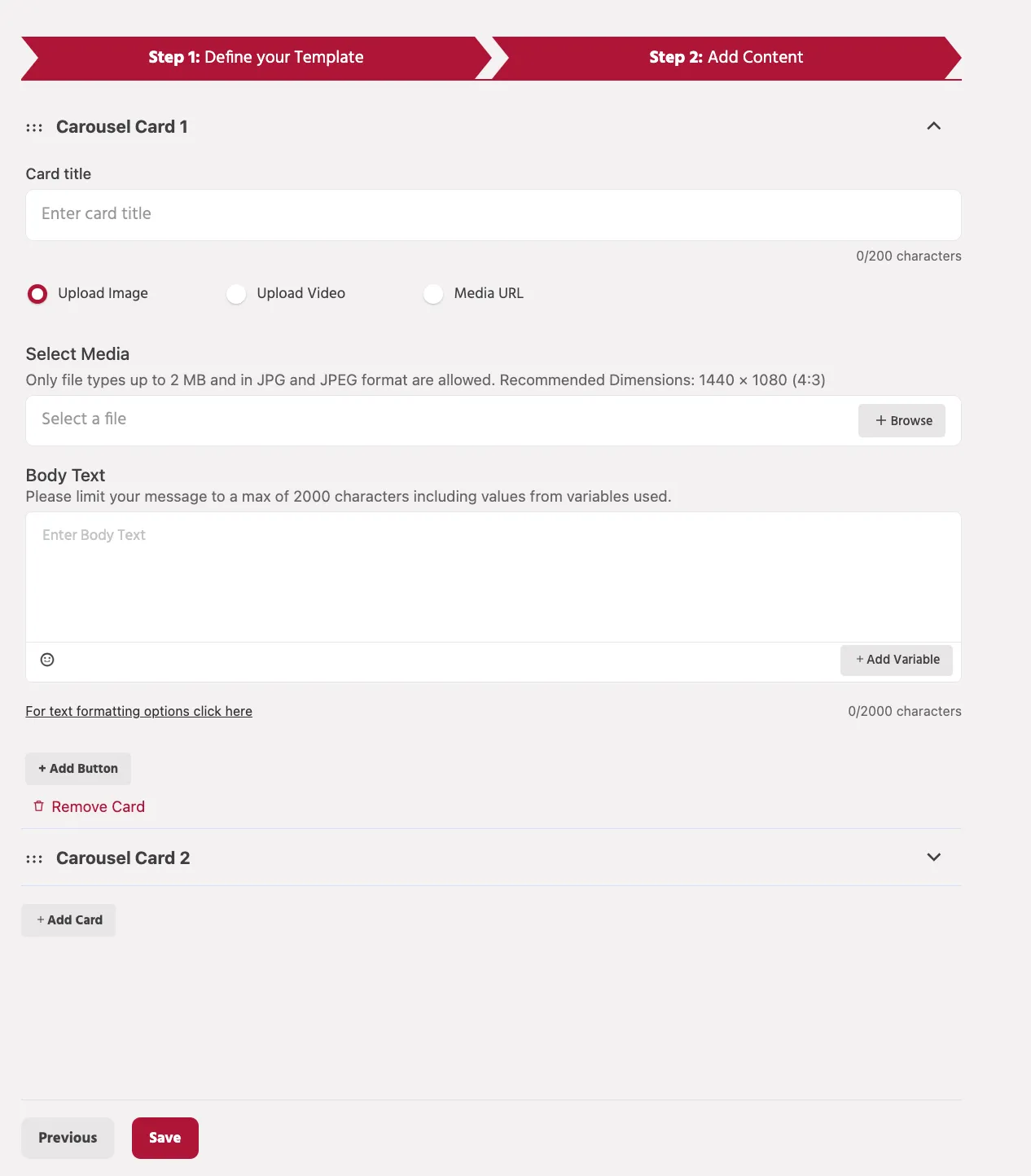
In this step, you configure the message content that will be delivered to users. The available fields depend on the template type selected in Step 1. In the case of a Carousel template, each message can contain multiple cards with media, text, and interactive buttons.
Carousel Card
Each carousel message consists of one or more cards. Every card represents an item with its own media, text, and actions.
Card Title
The card title is the heading displayed at the top of the carousel card. It should briefly describe the content or offer shown in the card.
Media Options
You can attach media to the template to make the message more engaging. The platform supports three ways to add media to a card: Upload Image, Upload Video, and Media URL.
Upload Image
Select Upload Image to upload an image directly from your device.
Guidelines:
- Supported formats: JPG / JPEG
- Maximum file size: 1 MB
- Recommended dimensions may vary depending on the card format and orientation
Images help provide visual context and improve user engagement within the message.
Upload Video
Select Upload Video to upload a video file directly from your device.
Guidelines:
- Supported format: MP4
- Maximum allowed file size after processing: 5 MB
- A thumbnail image may be required for video preview
Videos are useful for demonstrations, announcements, or promotional content.
Body Text
The body text is the main message shown inside the card. It can be used to provide additional information about the product, offer, or service.
- Maximum limit: 2000 characters
- The character count includes values inserted through variables.
Variables
You can personalize messages by inserting variables using the Add Variable option. Variables are dynamically replaced with user-specific information when the message is sent.
Example:
"Hello {{1}}, check out this offer just for you!"
Buttons
Buttons allow users to interact with the message directly.
Click Add Button to add interactive actions such as:
- Quick Reply – Sends a predefined response back to the bot.
- URL – Opens a webpage when clicked.
- Phone Number – Initiates a phone call to the specified number.
Buttons help guide users toward specific actions such as viewing a product page or contacting support.