Text Message With Media Template
A Text Message With Media template allows you to send a message that includes both text content and media elements such as images, videos, or documents. This format helps enhance communication by combining informative text with visual or supporting media.
It is commonly used for promotions, announcements, product updates, or informational messages where visual context improves user understanding.
Creating a Text Message With Media Template
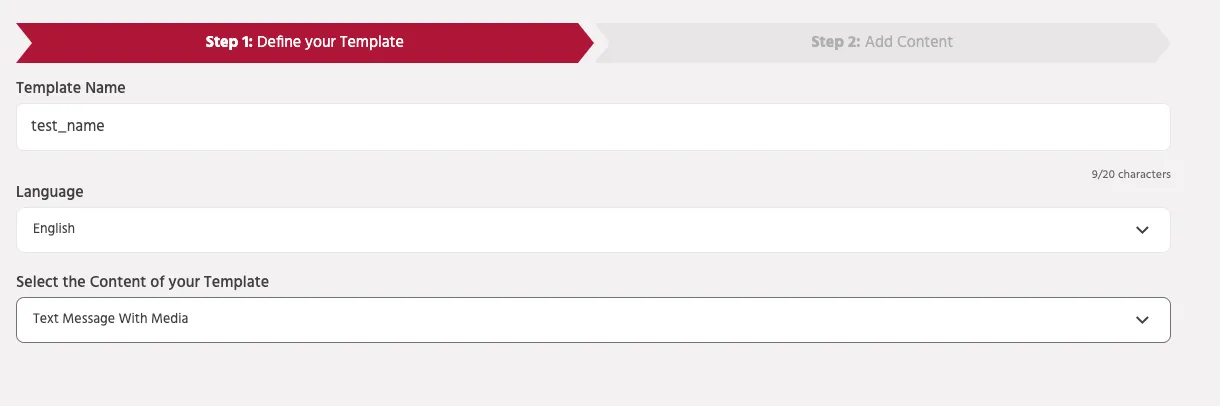
Step 1: Define Your Template
To create a Text Message With Media template, configure the following details:
- Template Name – Enter a unique name to identify the template within the platform.
- Language – Select the language in which the message will be sent.
- Select the Content of your Template – Choose Text Message With Media as the template type.
Once the template type is selected, proceed to the next step to add the message content.
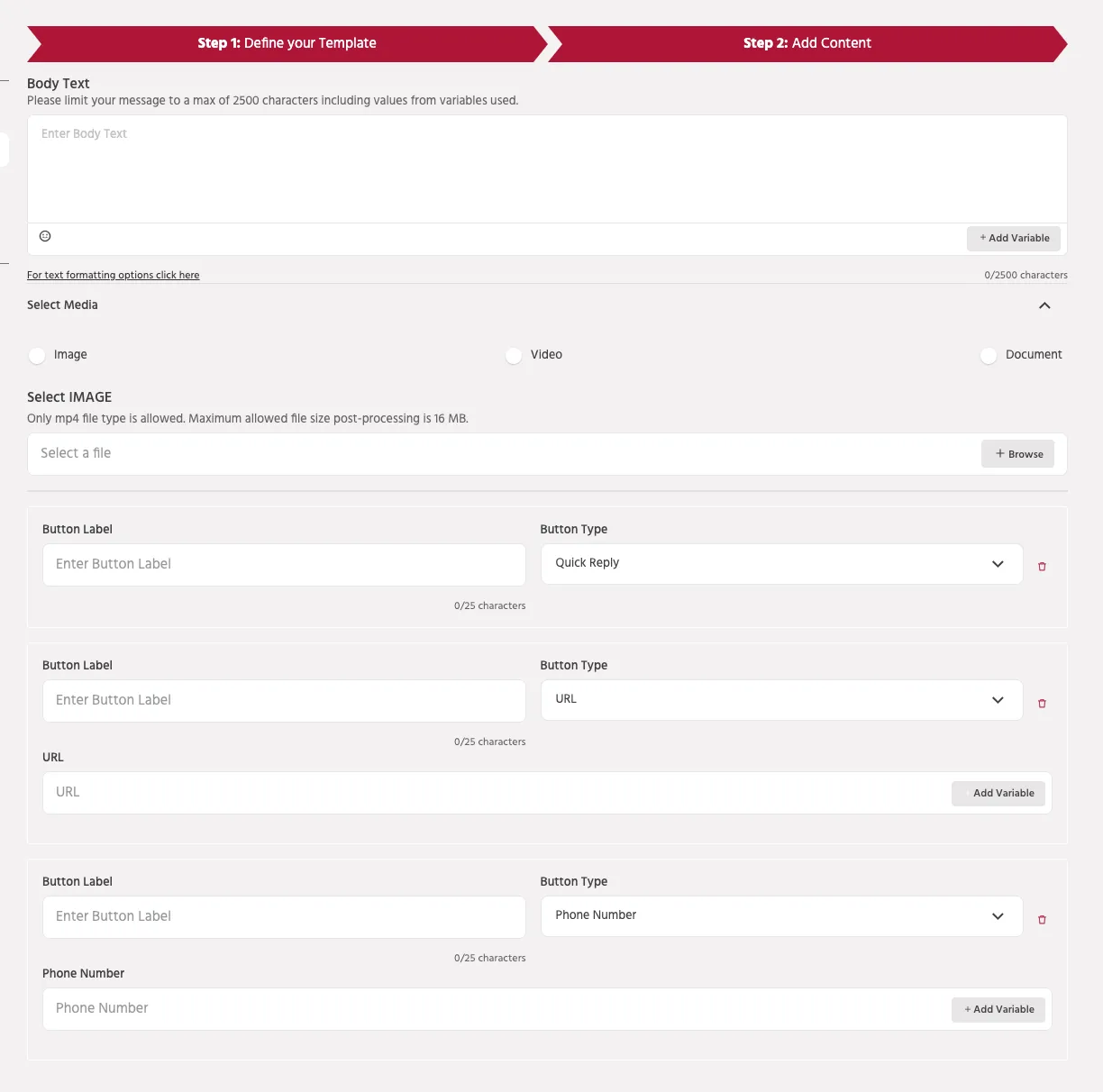
Step 2: Add Content
In this step, you configure the text, media, and interactive buttons that will be included in the message.
Body Text
The Body Text field contains the main message content.
- Maximum length: 2500 characters
- Character count includes variables used in the message.
You can insert variables to personalize messages dynamically.
Example:
Variables allow the system to replace placeholders with user-specific data when the message is delivered.
Media
You can attach media to the message to make it more engaging.
Supported media types include:
- Image
- Video
- Document
Media helps provide visual context and improves message engagement.
Buttons
Buttons allow users to interact with the message directly.
Supported button types include:
Quick Reply Sends a predefined response back to the bot to continue the conversation.
URL Button Opens an external webpage when clicked.
Phone Number Button Allows users to call a specified phone number.
Each button requires a Button Label, which defines the text displayed to the user.
Use Cases
Text Message With Media templates are commonly used for:
- Promotional campaigns
- Product launches
- Event announcements
- Informational updates
- Customer support communication
This format allows businesses to combine text communication with visual or supporting media, creating a more engaging messaging experience.
Best Practices
- Use clear and concise text content.
- Ensure media files are optimized for size and quality.
- Use images or videos that reinforce the message context.
- Keep button labels short and action-oriented.
- Personalize messages using variables when possible.