Setup Guide
Follow the steps below to configure and index a Custom Script for RAG search in the Generative AI Documents section.
Step 1 — Navigate to Generative AI Documents
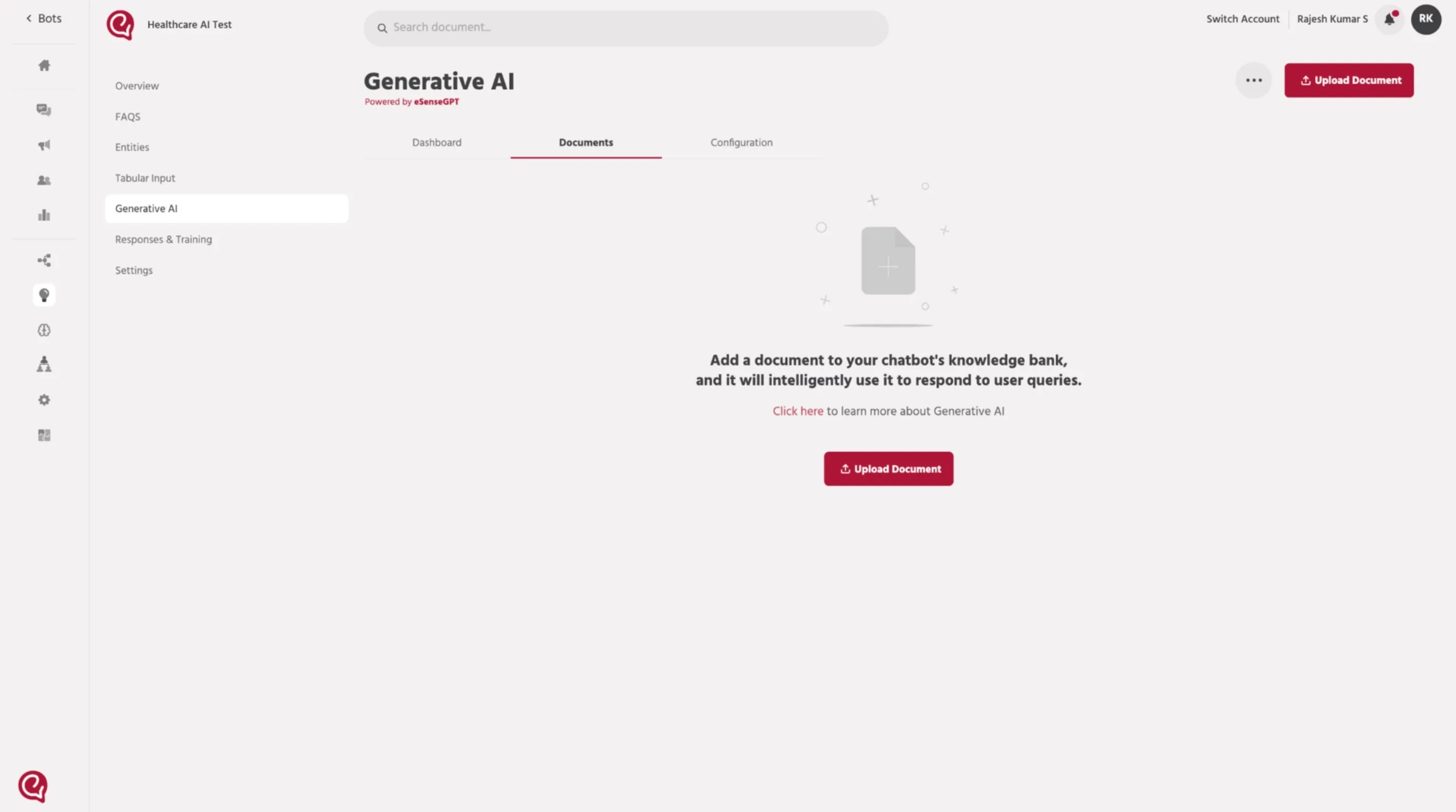
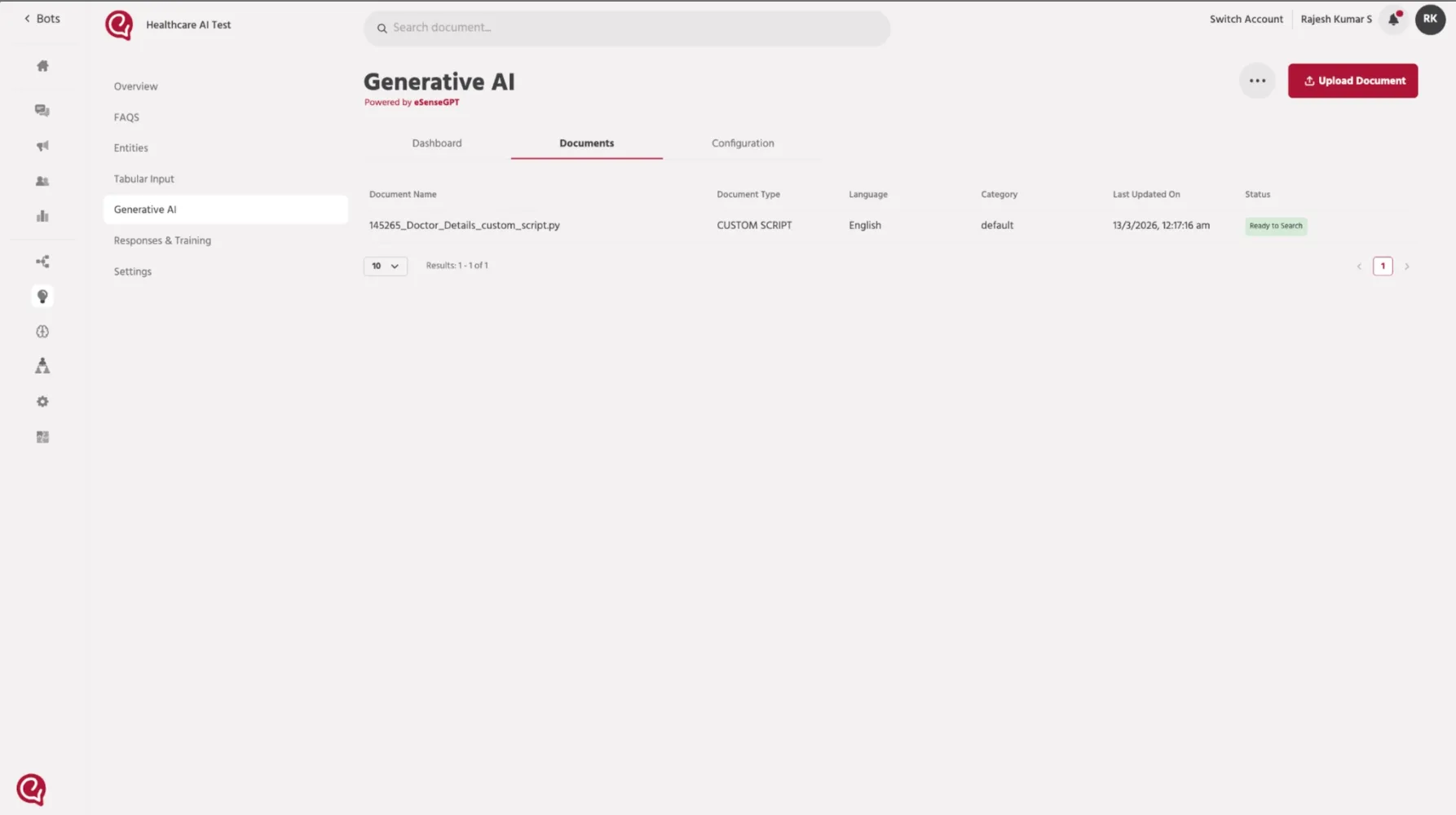
Go to the Train → Generative AI → Documents section.
Click Upload Document to add a new knowledge source for indexing.
Step 2 — Select Custom as Content Source
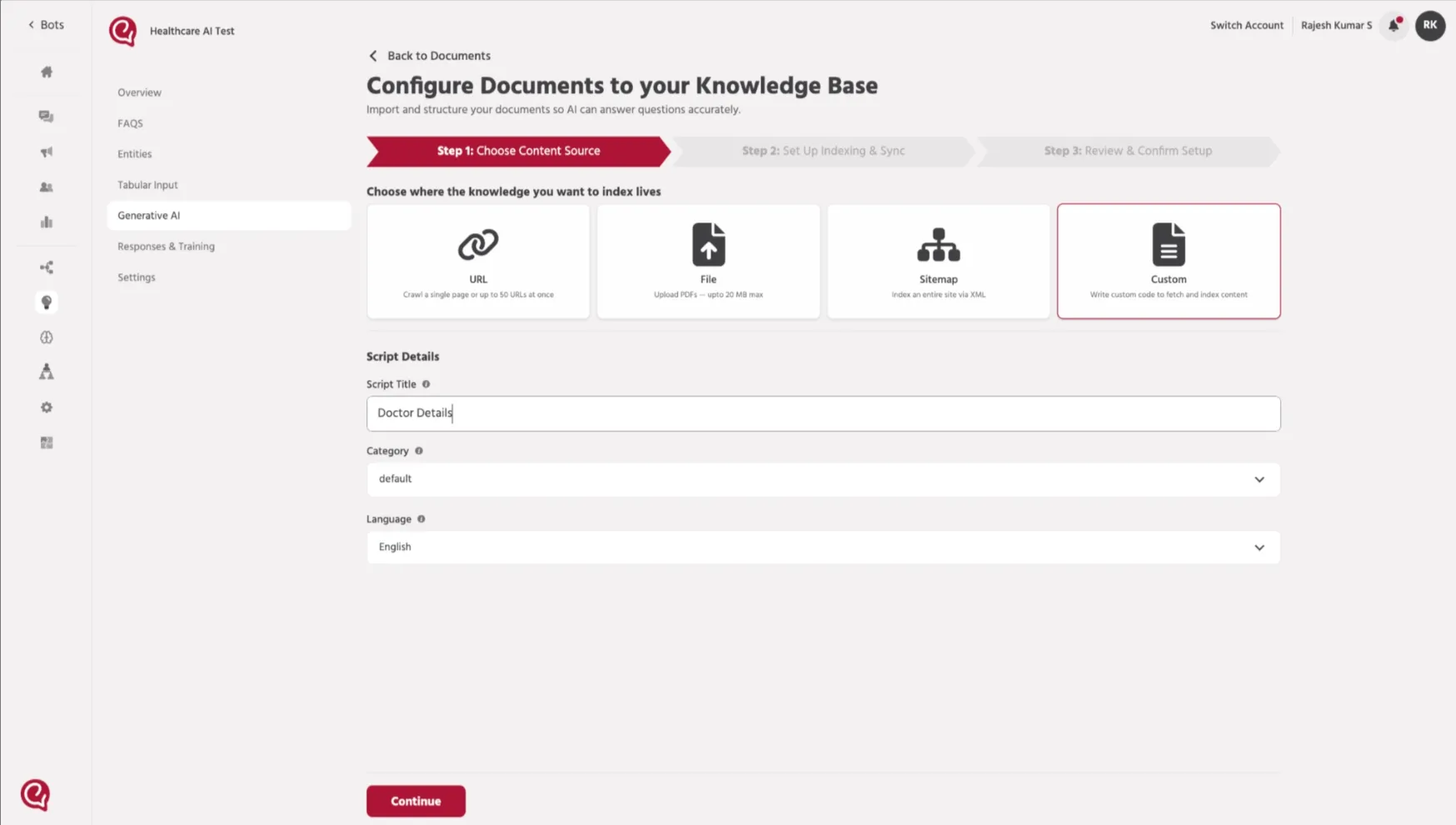
In the Configure Documents to your Knowledge Base screen, choose Custom as the content source.
This option allows you to upload a Python script that fetches external data and converts it into structured JSON for indexing.
Provide the required information for the script configuration.
Script Title: Enter a descriptive name for the custom script. (E.g..Doctor Details)
Category: Select a category to organize the indexed document.
Language: Choose the language used in the indexed content.
Step 3 — Add the Custom Script
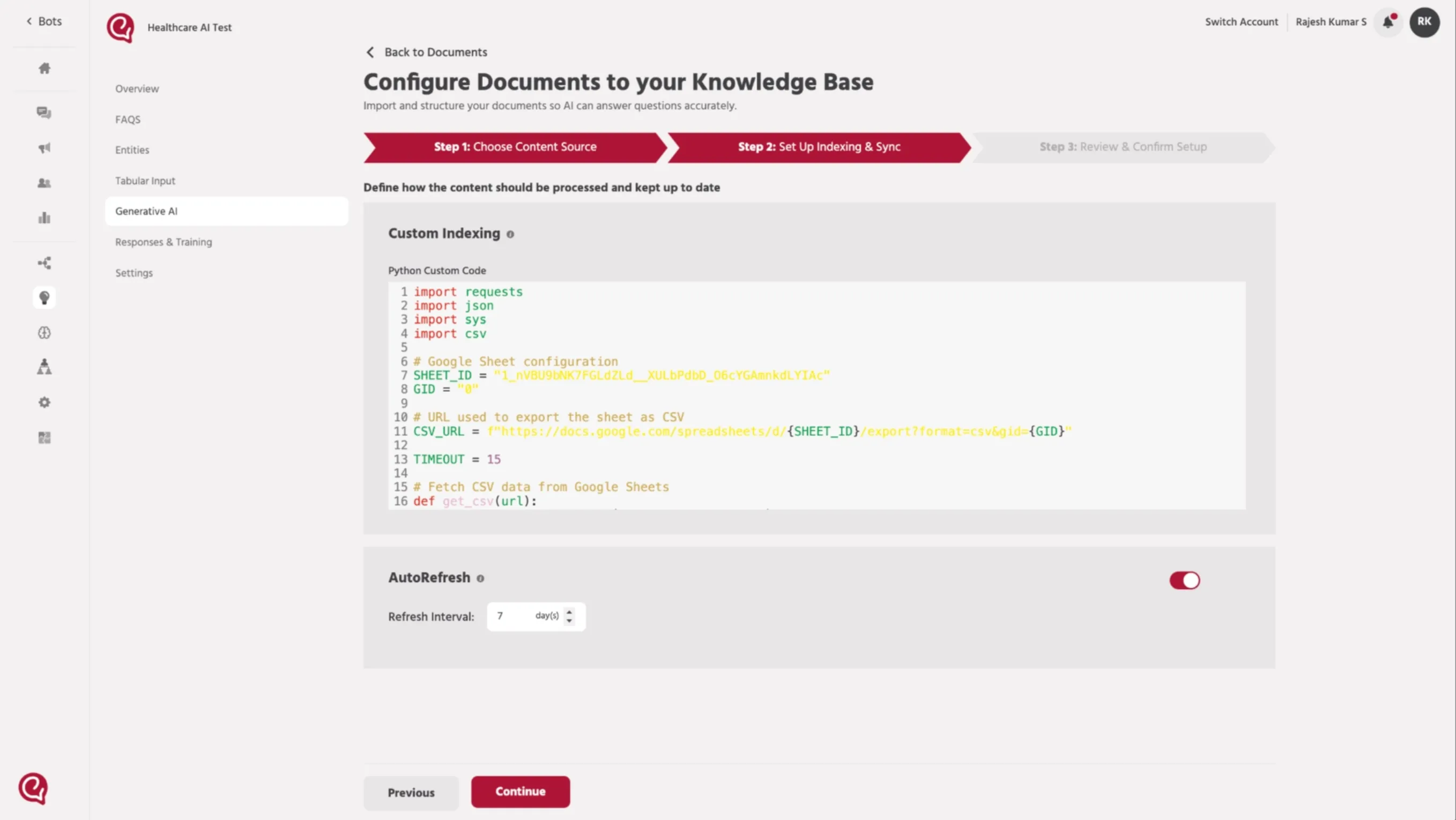
In the Custom Indexing section, paste the Python script that retrieves and formats the external data.
The script should:
- Fetch data from the external source (API, Google Sheets, Sitemap, etc.)
• Convert the data into structured JSON
• Return the JSON output using sys.stdout.write
This JSON output will be used by the platform to index the content for RAG retrieval.
Step 4 — Configure Auto Refresh (Optional)
You can enable AutoRefresh to automatically update the indexed data.
Enable the AutoRefresh toggle and set the Refresh Interval (in days).
Example: Refresh Interval: 7 days
This ensures the script runs periodically and updates the knowledge base with the latest data.
After entering the details, click Continue.
Step 6 — Review and Confirm Setup
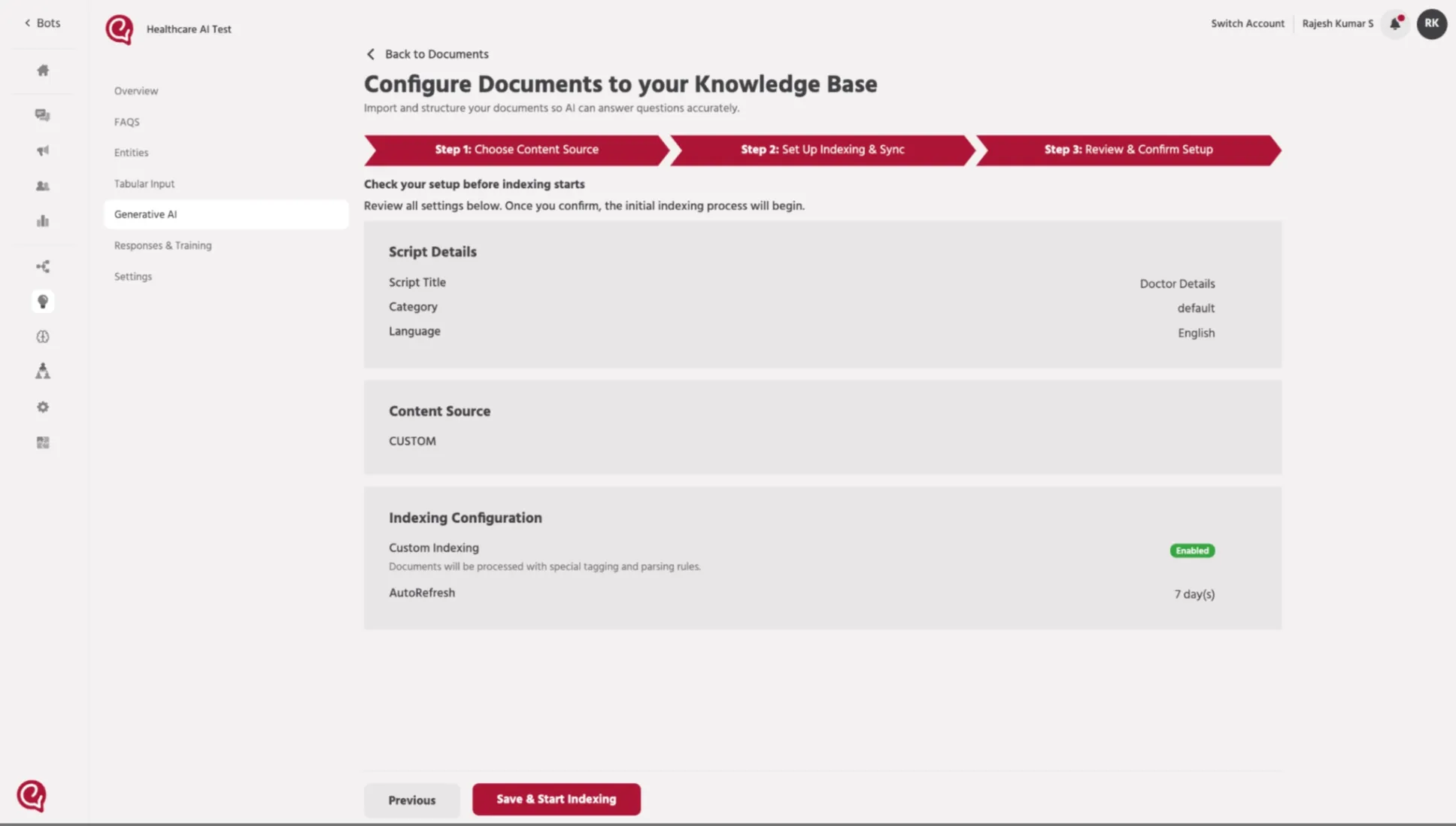
Review the configuration before starting the indexing process.
Verify the following:
• Script Title • Category • Language • Content Source • Indexing Configuration • AutoRefresh settings
Once confirmed, click Save & Start Indexing.
Step 7 — Verify Document Status
After indexing completes, the document will appear in the Generative AI Documents list.
The status will show:
Ready to Search
This indicates that the custom script data has been successfully indexed and is now available for RAG-based retrieval.
📚 Next Step
Once the document status shows Ready to Search, configure the RAG Path SetupRAG Path Setup so the AI agent can retrieve indexed data during conversations.