External Broadcast API
The External Broadcast API feature allows you to programmatically trigger broadcast messages to your users from your own systems, rather than solely relying on the Engati platform. This powerful capability provides flexibility and integration options for developers and technical teams.
Use-Case
One of the primary use-cases for the External Broadcast API is sending notices or announcements to your user base. By leveraging this API, you can seamlessly initiate broadcast campaigns from within your existing workflows and systems.
It's important to note that broadcasts initiated through the External Broadcast API may take some time (typically 5-15 minutes) to be delivered to all recipients. Additionally, the API does not provide granular tracking for delivery, send, or failure statuses of individual messages.
Availability
To access this feature, ensure the required channel is enabled in your account.
Supported channels:
- RCS
For WhatsApp, 360dialog must be configured as the provider.
This feature is exclusively available with higher Engati plans.
The External Broadcast API supports sending template-based broadcast messages to existing users across supported channels.
Setting Up (WhatsApp)
Setting up the External Broadcast API involves a few key aspects:
- You'll need to obtain the cURL command of the specific message template you want to use for the broadcast. This cURL represents the approved template content that will be sent.
- You must prepare a CSV file containing the list of recipients you want to target with the broadcast.
Proceed by following the steps provided below to initiate a external broadcast using APIs.
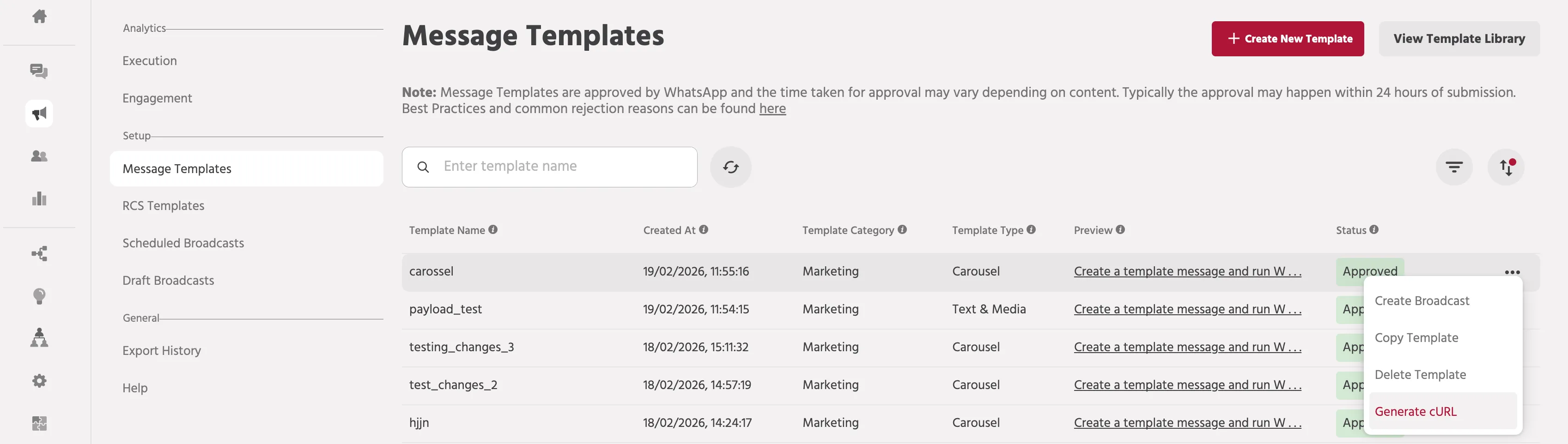
Step 1 : Navigate to Broadcast > Message Templates > More Actions > Generate cURL Note: This is available only for the approved templates.
Step 2 : After clicking the ‘Generate cURL’ option an API request box will be displayed.
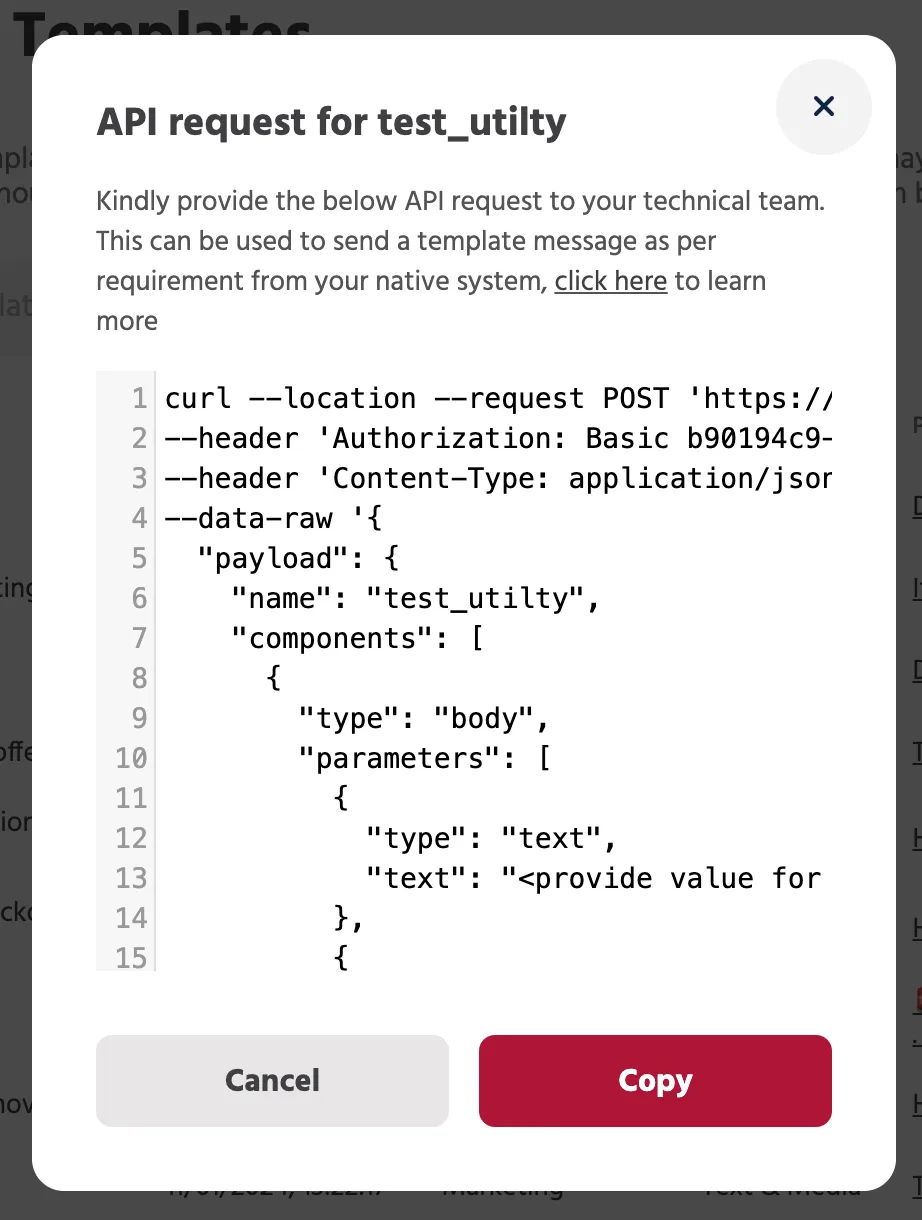
Step 4 : Click the 'Copy' button to save the API request curl to your clipboard. From this generated API cURL, take note of the payload section. The payload should contain the following key values:
- namespace
- name
- language
- components
The payload is the section where you'll need to provide specifics about the message template, such as the namespace it belongs to, the template name, language, and components like header, body, and buttons. Ensure these values are present and correctly formatted in the payload when using the API cURL.
Step 5 : Create a CSV file with one column containing the phone numbers of the users you want to target for the broadcast. The header of this column must be labeled as "phone_no".
If your message template includes any variables or placeholders for additional user attributes, you'll need extra columns in the CSV.
The headers for these extra columns should follow the format "user.attribute_N" where N starts from 0 and increments for each attribute (e.g. user.attribute_0, user.attribute_1, user.attribute_2, and so on).
Step 6 : Open you Postman and enter the values as mentioned below: Method : POST Request URL :
Version 1:
Version 2 (Includes analytics. Contact [email protected] for additional enablement):
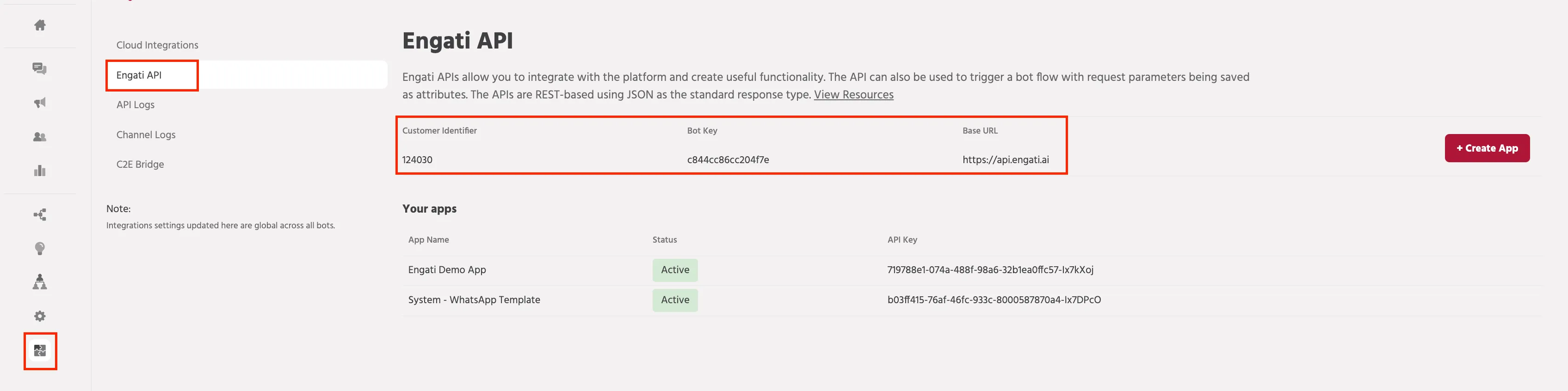
Note : To get your Customer id, Bot key and API key, navigate to Integrations > Engati API. To generate an API Key : Click on "+Create App"
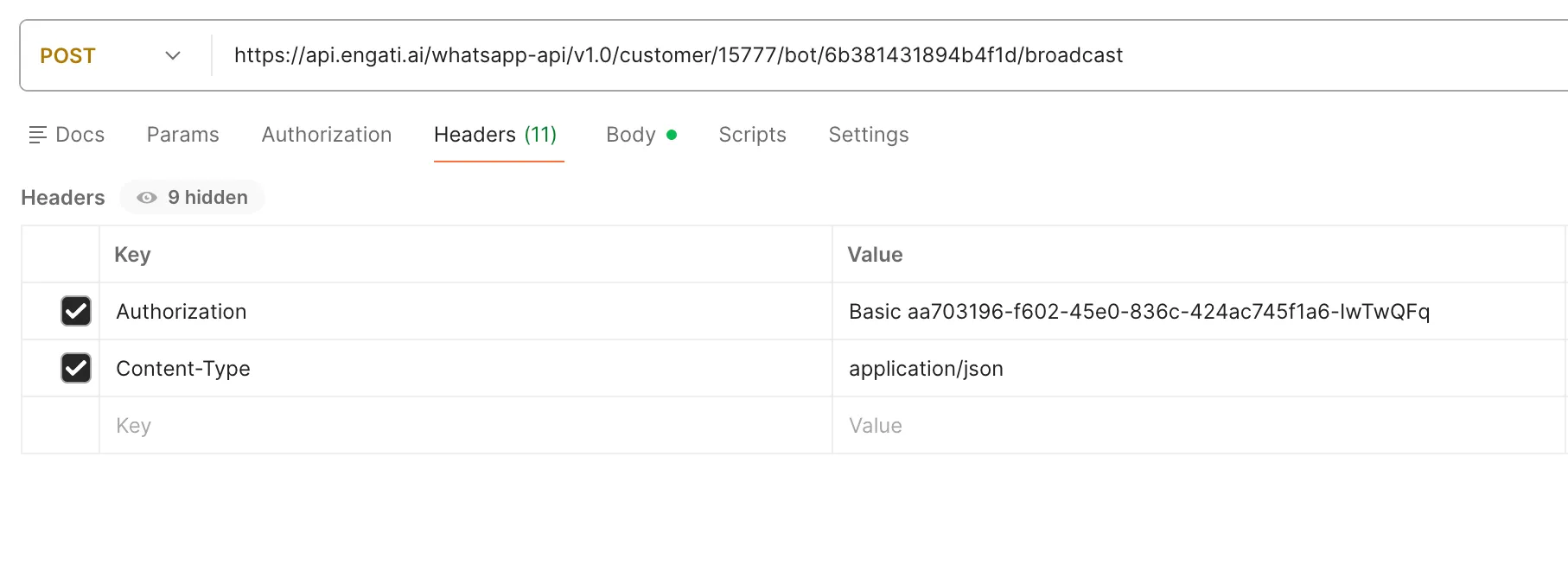
Step 7 : In the headers field enter the below mentioned key and value :
- Authorization : Basic <API key>
- Content-Type : application/json
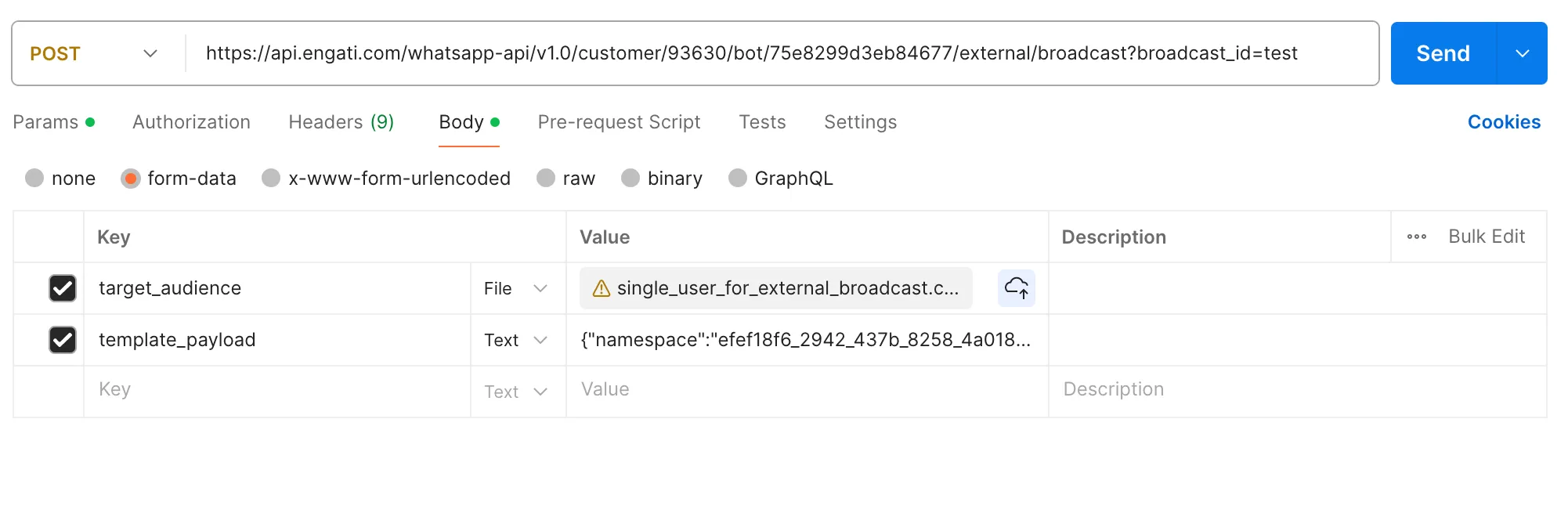
Step 8 : In the Body enter the below mentioned key and value for Version 1 :
- target_audience: Provide the CSV file containing the list of recipients that you created in step 5.
- template_payload: Include the structure of the message template you want to send, along with any necessary parameters. This template payload should be the same payload section obtained from the generated API cURL in step 4.
In the Body enter the below mentioned key and value for Version 2 :
- target_audience: Provide the CSV file containing the list of recipients that you created in step 5.
- payload: We have added additional details like broadcastTitle, platform, countryCode and along with that, include the structure of the message template you want to send, along with any necessary parameters. This template payload should be the same payload section obtained from the generated API cURL in step 4.
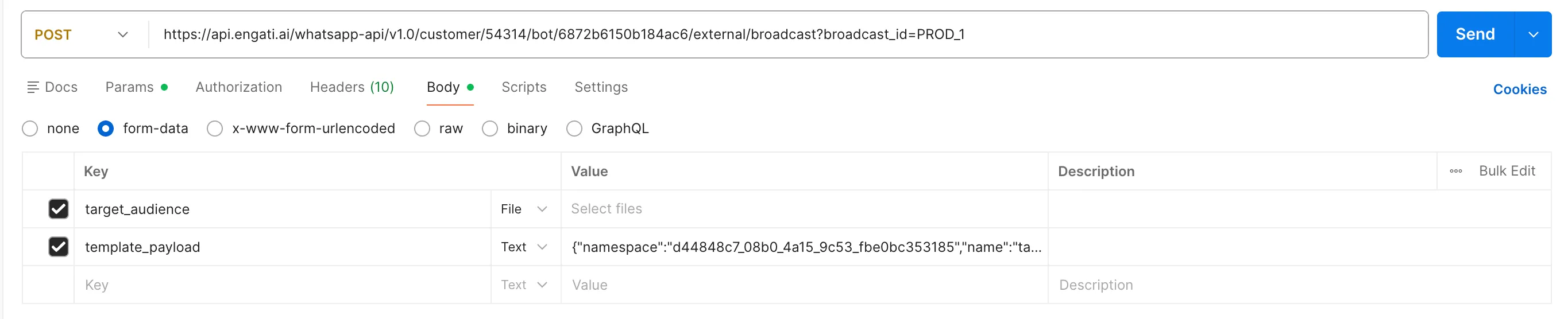
After completing all the previous steps mentioned above, including providing the target audience CSV file and template payload details, you can initiate the external broadcast by clicking the "Send" button.
This will trigger the API call and kick off the process of sending the broadcast message to the specified list of recipients using the provided template.
Sample cURL Request - Version 1
curl --location --request POST 'https://api.engati.ai/whatsapp-api/v1.0/customer/54314/bot/6872b6150b184ac6/external/broadcast?broadcast_id=PROD_1' \
--header 'Authorization: Basic 8f62e974-c9c8-41f4-9345-035e14b1e692-GmWANEq' \
--form 'target_audience=@"/Users/vrajdesai/Downloads/single_user_for_external_broadcast.csv"' \
--form 'template_payload="{\"namespace\":\"d44848c7_08b0_4a15_9c53_fbe0bc353185\",\"name\":\"table_reservation\",\"language\":{\"code\":\"en\",\"policy\":\"deterministic\"},\"components\":[{\"type\":\"header\",\"parameters\":[{\"type\":\"document\",\"document\":{\"link\":\"https://webstor.srmist.edu.in/web_assets/srm_mainsite/files/2017/Enagati-Poster_SRM.pdf\",\"filename\":\"asdasd.pdf\"}}]},{\"type\":\"button\",\"sub_type\":\"quick_reply\",\"index\":\"0\",\"parameters\":[{\"type\":\"payload\",\"payload\":\"flow_9ACECB154D304276A827352F5FD5DE3A||data_booleanliked=BBB\"}]},{\"type\":\"button\",\"sub_type\":\"quick_reply\",\"index\":\"1\",\"parameters\":[{\"type\":\"payload\",\"payload\":\"flow_4D336055233C4DA1BA782ED1B072BB2E\"}]},{\"type\":\"body\",\"parameters\":[{\"type\":\"text\",\"text\":\"{{0}}\"}]}]}"'
Sample cURL Request - Version 2
curl --location 'https://api.engati.ai/bot-api/v2.0/customer/92064/bot/634dff0821d4424e/external/broadcast' \
--header 'accept: application/hal+json' \
--header 'Content-Type: application/json' \
--header 'Authorization: Basic 30ff7980-cfc5-4c70-8e23-41aa039a9695-HrPpxEf' \
--form 'target_audience=@"/Users/nitishkumar/Downloads/Sample_ContactList_File_attributes.csv"' \
--form 'payload="{\"broadcastTitle\":\"test_external_attributes_02\",\"payload\":{\"content\":[{\"template\":{\"payload\":{\"namespace\":\"bffff98d_69a9_4bb7_bb7d_cfd0f81b1aa2\",\"name\":\"nitish_attributes_copy\",\"components\":[{\"type\":\"body\",\"parameters\":[{\"type\":\"text\",\"text\":\"{{power}}\"}]}],\"language\":{\"code\":\"en_US\",\"policy\":\"deterministic\"}}},\"type\":\"TEMPLATE\"}],\"type\":\"WHATSAPP_TEMPLATE\"},\"platform\":\"dialog360\",\"countryCode\":\"IN\"}"'
Setting Up (RCS)
The API supports RCS template-based broadcasts using approved RCS templates.
For RCS broadcasts:
- Create and publish the broadcast from the platform
- Navigate to the API Logs section
- Copy the generated template payload
- Use the copied payload while triggering the external broadcast API
Sample cURL Request - csv contact list
curl --location 'https://api.engati.ai/bot-api/v2.0/customer/<customer_id>/bot/<bot_key>/external/broadcast' \
--header 'Authorization: Basic <API Key>' \
--header 'Accept: application/hal+json' \
--form 'payload="{
  "broadcastTitle": "test_external_broadcast_rcs",
  "payload": {
    "content": [
      {
        "template": {
          "payload": {
            "contentMessage": {
              "templateMessage": {
                "templateCode": "test_rcs_template",
                "customParams": "{\n\t\"postback_data_1\": \"flow_<flow_key>\",\n\t\"postback_data_2\": \"flow_<flow_key>\",\n\t\"postback_data_3\": \"flow_<flow_key>\"\n}"
              }
            }
          },
          "targetRcsNumber": "{{channel_user_id}}"
        },
        "type": "TEMPLATE"
      }
    ],
    "type": "RCS_TEMPLATE"
  },
  "platform": "rcs",
  "countryCode": "IN"
}"' \
--form 'target_audience=@"/Users/tamilarasue/Downloads/mobile_numbers (1).csv"'
Sample cURL Request - url contact list
curl --location 'https://api.engati.ai/bot-api/v2.0/customer/<customer_id>/bot/<bot_key>/external/broadcast/by-url' \
--header 'Authorization: Basic <API key>' \
--header 'Accept: application/hal+json' \
--form 'payload="{
  "broadcastTitle": "test_external_broadcast_rcs",
  "payload": {
    "content": [
      {
        "template": {
          "payload": {
            "contentMessage": {
              "templateMessage": {
                "templateCode": "test_rcs_template",
                "customParams": "{\n\t\"postback_data_1\": \"flow_<flow_key>\",\n\t\"postback_data_2\": \"flow_<flow_key>\",\n\t\"postback_data_3\": \"flow_<flow_key>\"\n}"
              }
            }
          },
          "targetRcsNumber": "{{channel_user_id}}"
        },
        "type": "TEMPLATE"
      }
    ],
    "type": "RCS_TEMPLATE"
  },
  "platform": "rcs",
  "countryCode": "IN"
}"' \
--form 'target_audience_url="https://mind-sides-regards-connectors.trycloudflare.com/valid.csv"'
customParams Formatting
Correct Format
customParams should be passed as a stringified JSON:
Incorrect Format
Do not pass customParams as a raw JSON object:
Contact list Support
The External Broadcast API supports contact lists in the following formats:
- Direct CSV file upload
- Contact list URL
When using a contact list URL, the hosted file must follow the same structure and format as the supported CSV contact list.
Supported fields include:
- User phone number (phone_no)
- User attributes
- Template variables
The CSV file structure is a crucial component of the external broadcast API, as it allows you to provide the specific data and recipient information to be used in conjunction with the message template payload.
For Version 2, we support the same CSV structure that we support for 'Import Contact List' on our platform.
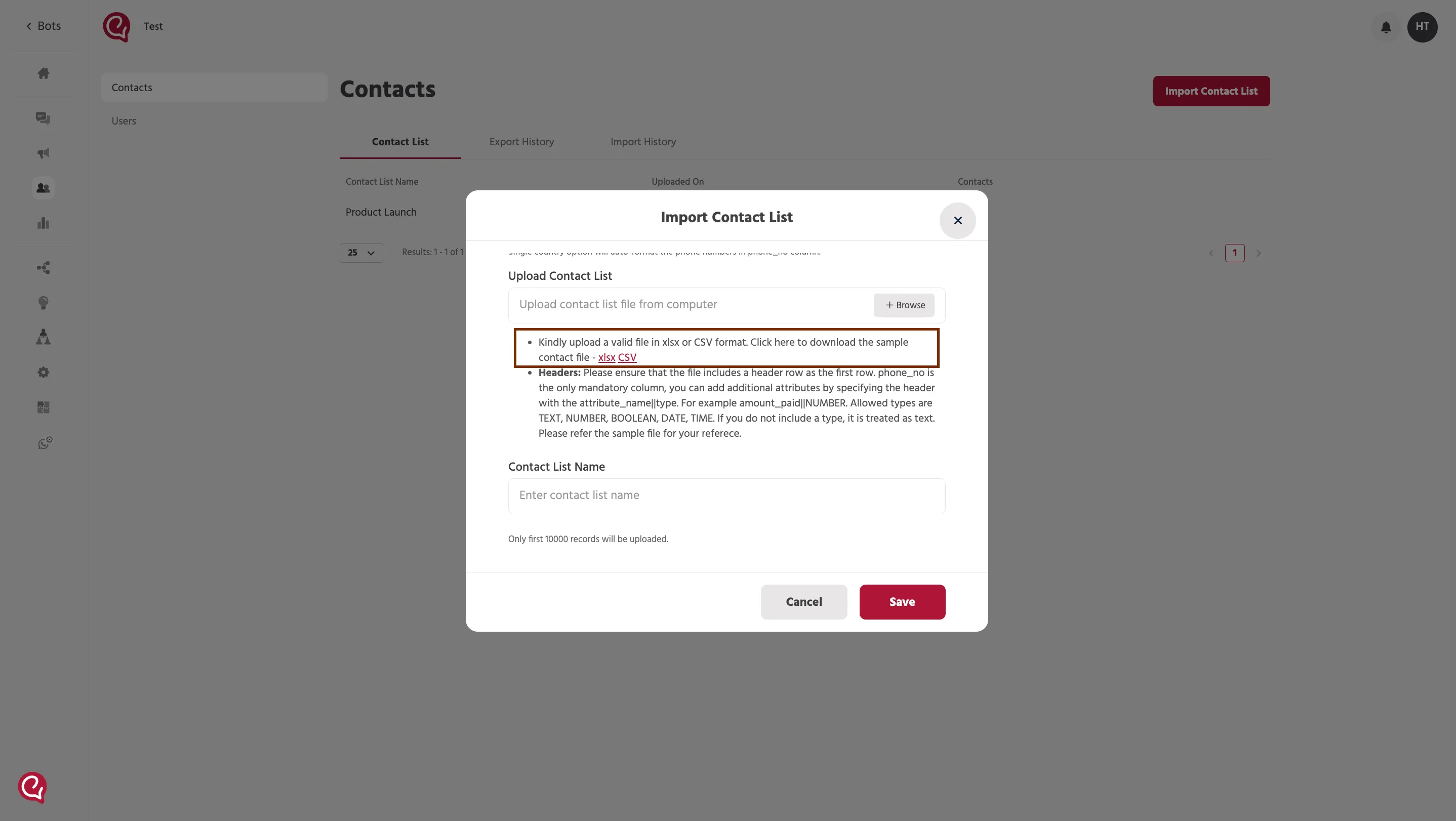

Column Headers
The first column header in the CSV file must be "phone_no," as a phone number is mandatory for WhatsApp as the broadcast channel.
Beyond the phone number column, there will be additional column headers for any attributes or placeholders used in the template message. These columns will follow the format "user.attribute_N," where N starts from 0 and increments for each subsequent attribute (e.g., user.attribute_0, user.attribute_1, and so on).
Phone Number
To ensure that the phone number is in the correct format, it is necessary to include the country code preceding the phone number itself.
This standardized formatting is crucial for the successful delivery of the broadcast messages.
Contact List URL Support
You can now provide a publicly accessible URL containing the contact list instead of uploading the CSV file directly.
Requirements:
- The URL must be publicly accessible
- The hosted file must follow the supported CSV structure
- Column names and formatting should remain unchanged
This enables dynamic hosting and external management of broadcast contact lists.
Response Codes
When using the external broadcast API, it's important to be aware of the various response codes that may be returned. Some common response codes include:
- 1000, "SUCCESS": Indicates that the API call was successful.
- 2000, "FAILURE": An unhandled error occurred during the process.
- 2003, "BOT_NOT_FOUND": The provided botkey does not match any Engati bot.
- 2004, "API_KEY_NOT_FOUND": The 360dialog configuration is not set up correctly.
- 2005, "INVALID_FILE_FORMAT": The uploaded file is not in the expected CSV format.
- 2006, "FILE_UPLOAD_FAILED": There was an error during the CSV file upload, or the file size exceeds the allowed limit.
By adhering to the CSV file structure guidelines, including the correct column headers, phone number formatting, and attribute columns, you can effectively leverage the external broadcast API to send personalized messages to your target audience.
Understanding the potential response codes can also aid in troubleshooting and ensuring a smooth broadcast experience.
If you face any issues or queries please reach out to us at [email protected]