2. Voice agent Deployment
3 min
After creating the Voice Agent, the next step is to deploy the agent so it can be used for voice interactions. Once the agent is deployed, you can proceed to the deployment configuration page and test it using the WhatsApp Sandbox.
Follow the steps below to deploy and test the agent.
Step 1: Deploy the Agent
- Go to Build under the Agents section.
- Locate the voice agent you created.
- Click the three-dot menu (⋮) on the agent card.
- Select Deploy.
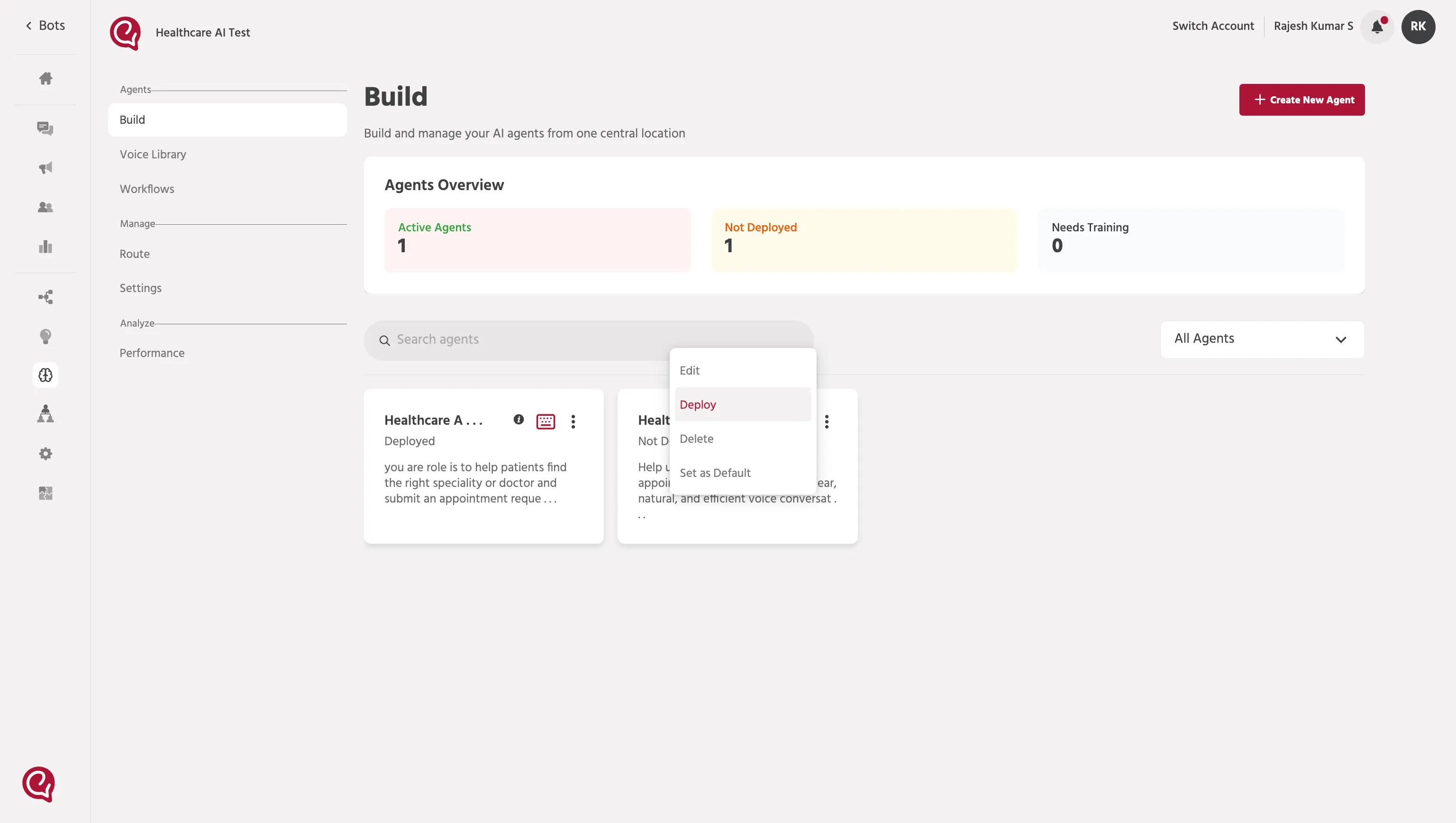
Once deployed, the voice agent will become active.
Step 2: Configure Deployment for Testing
After deploying the agent:
- Go to the Configure page.
- Under the Deployment section, click the WhatsApp channel.
- Enable Use Sandbox.
- Add your number in the Add users to Sandbox field.
- Click Invite phone number.
- Click Save changes.
Step 3: Test the Agent
After saving the deployment configuration:
- Open your WhatsApp.
- Make sure your number has been added for testing. You will receive an invite.
- Click Get Started.
- Click the Call button on top right corner.
- Start the test call and verify the agent response.
If the setup is completed correctly:
- the sandbox number will be added for testing
- the test call will connect to the deployed voice agent
- the agent will respond based on its configured voice workflow